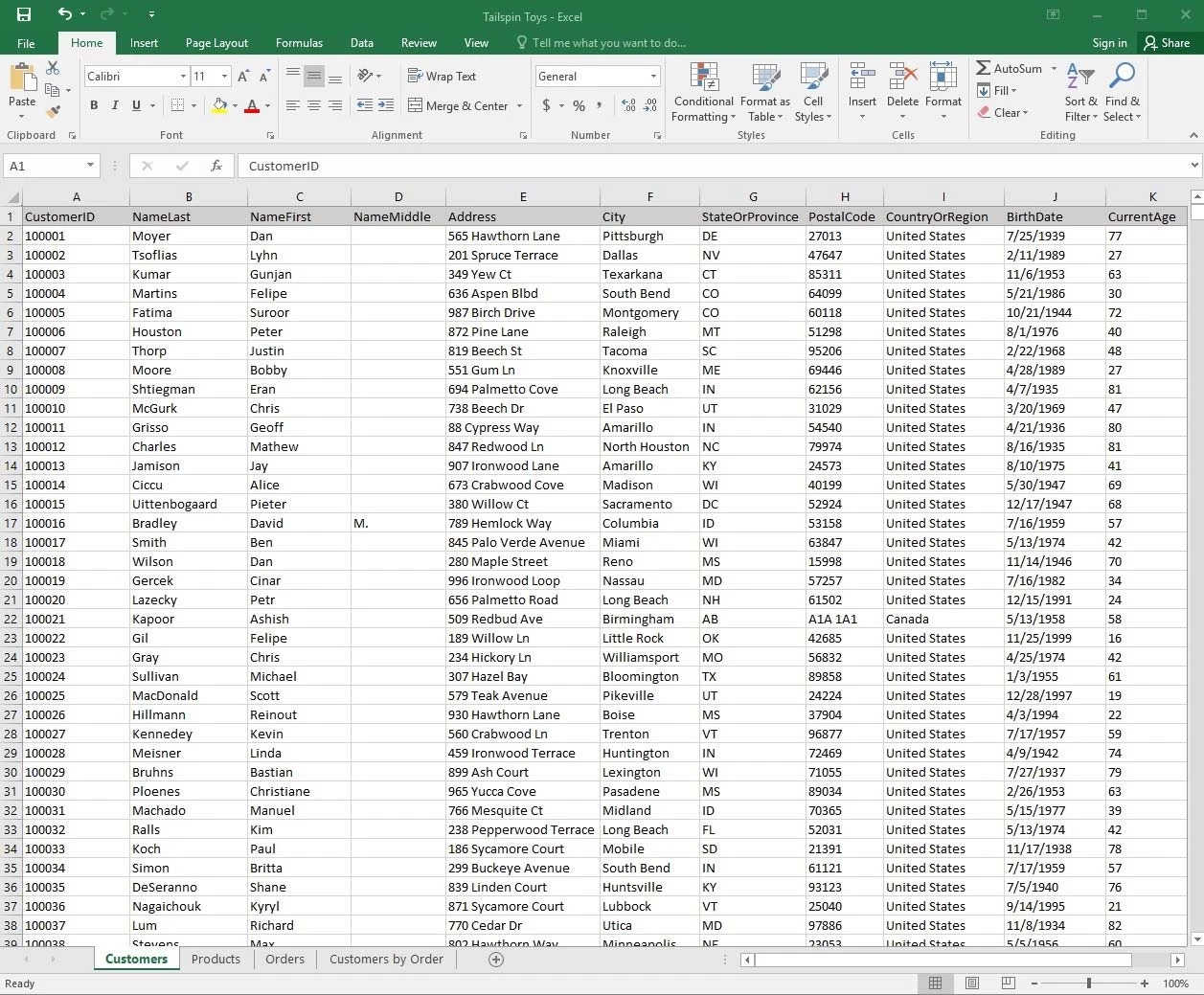
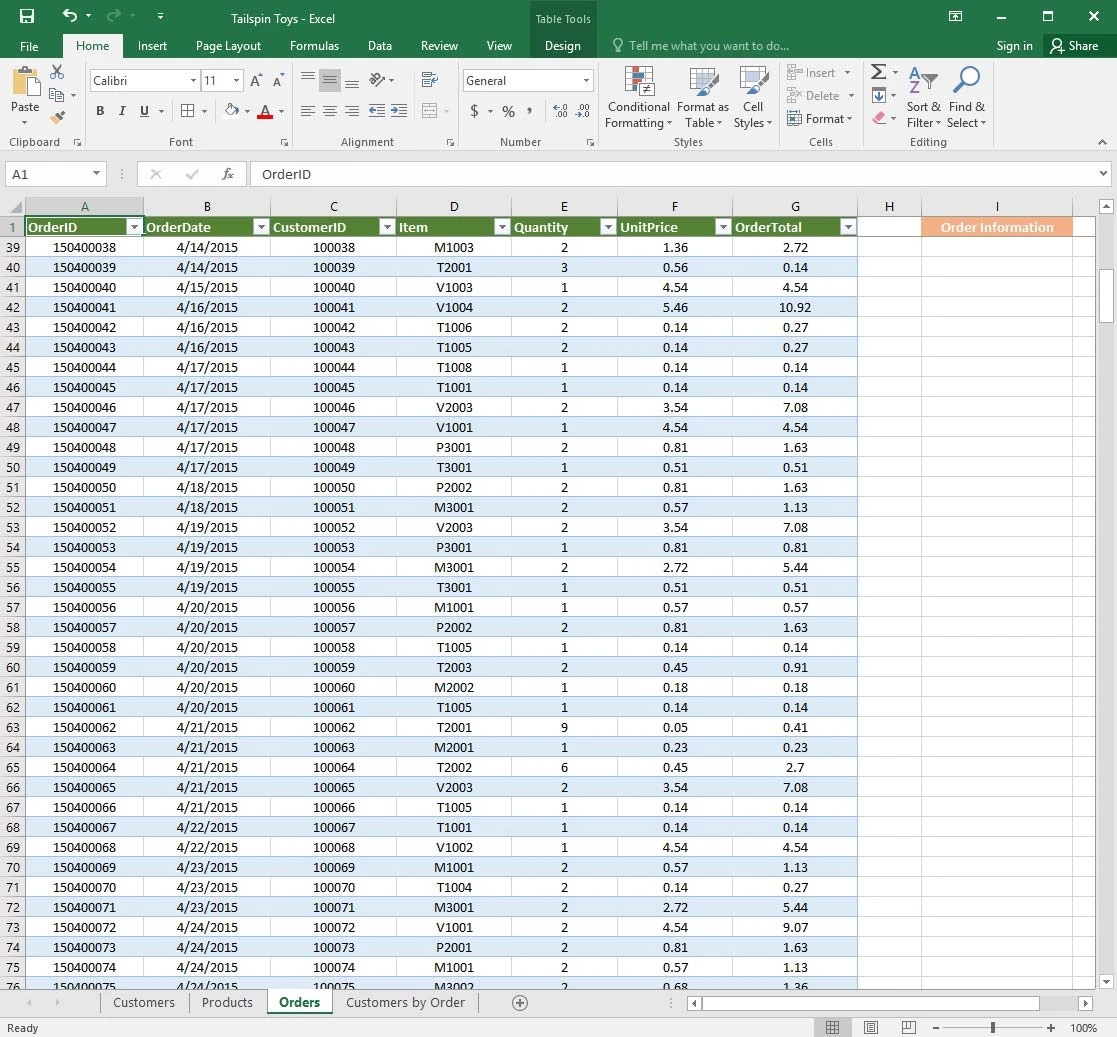
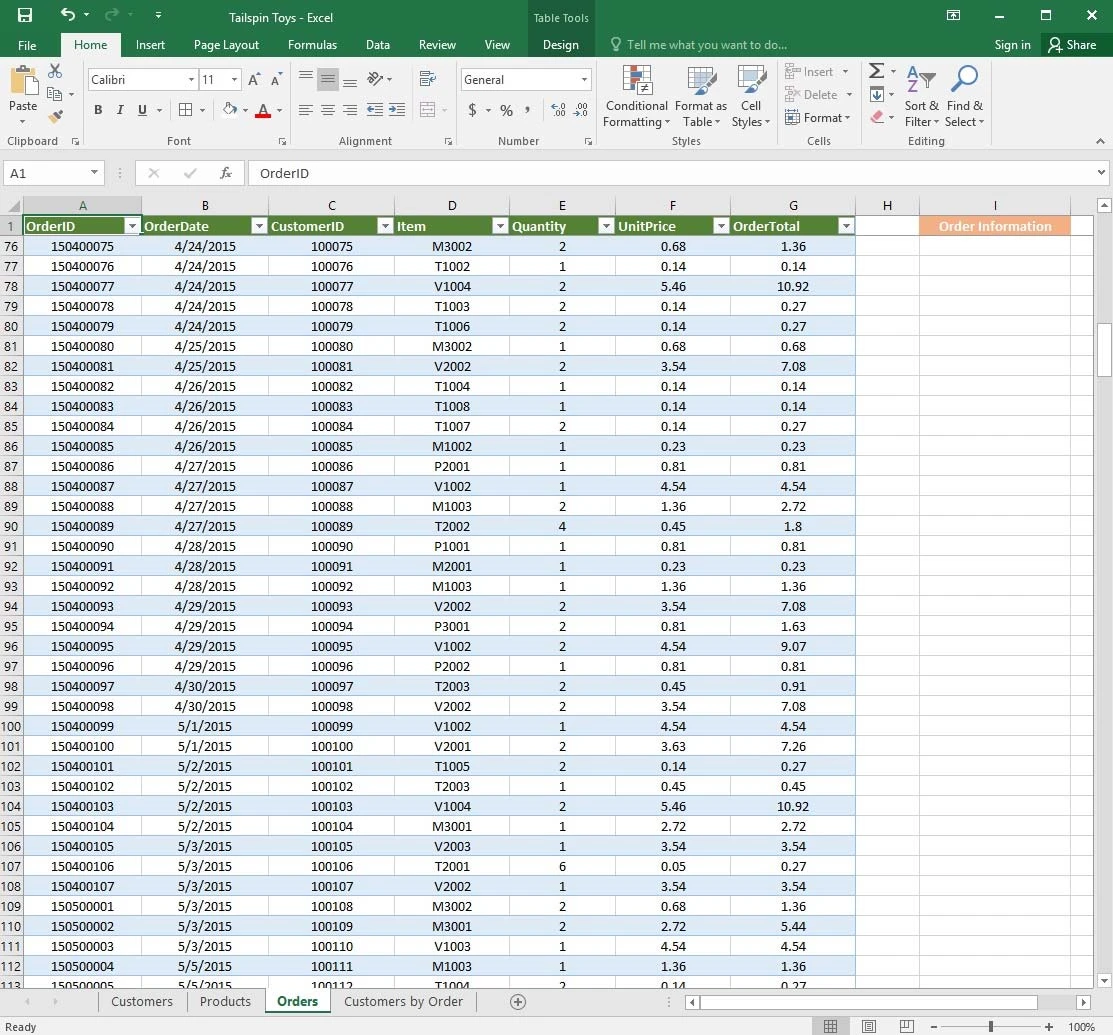
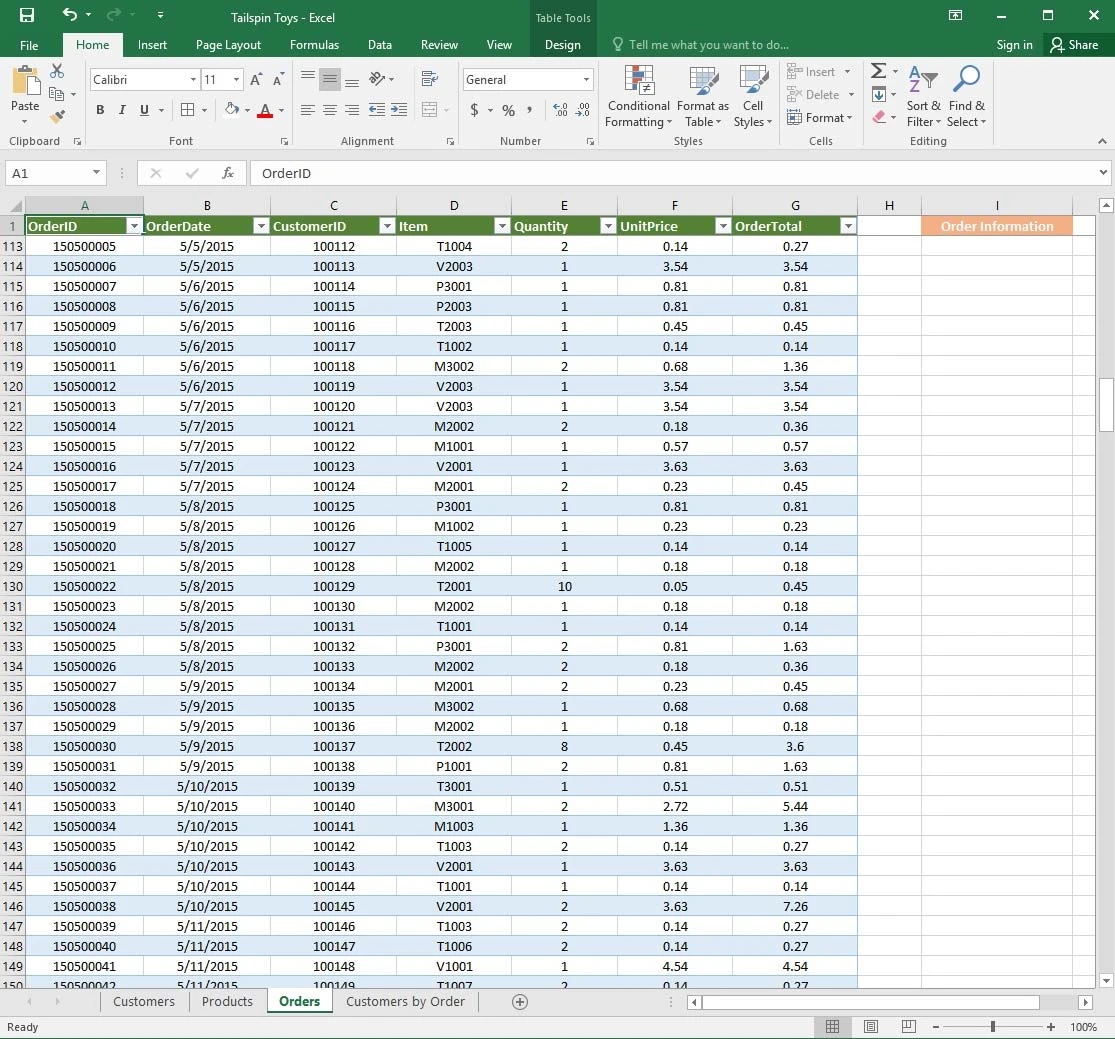
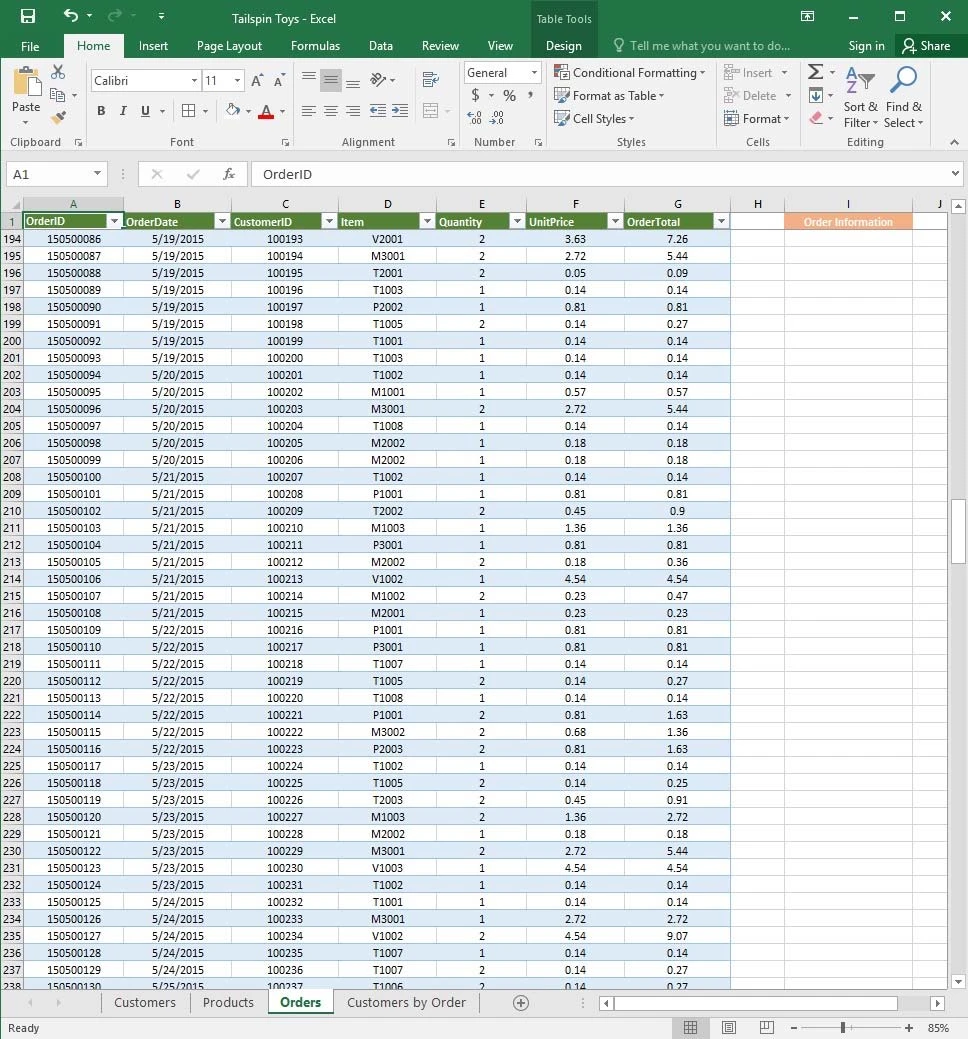
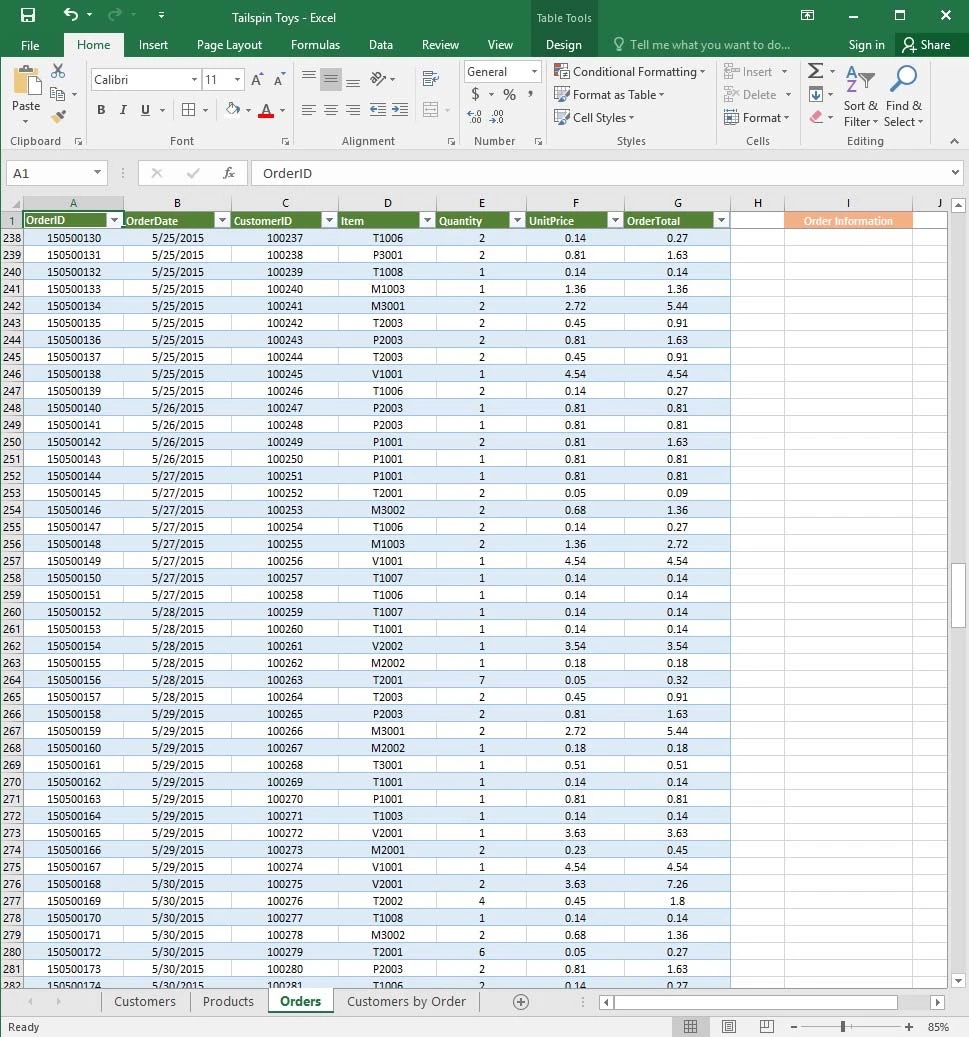
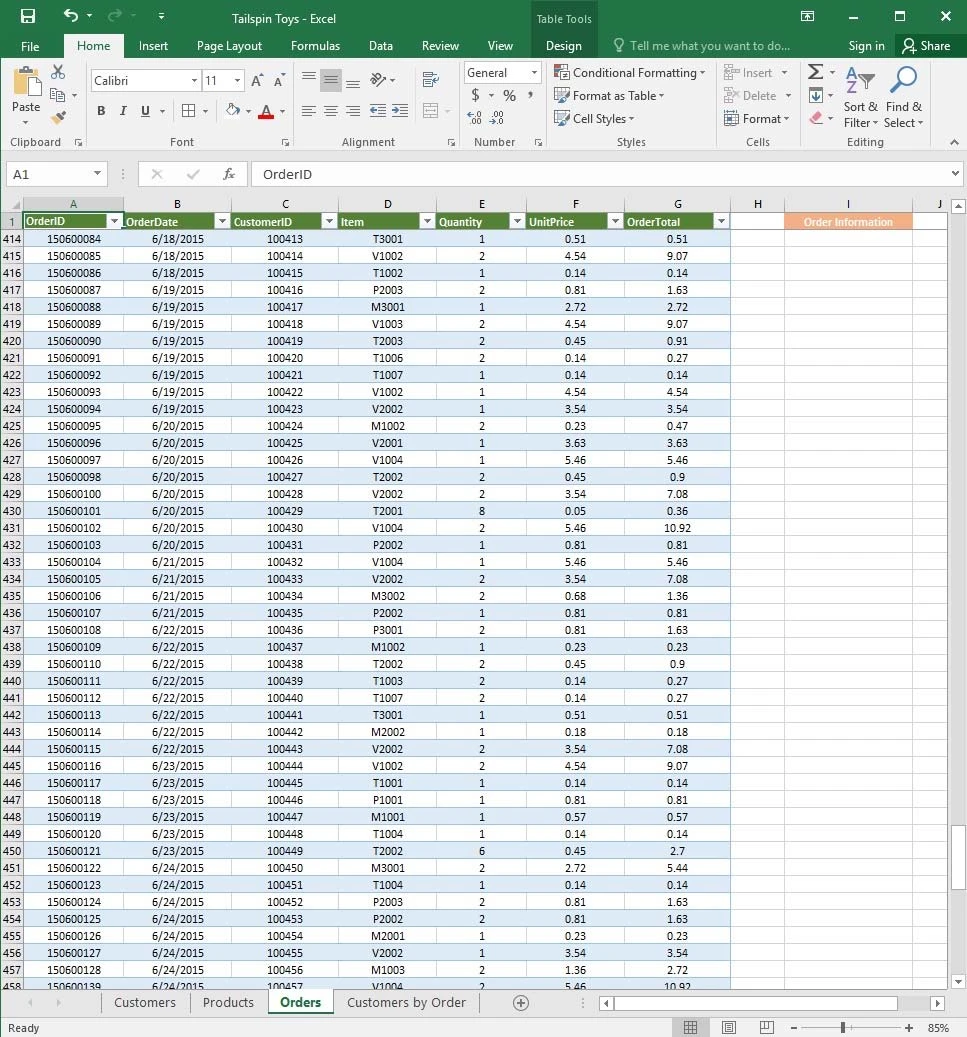
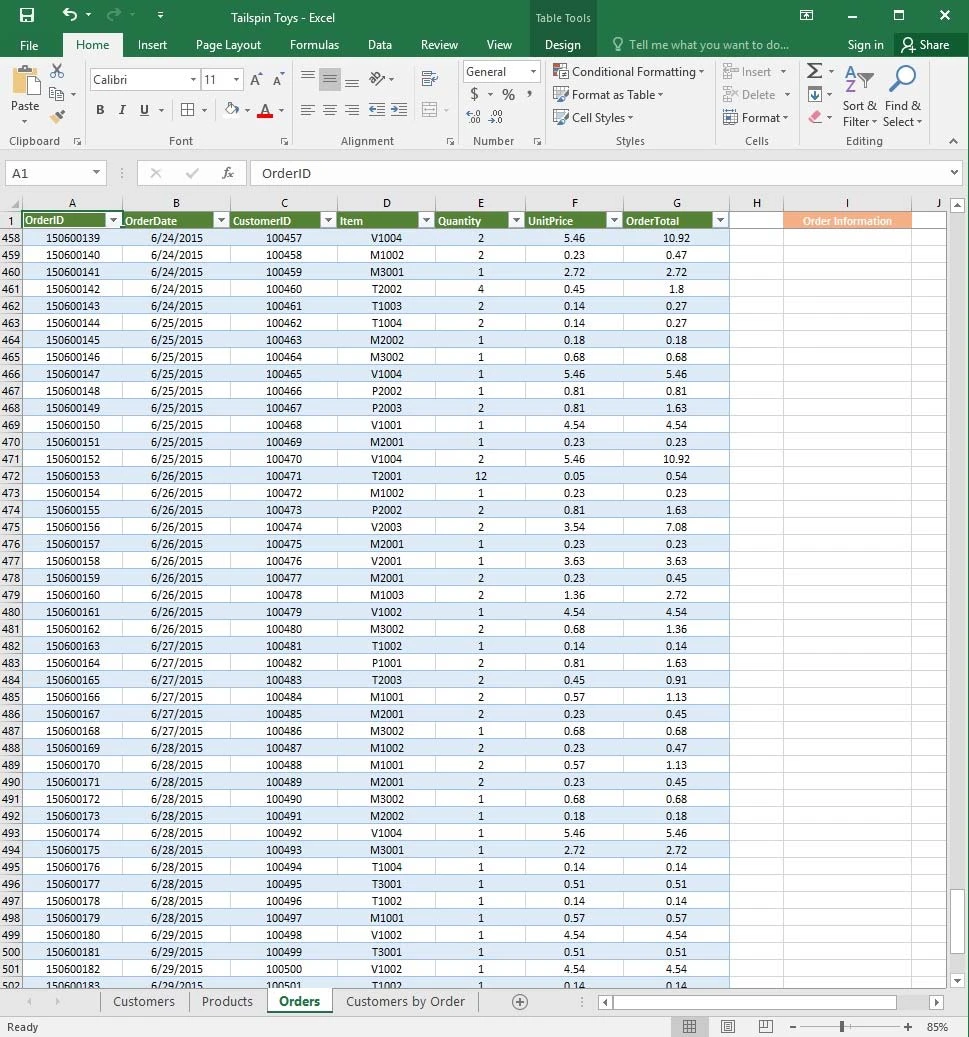
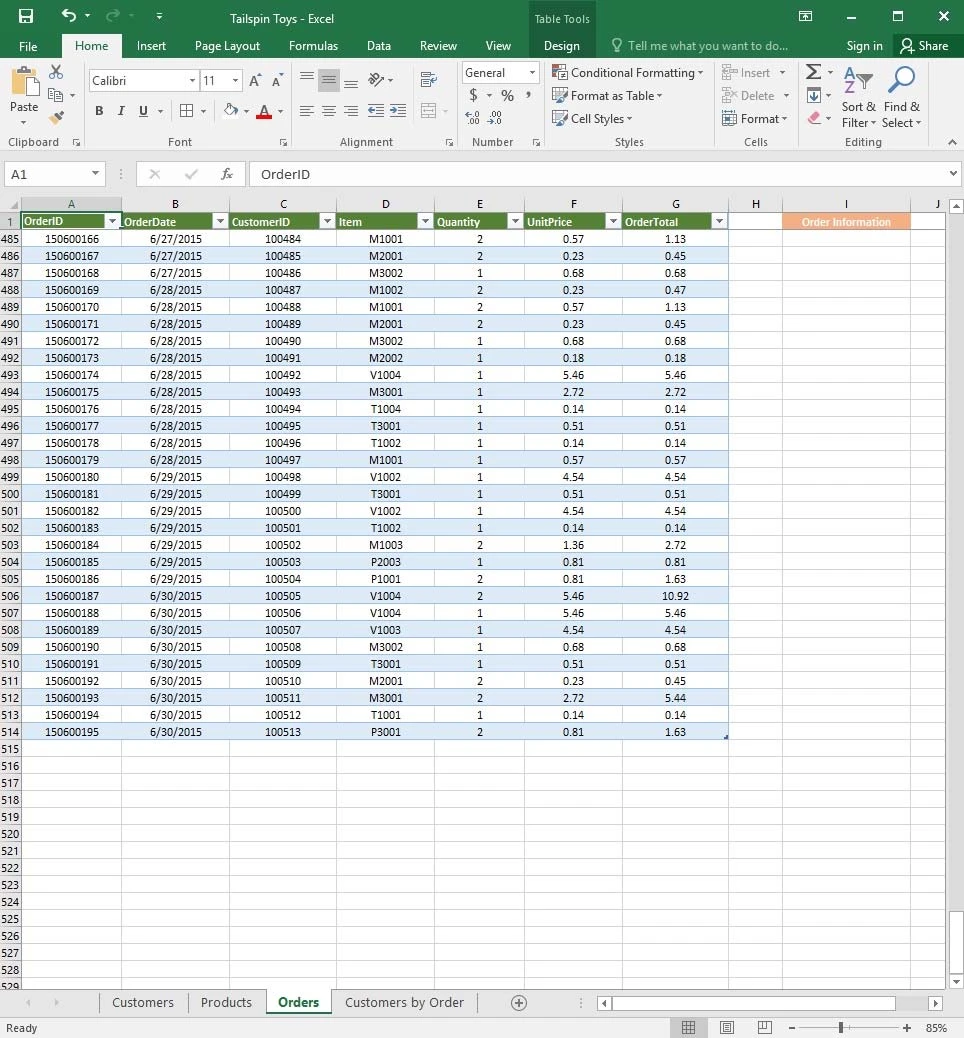
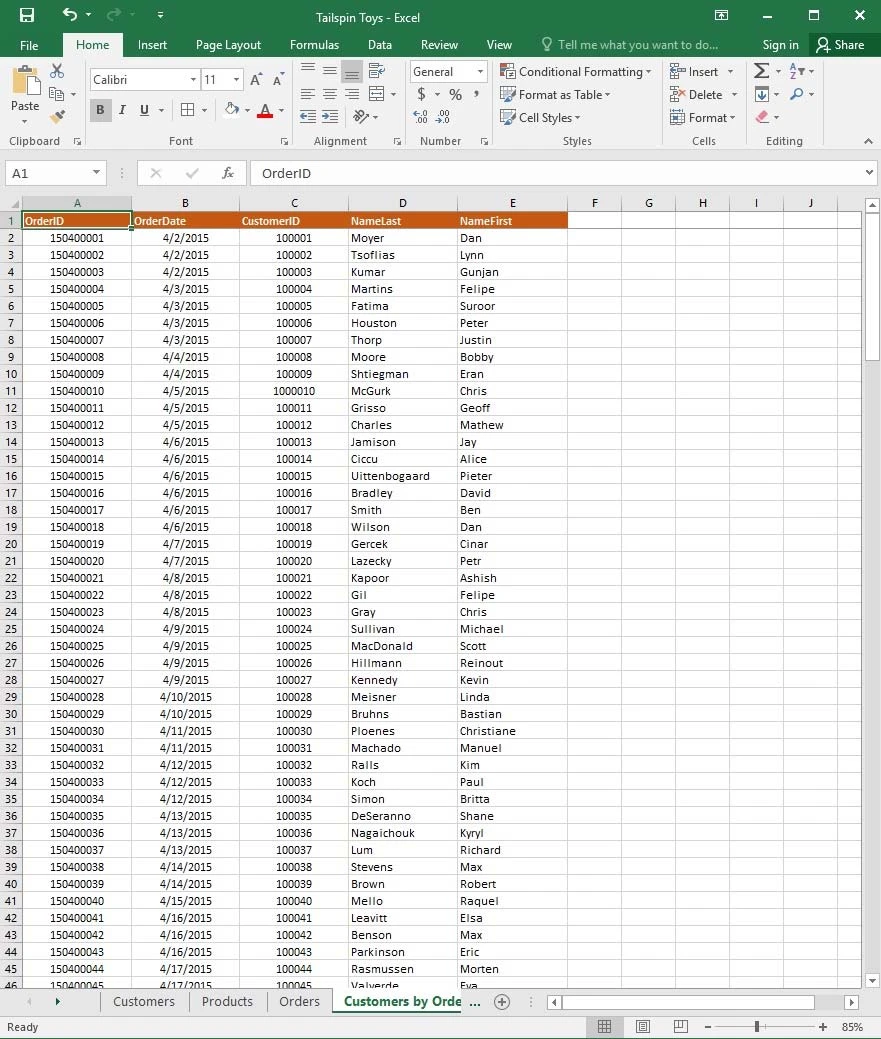
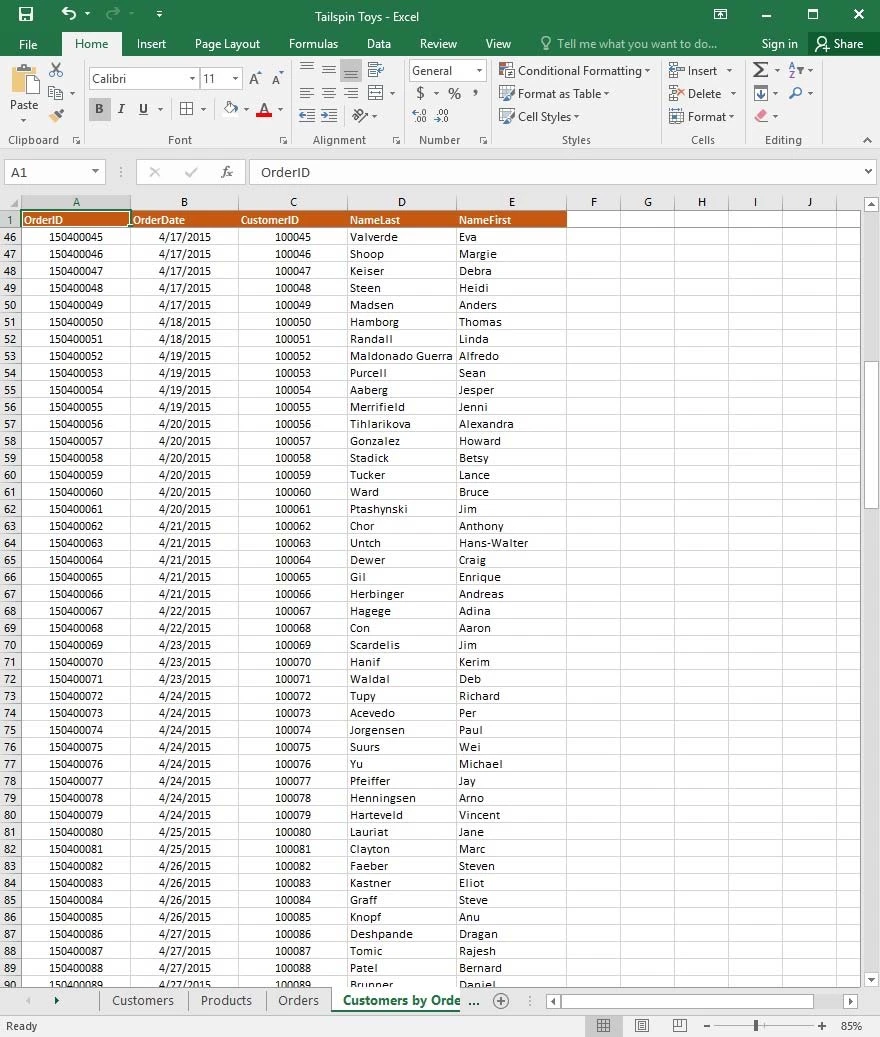
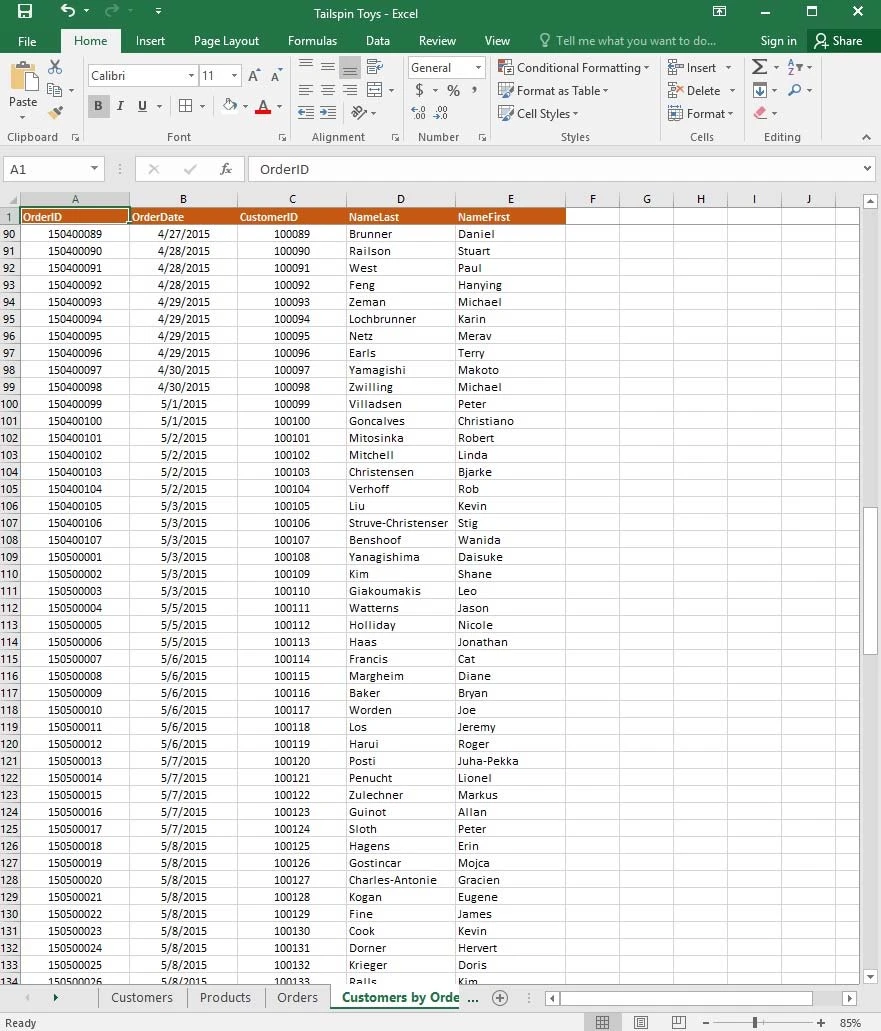
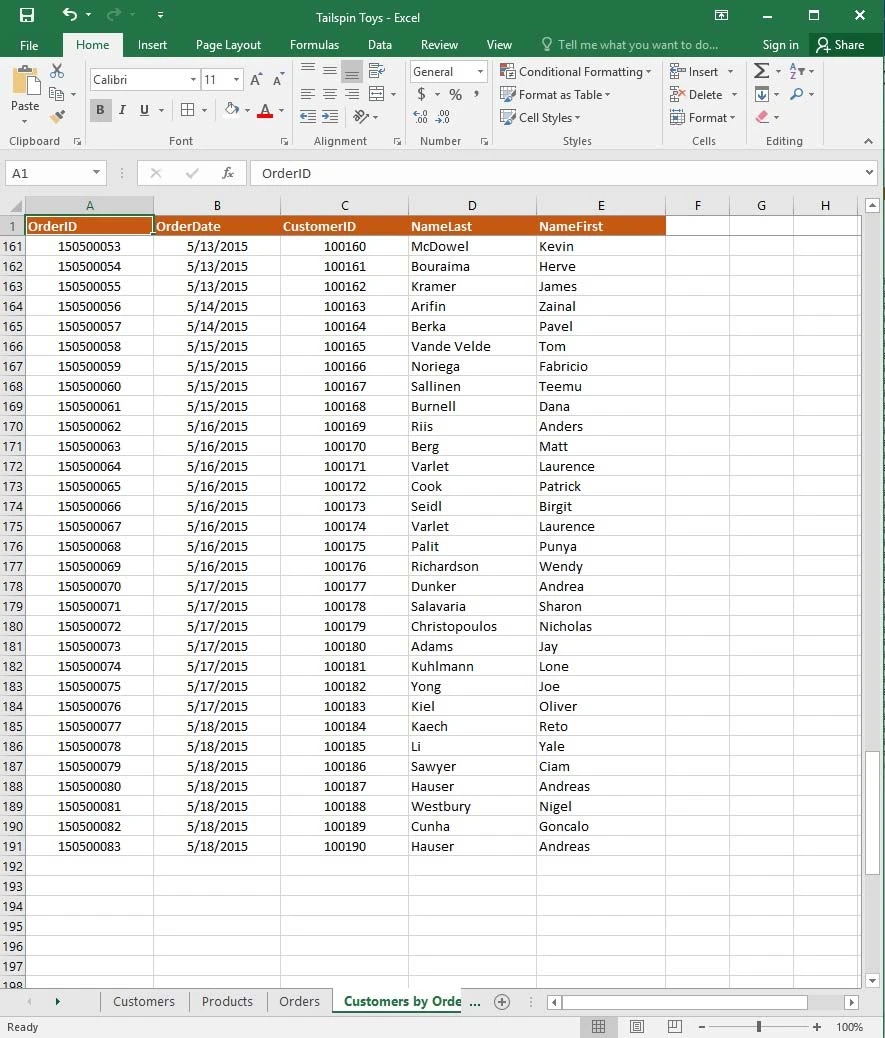
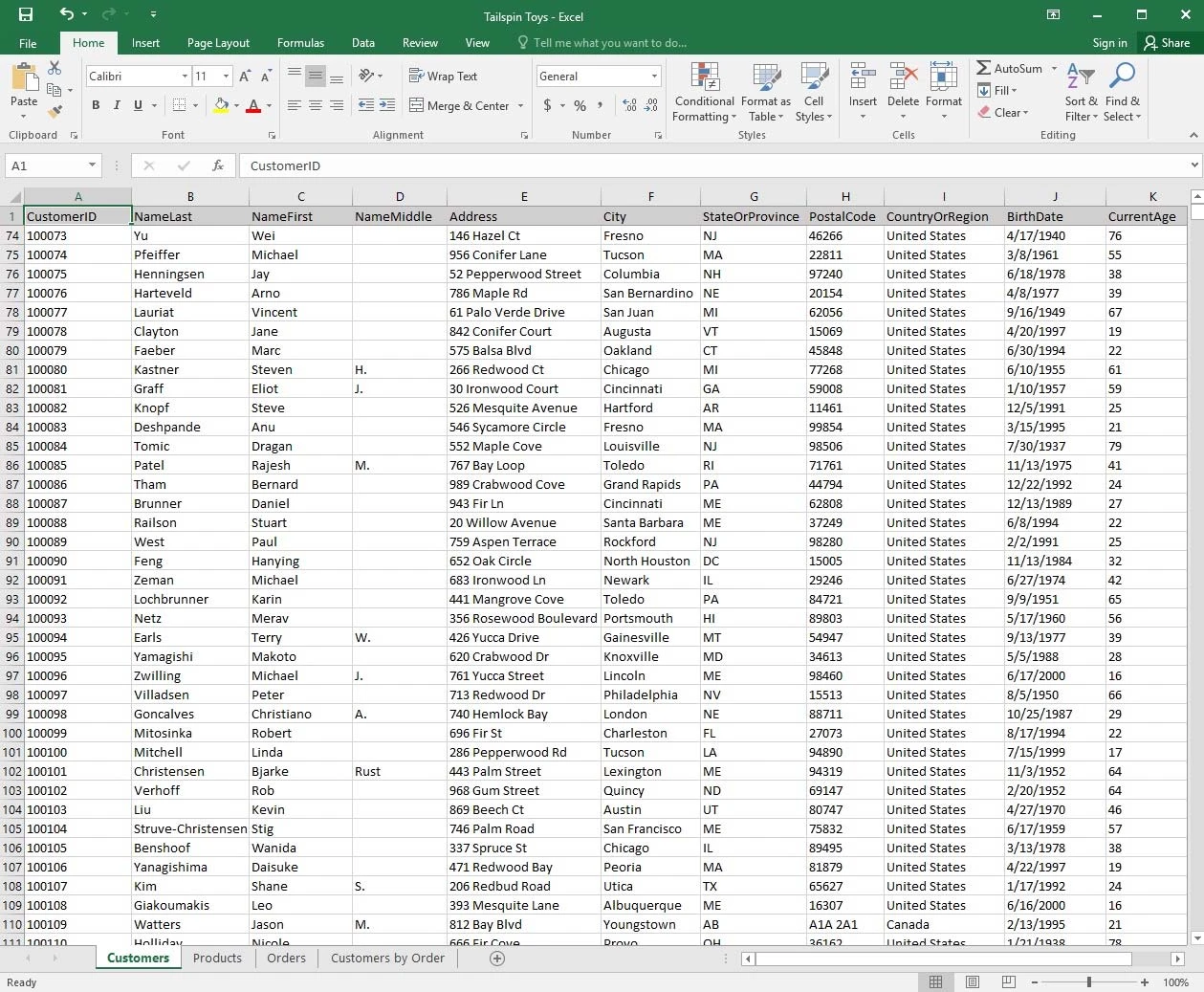
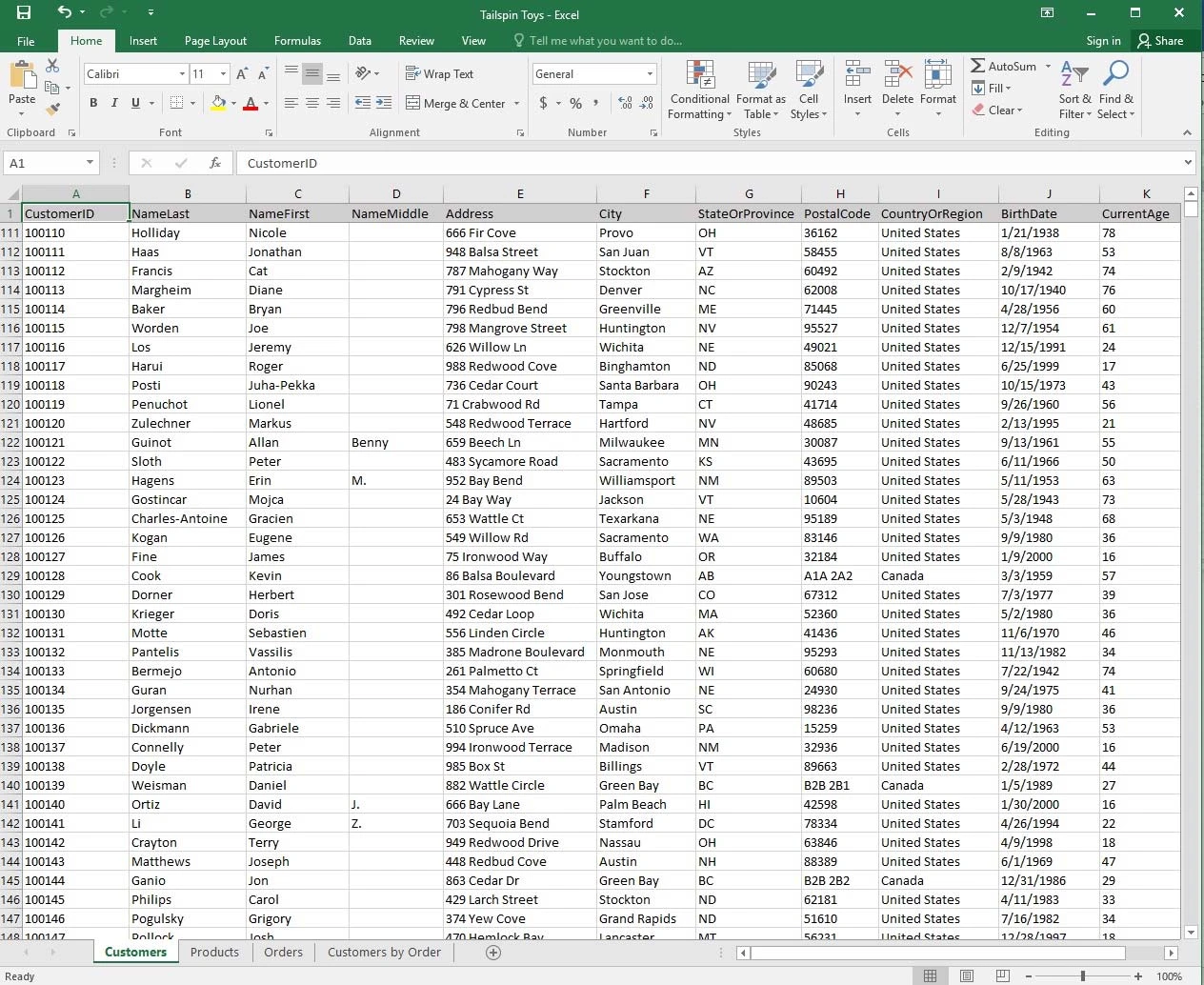
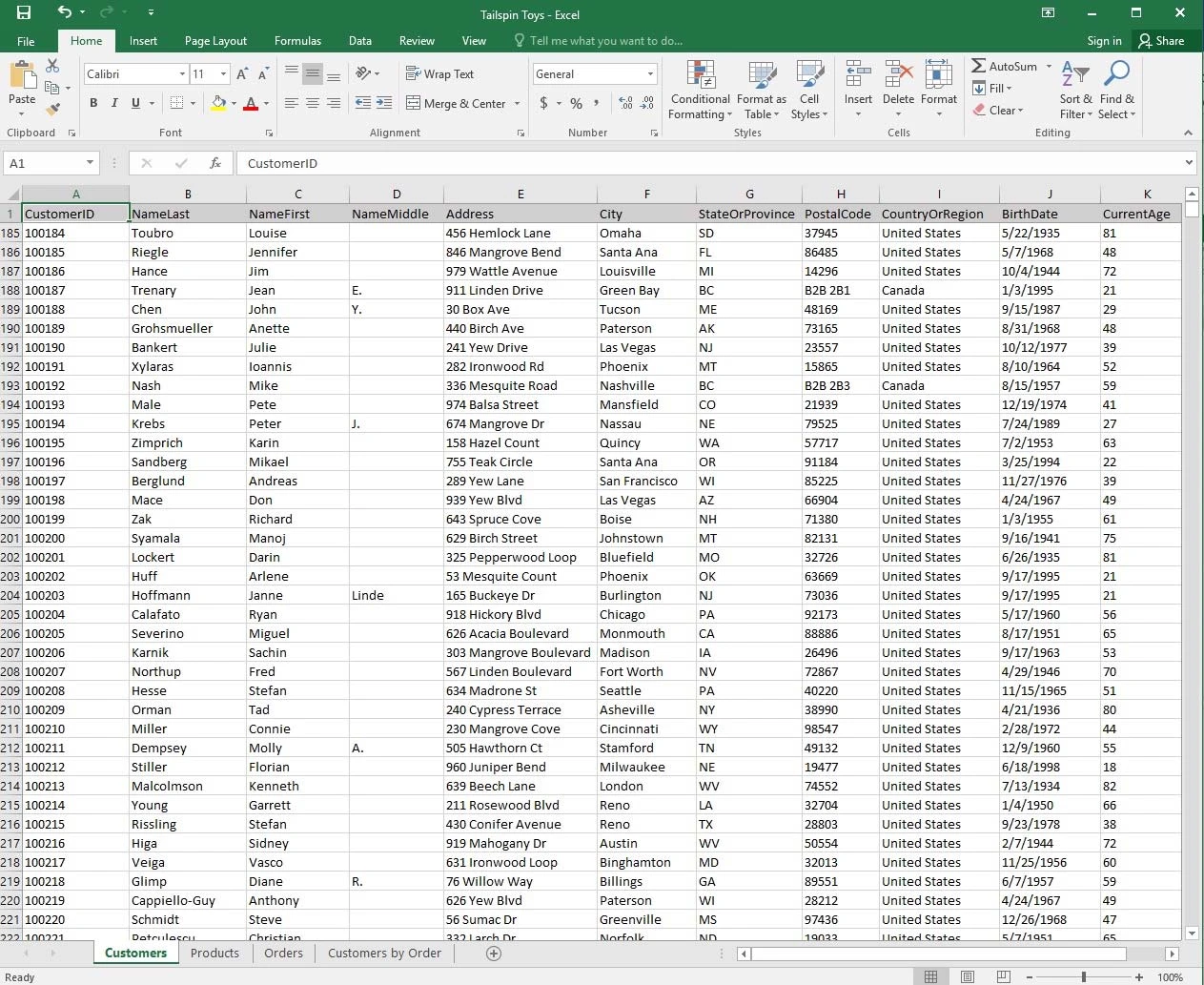
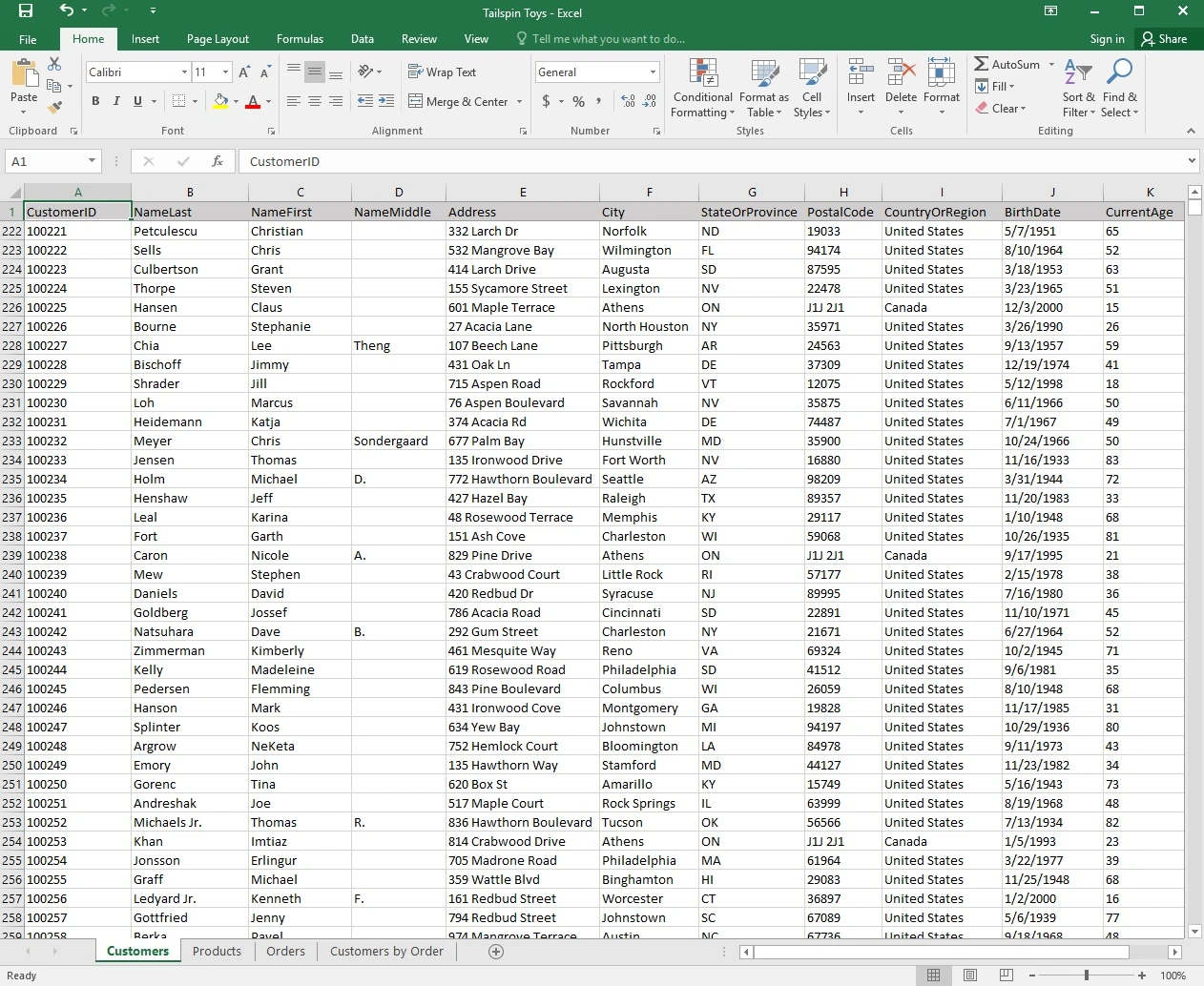
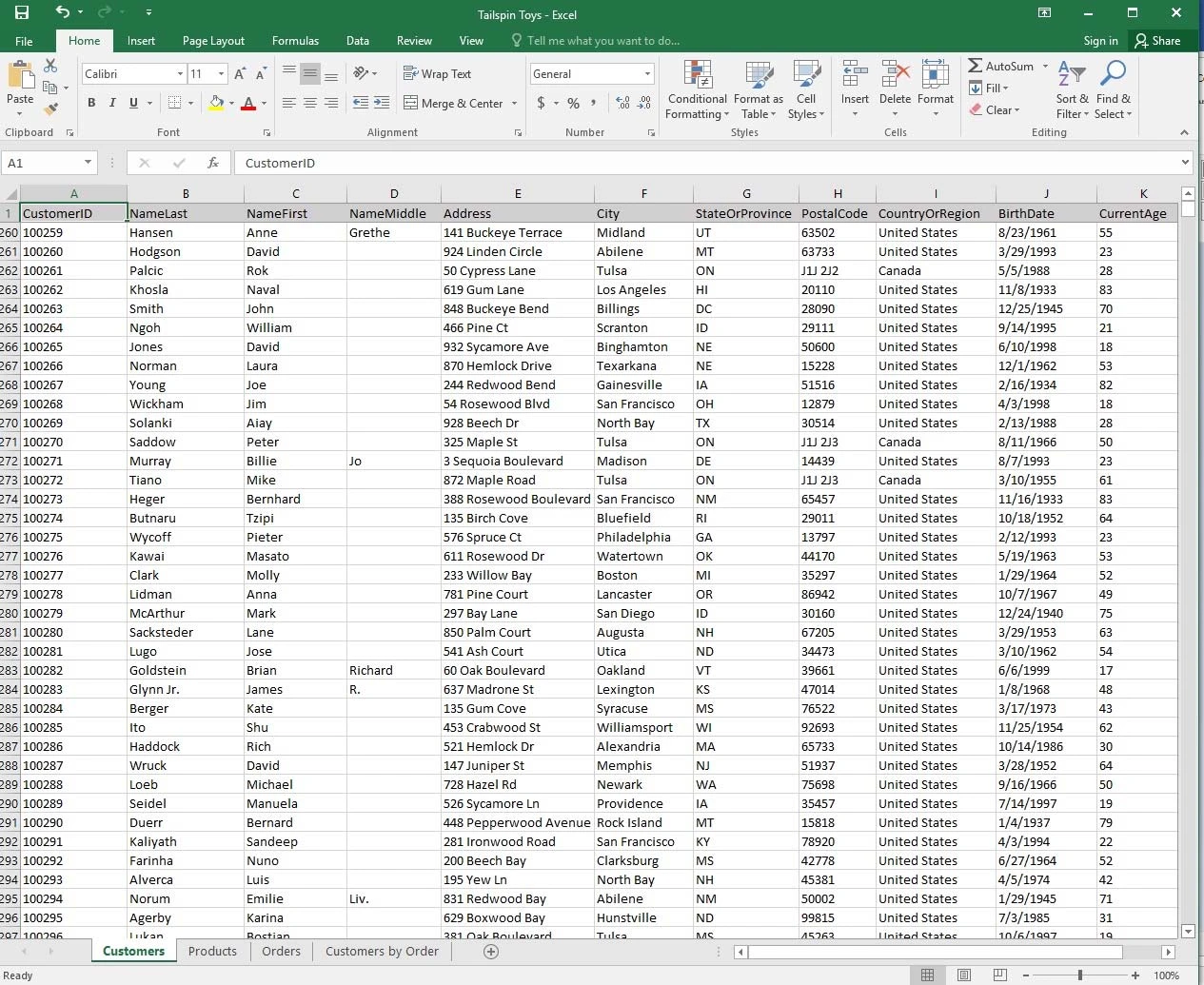
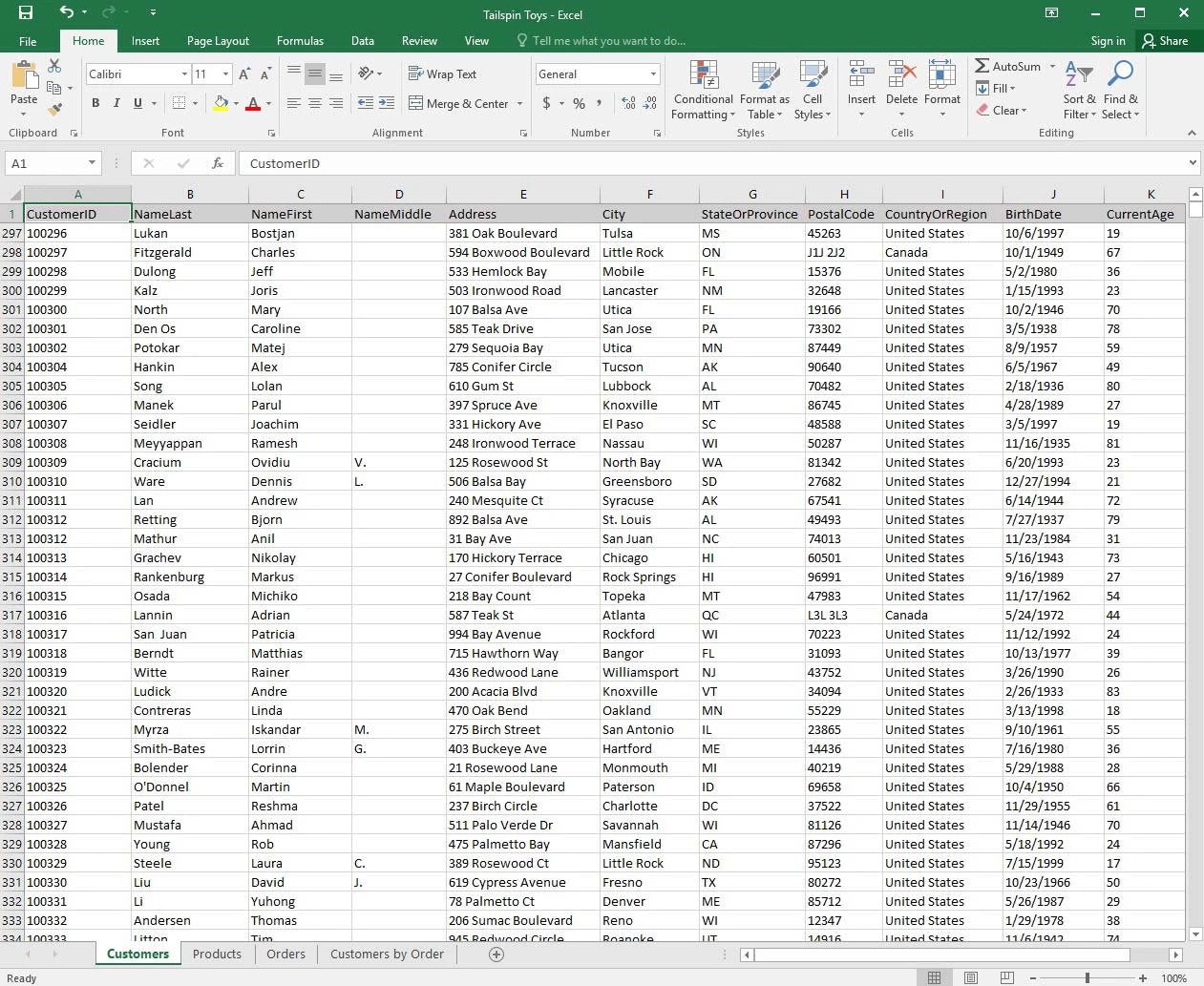
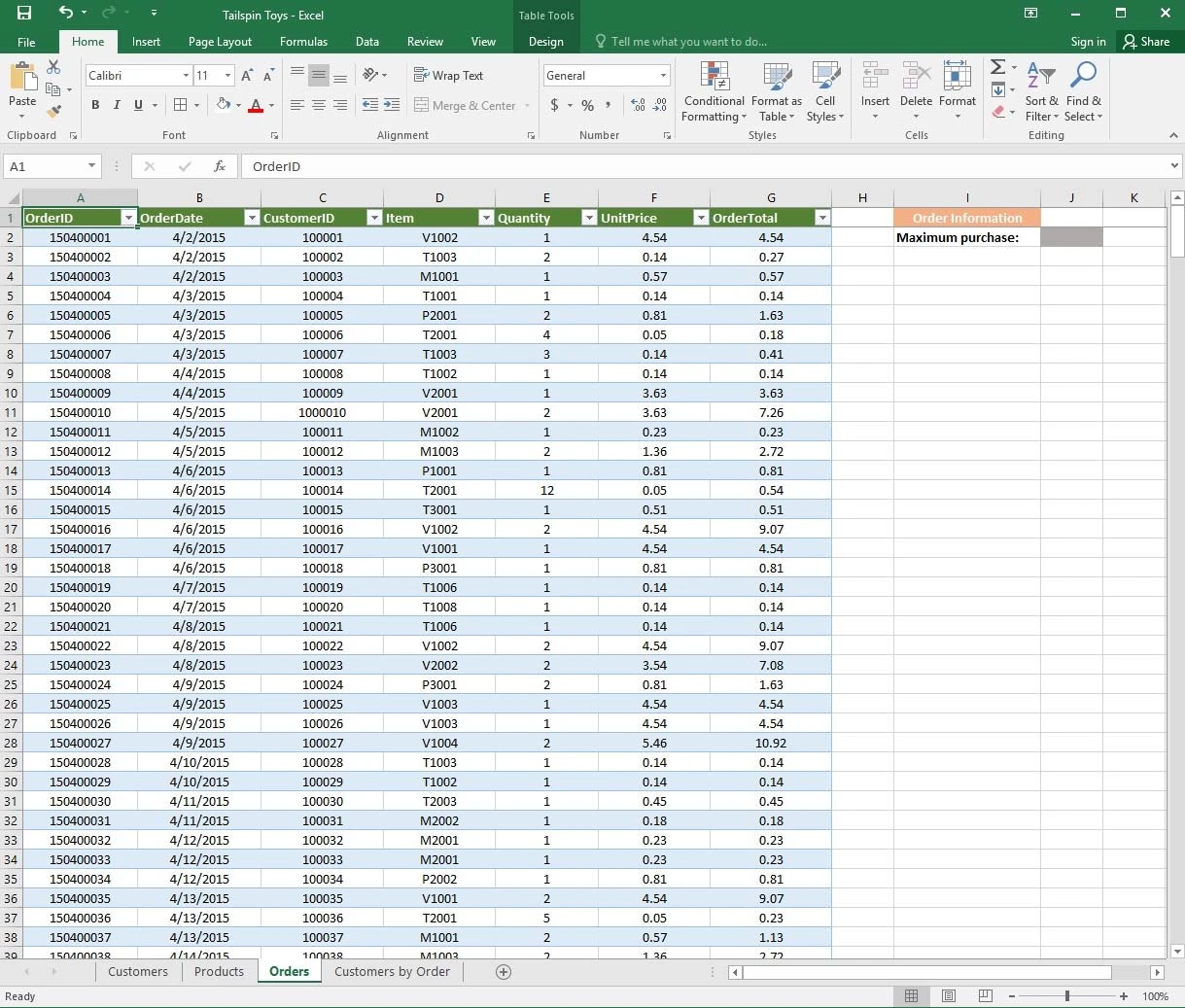
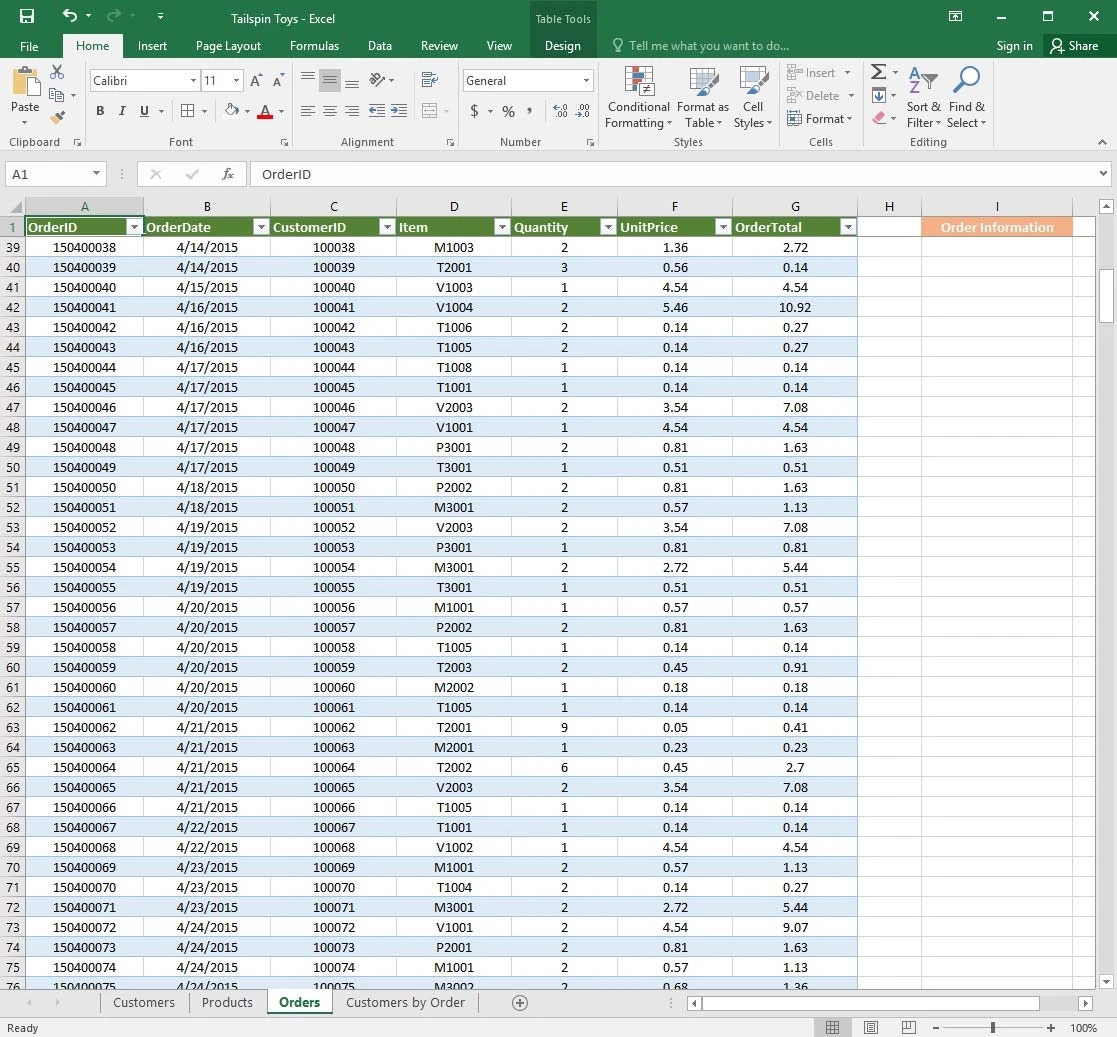
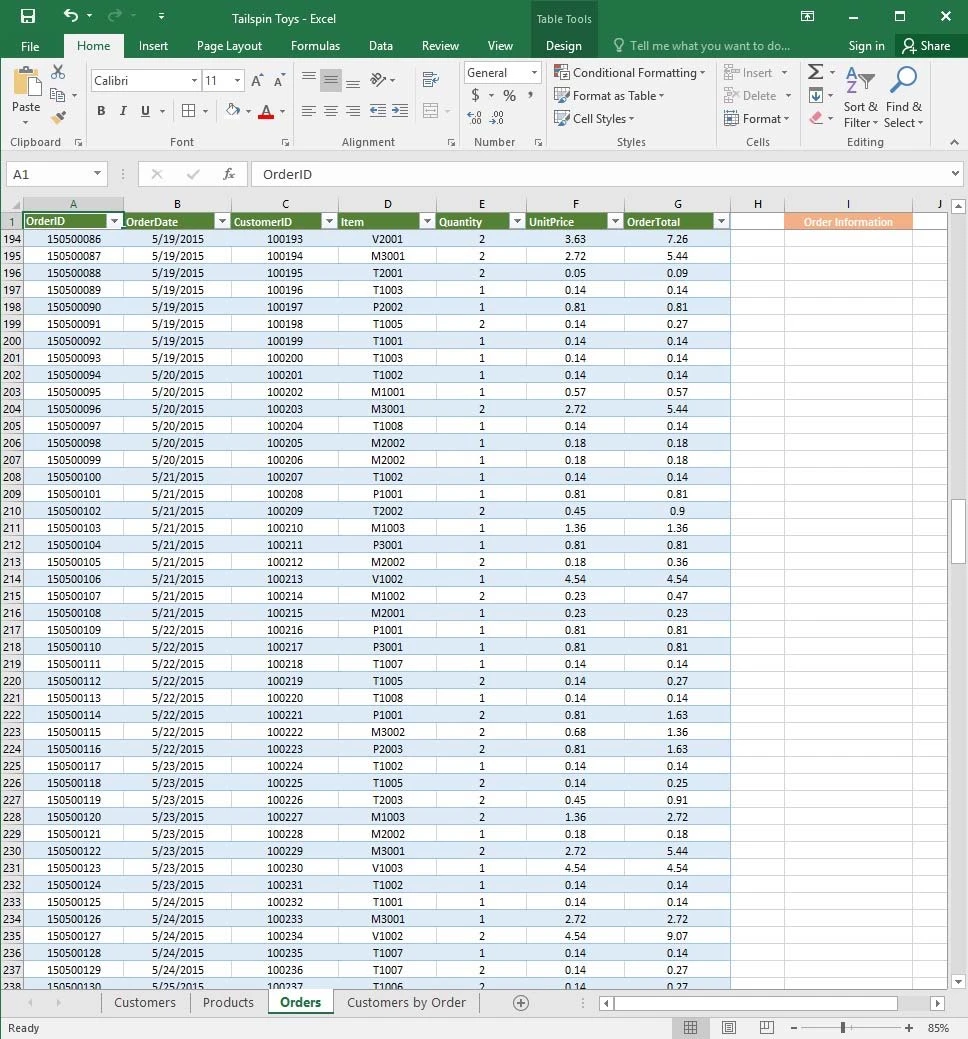
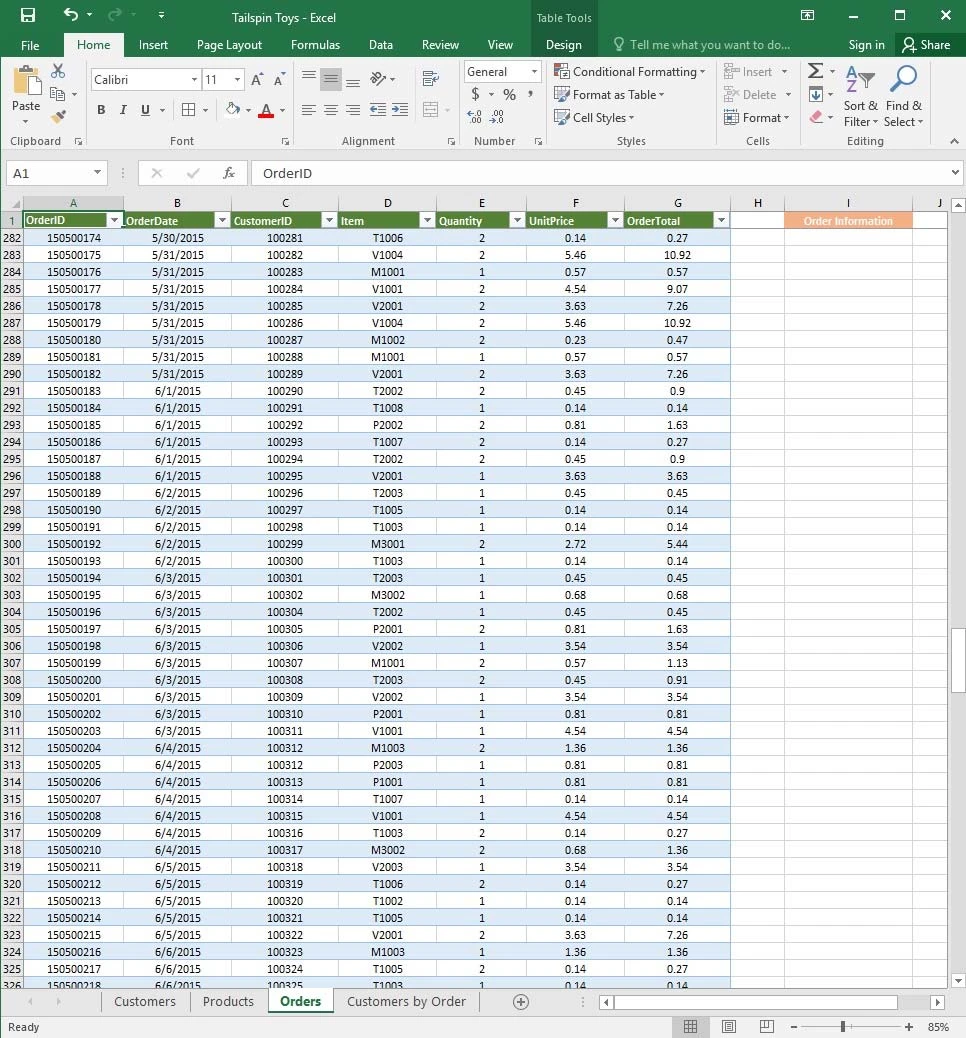
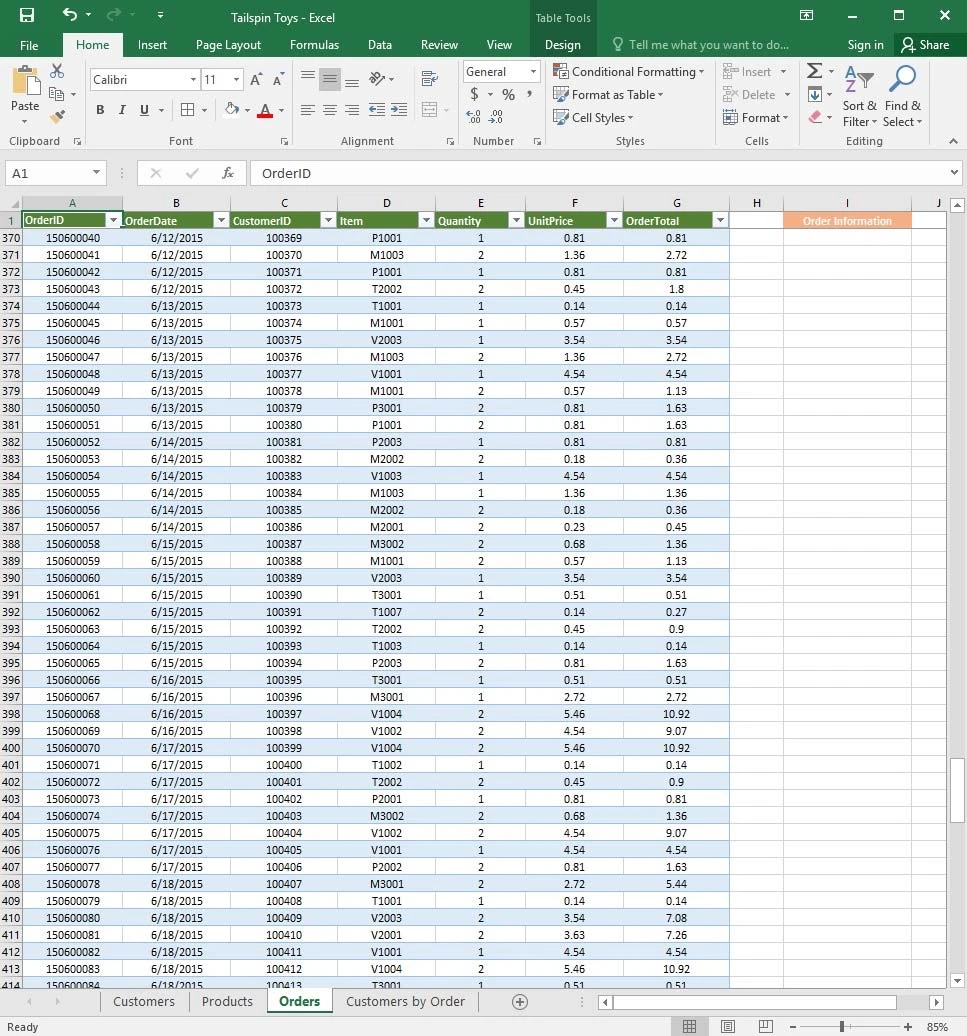
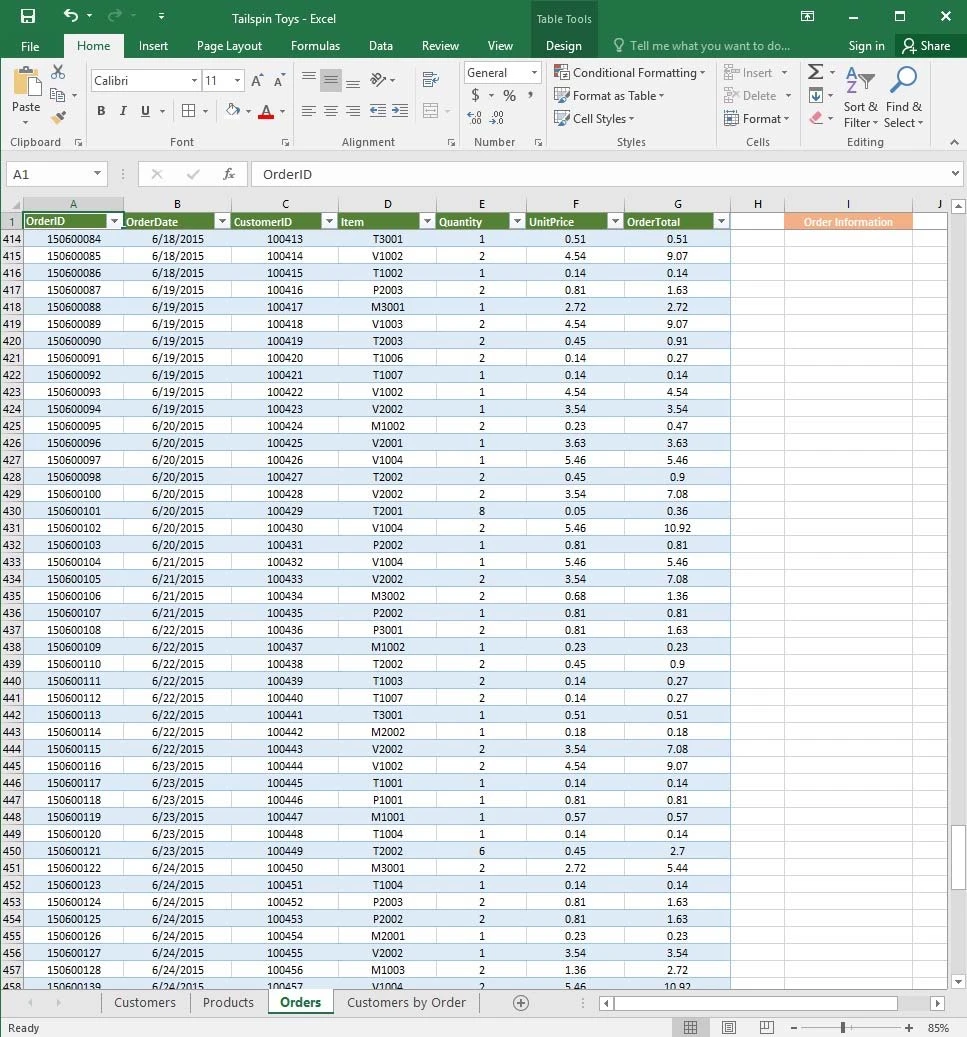
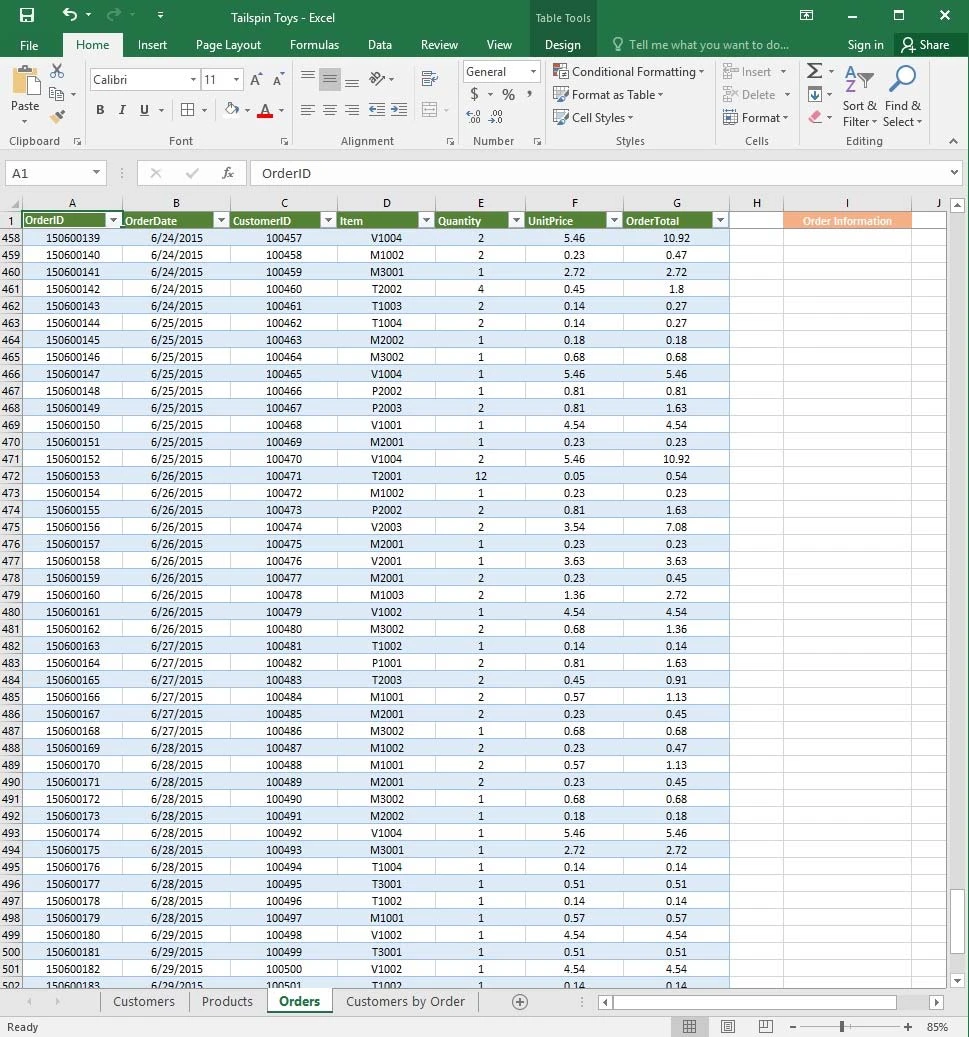
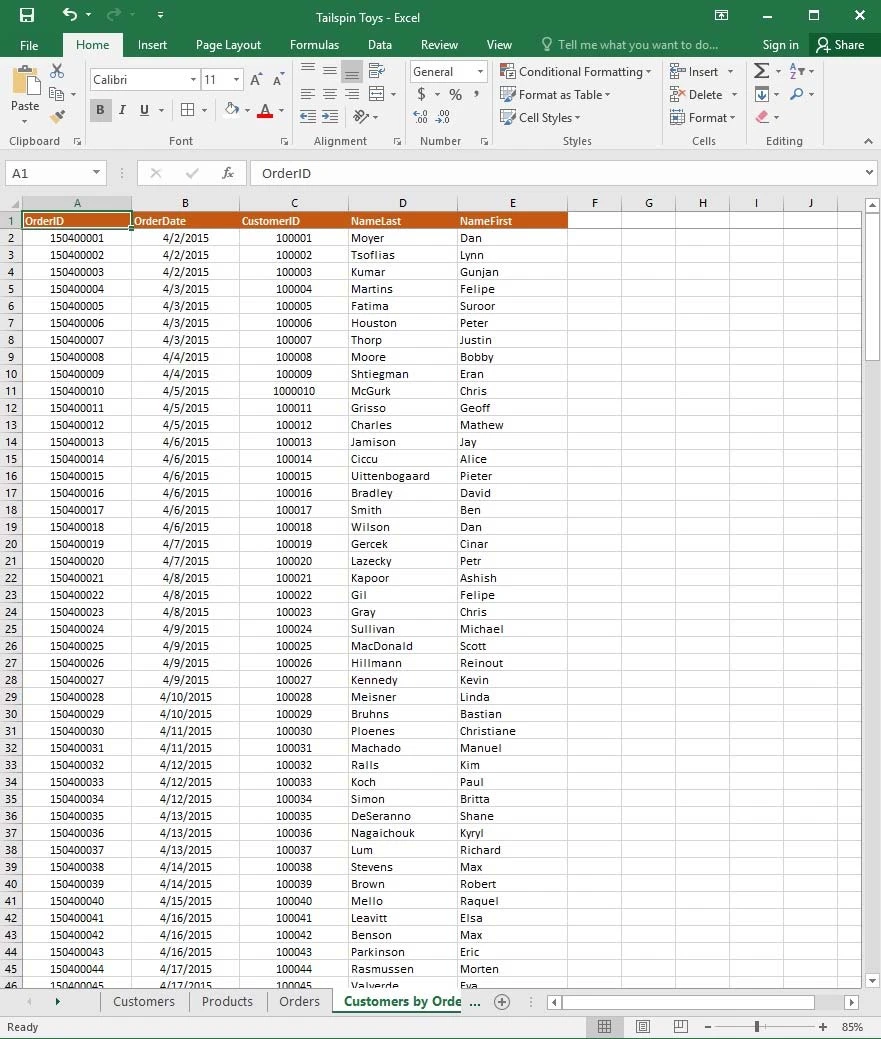
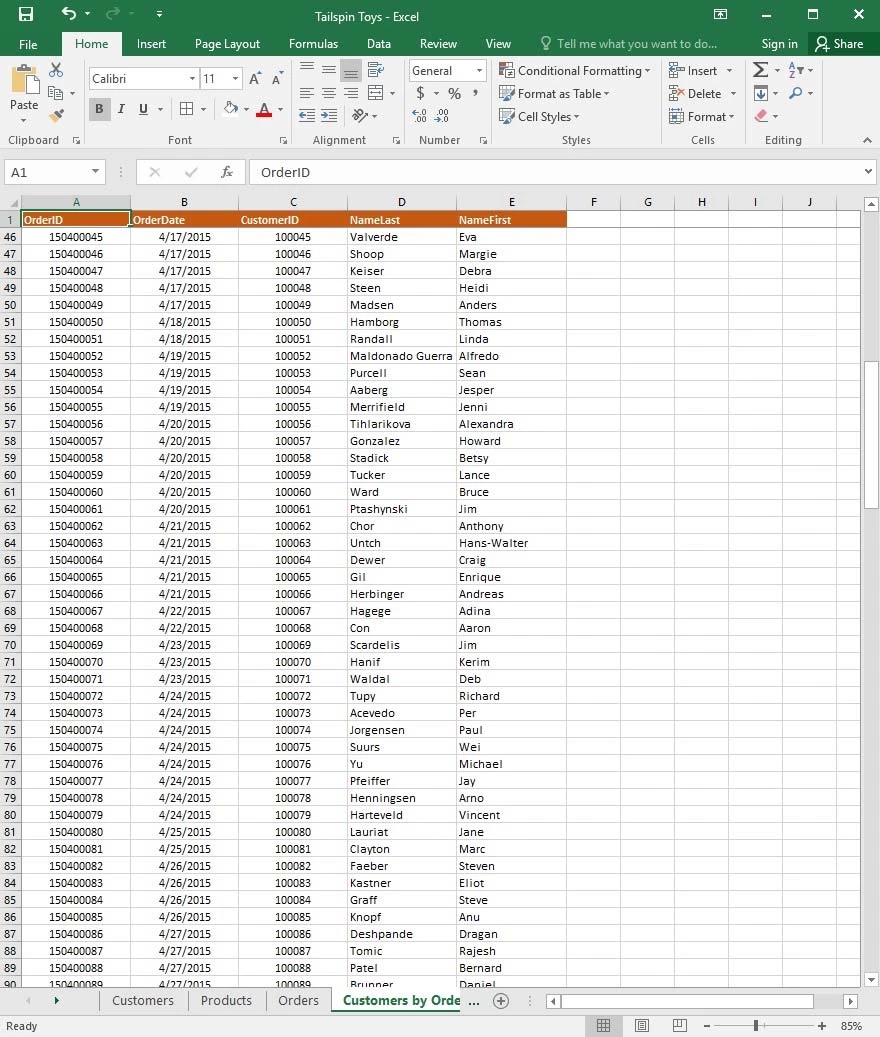
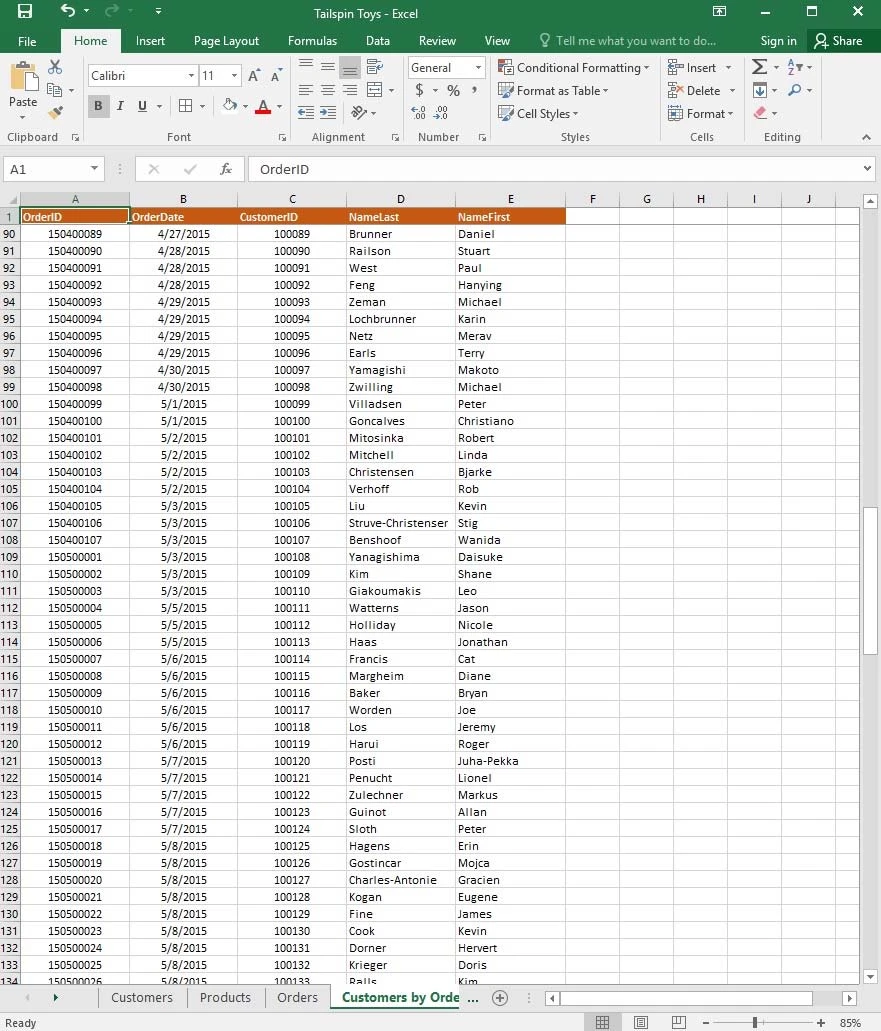
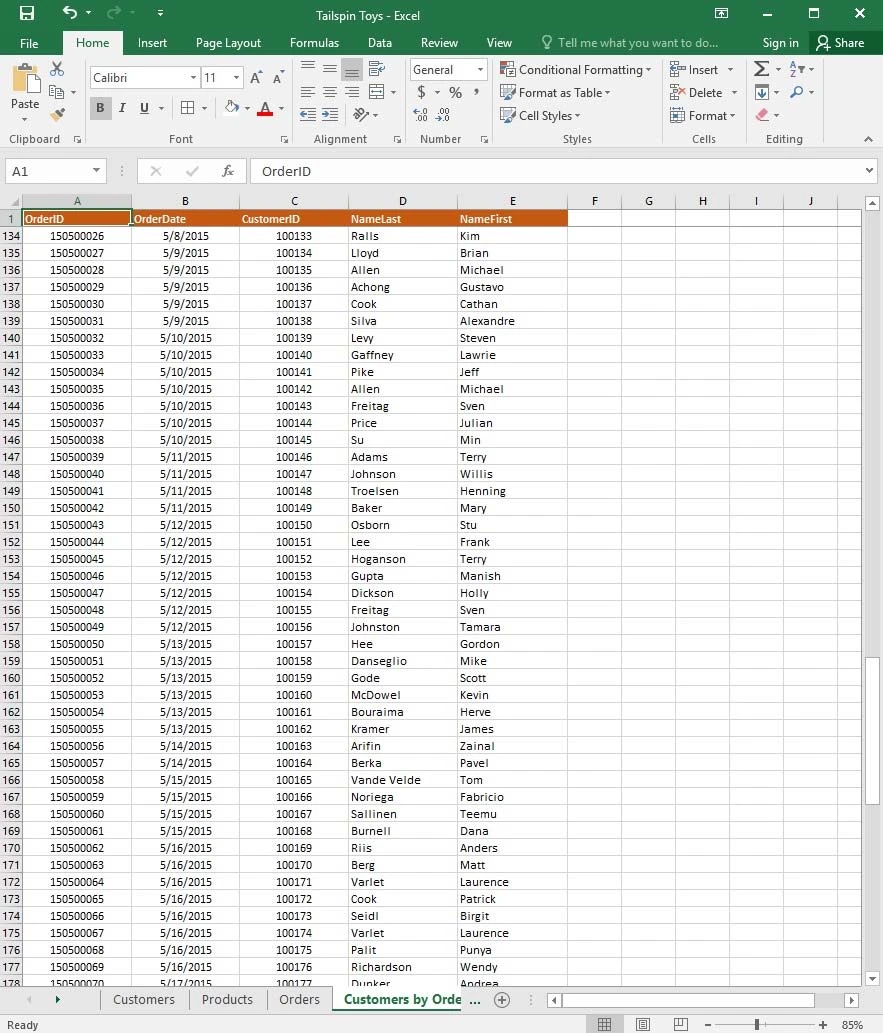
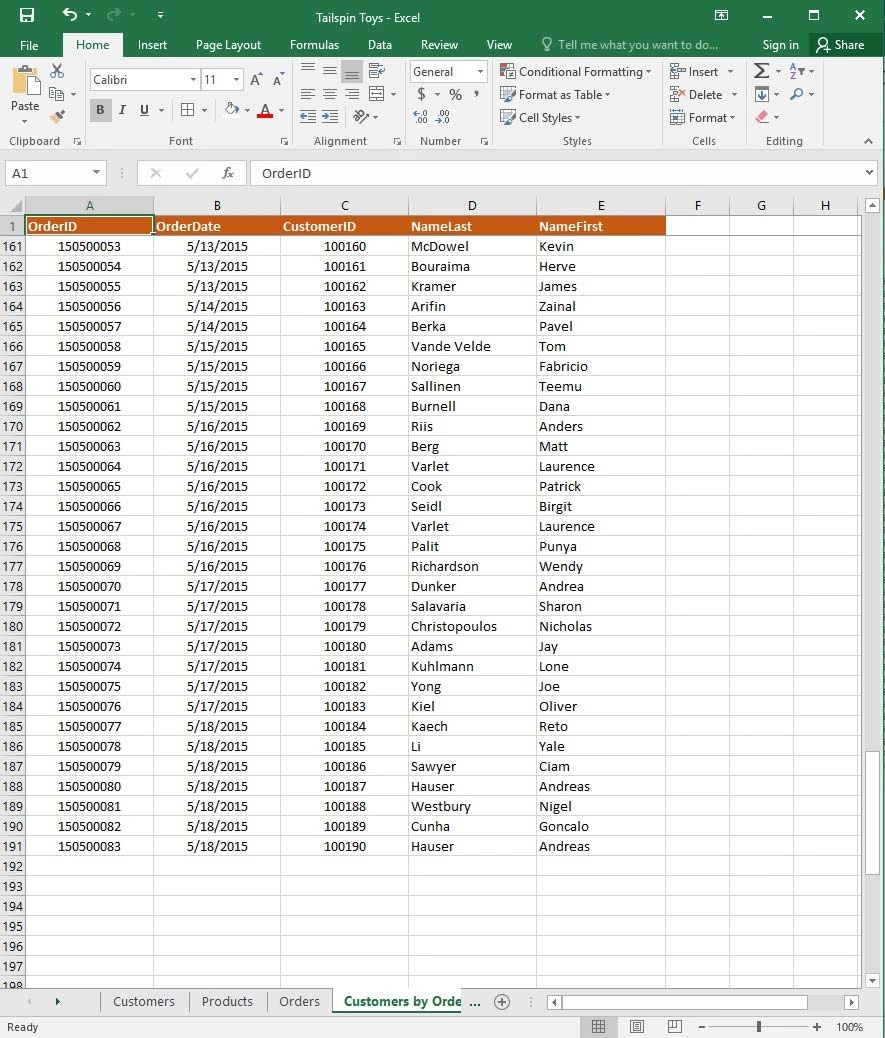
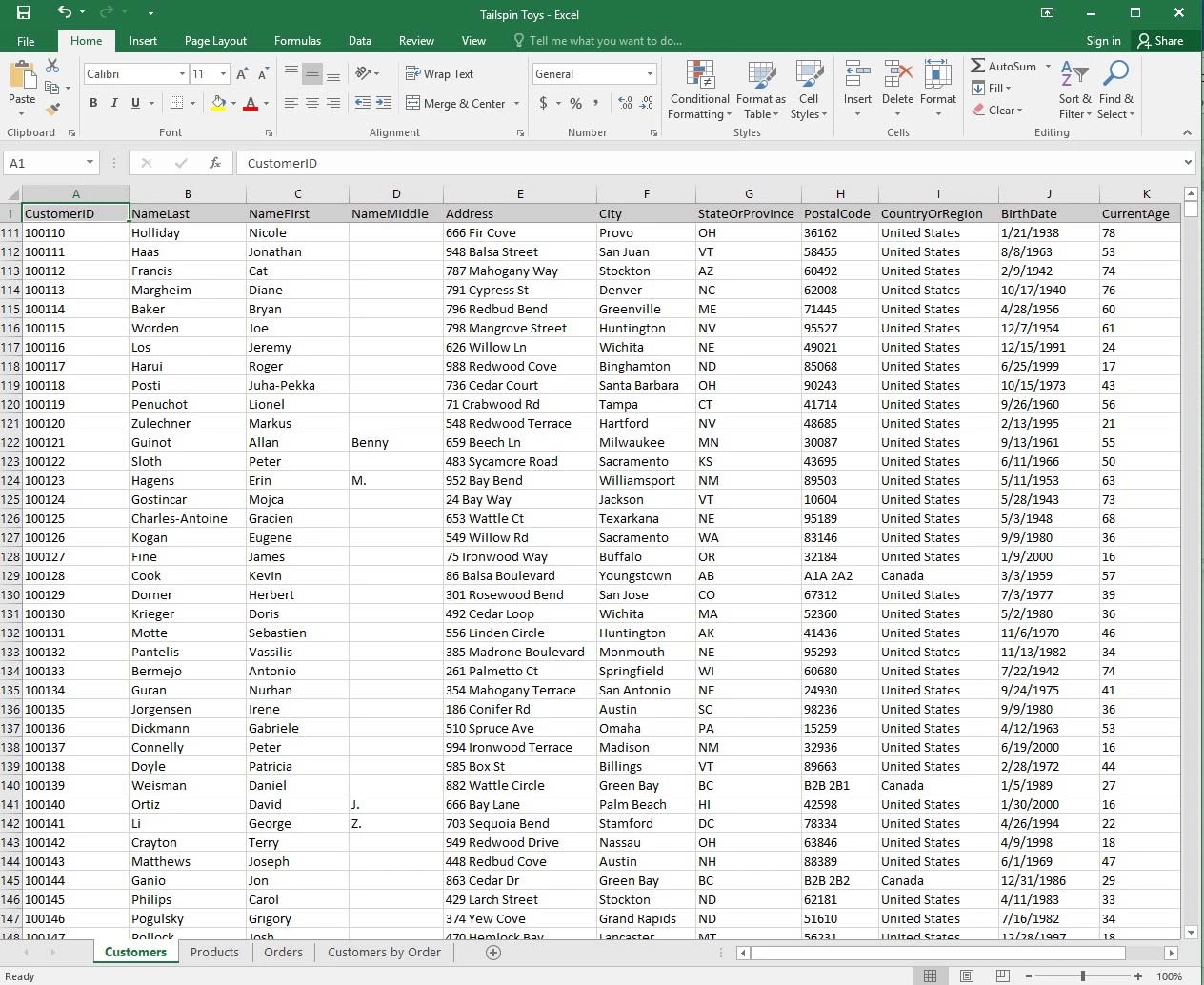
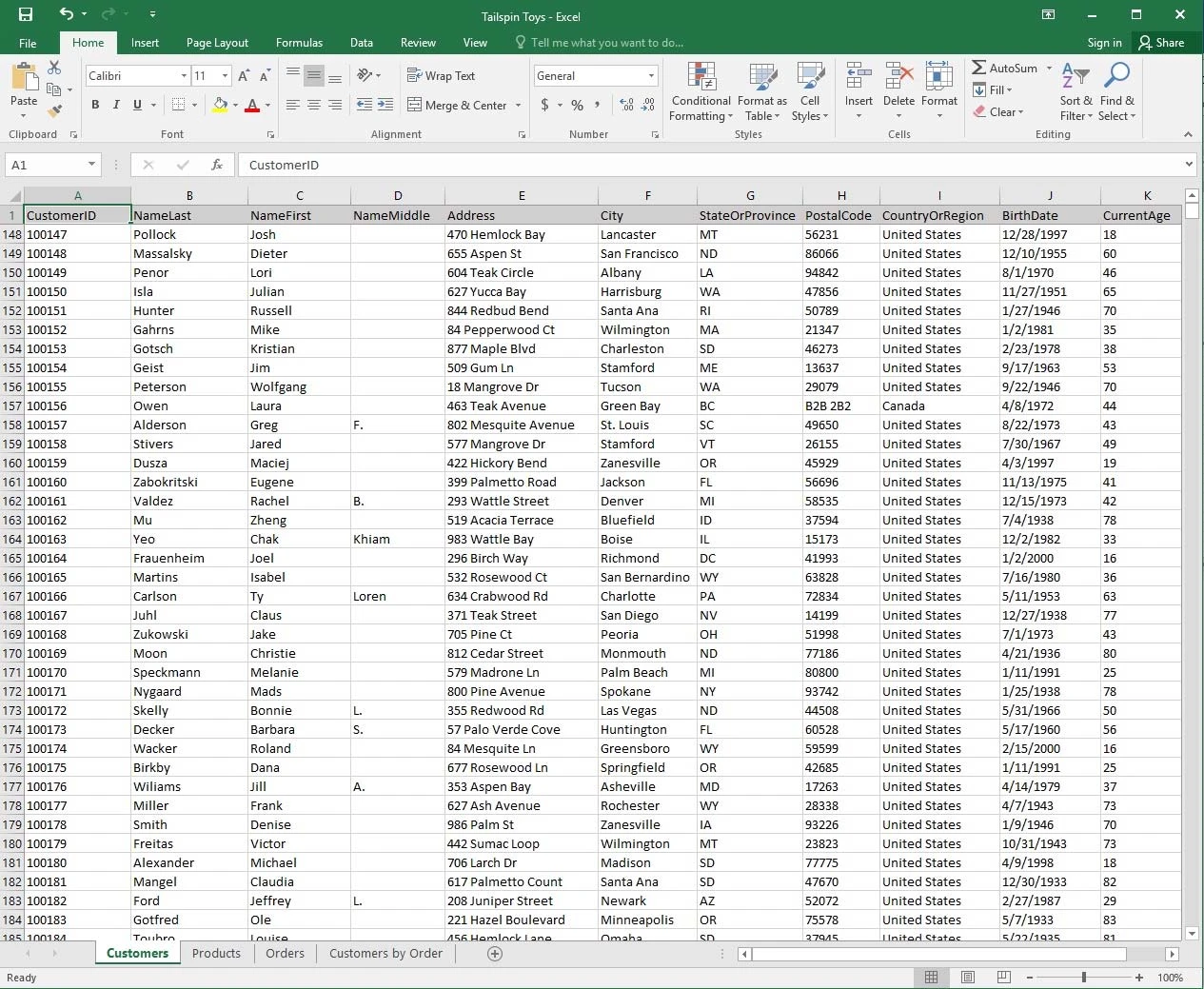
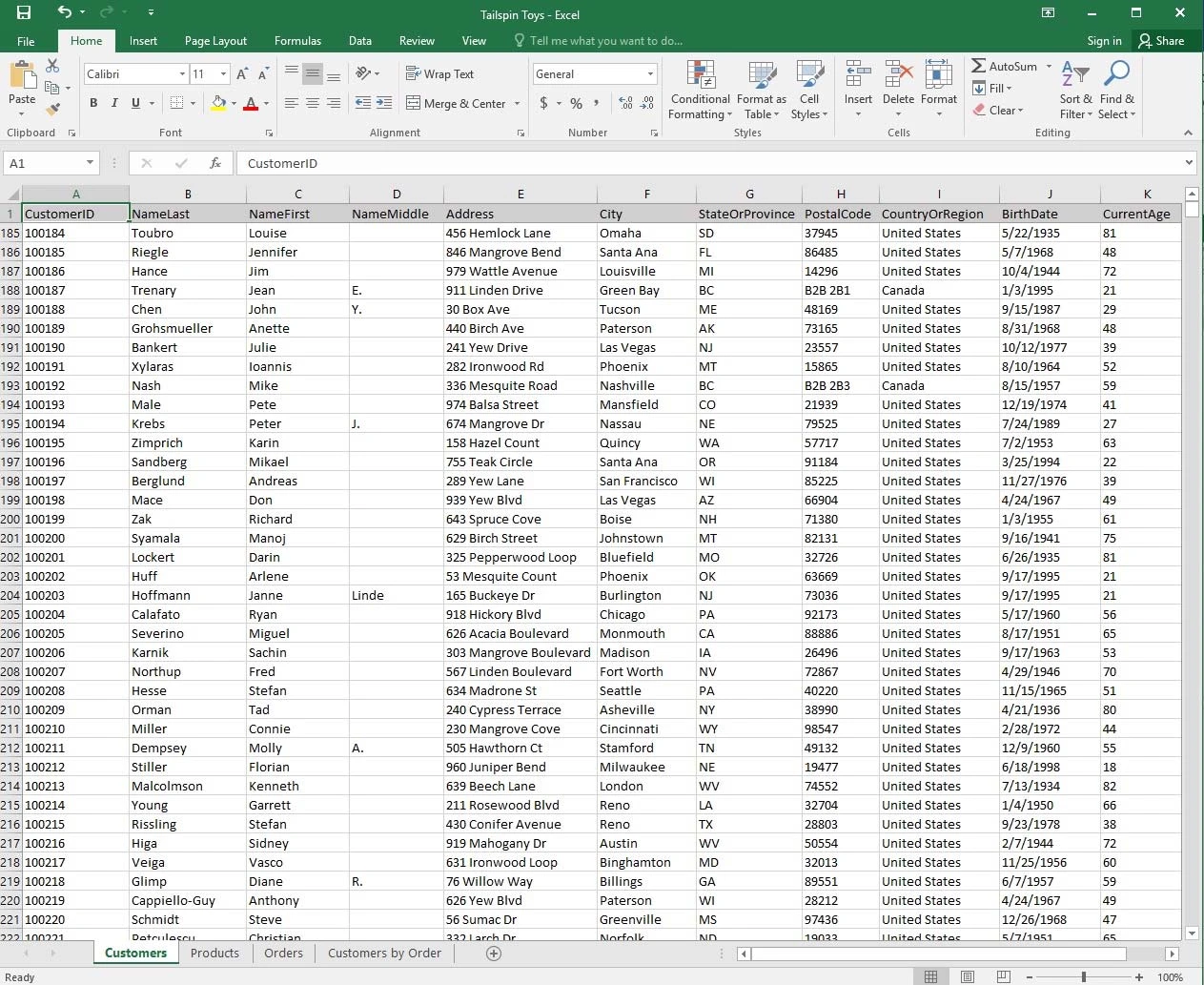
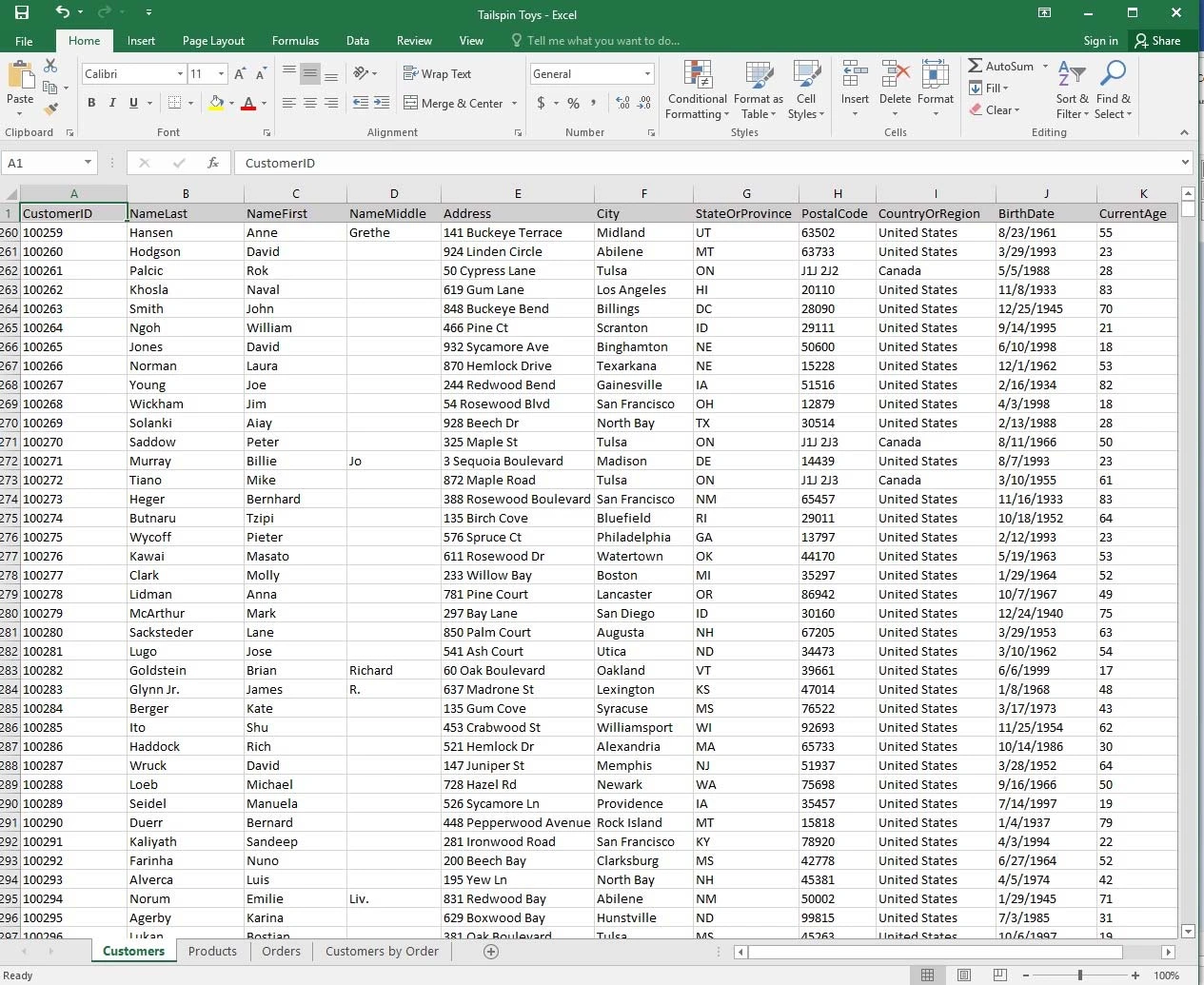
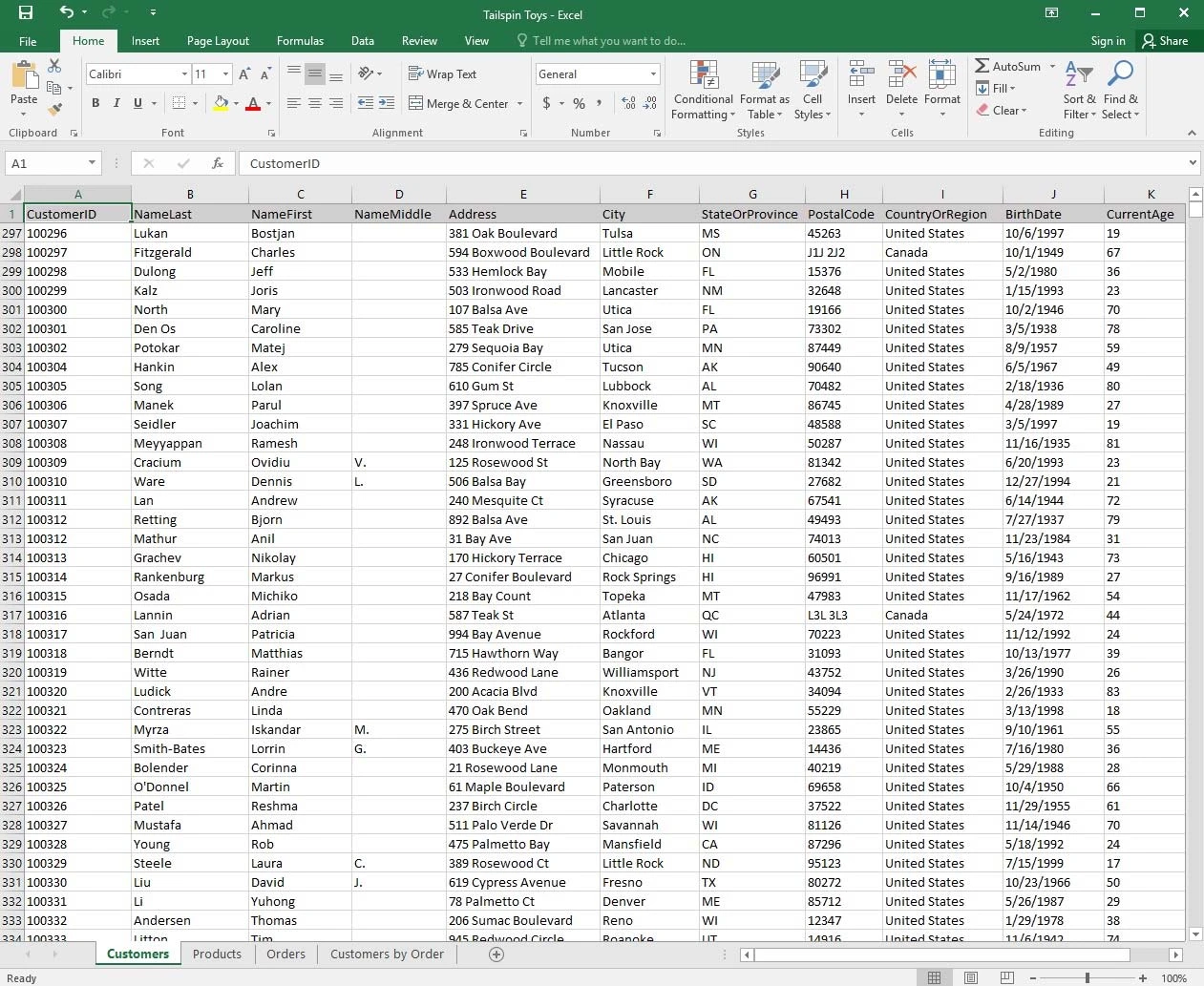
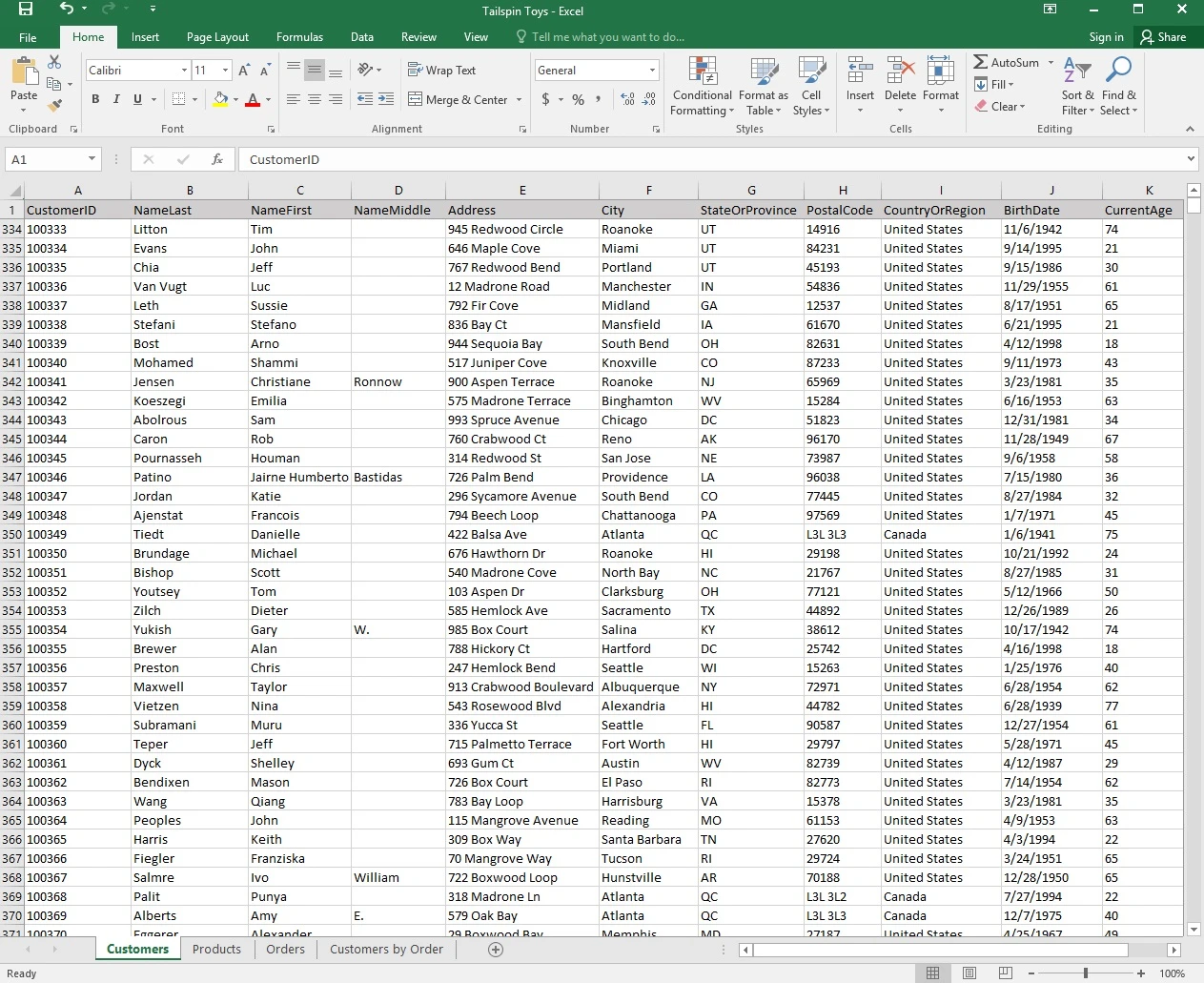
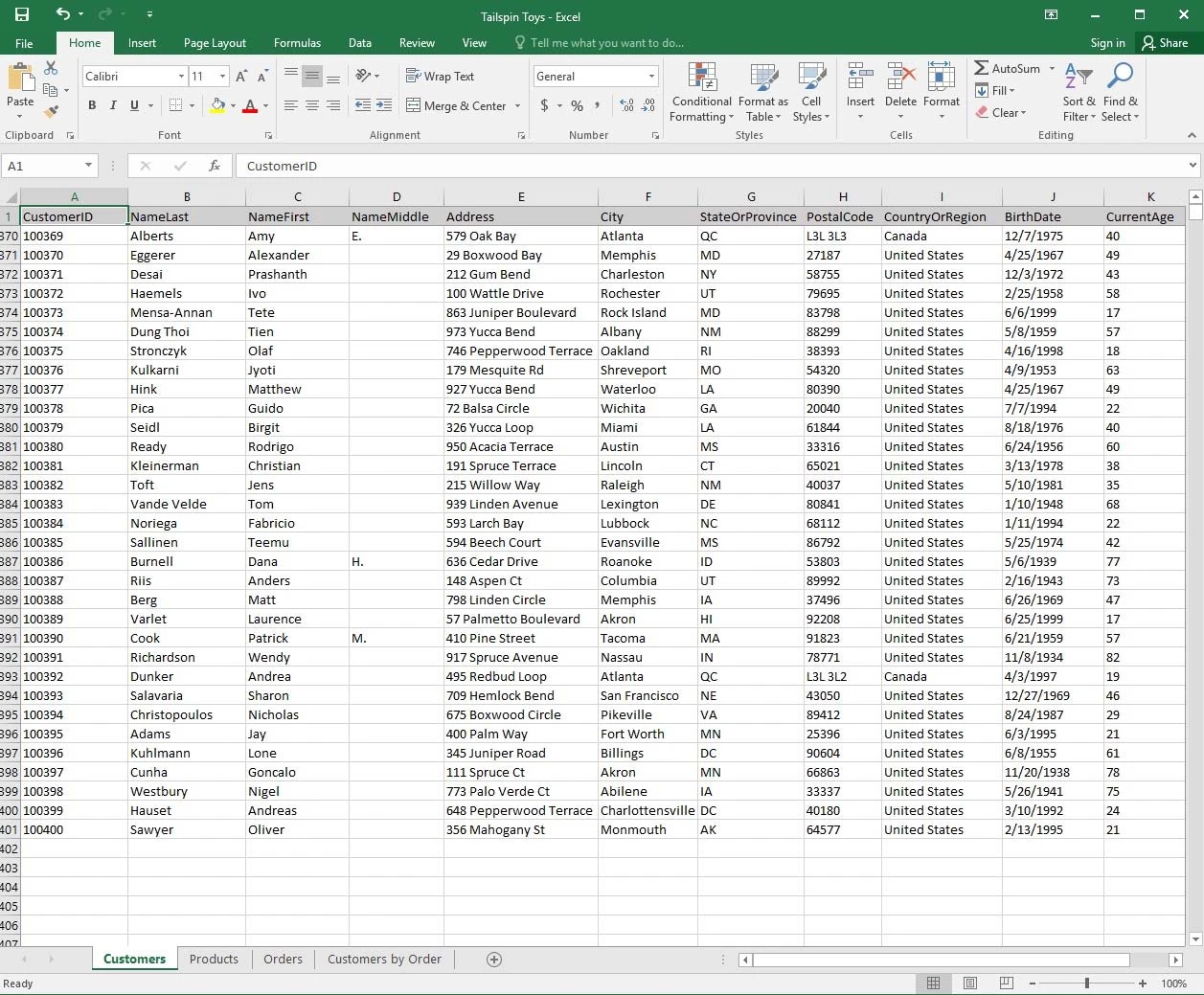
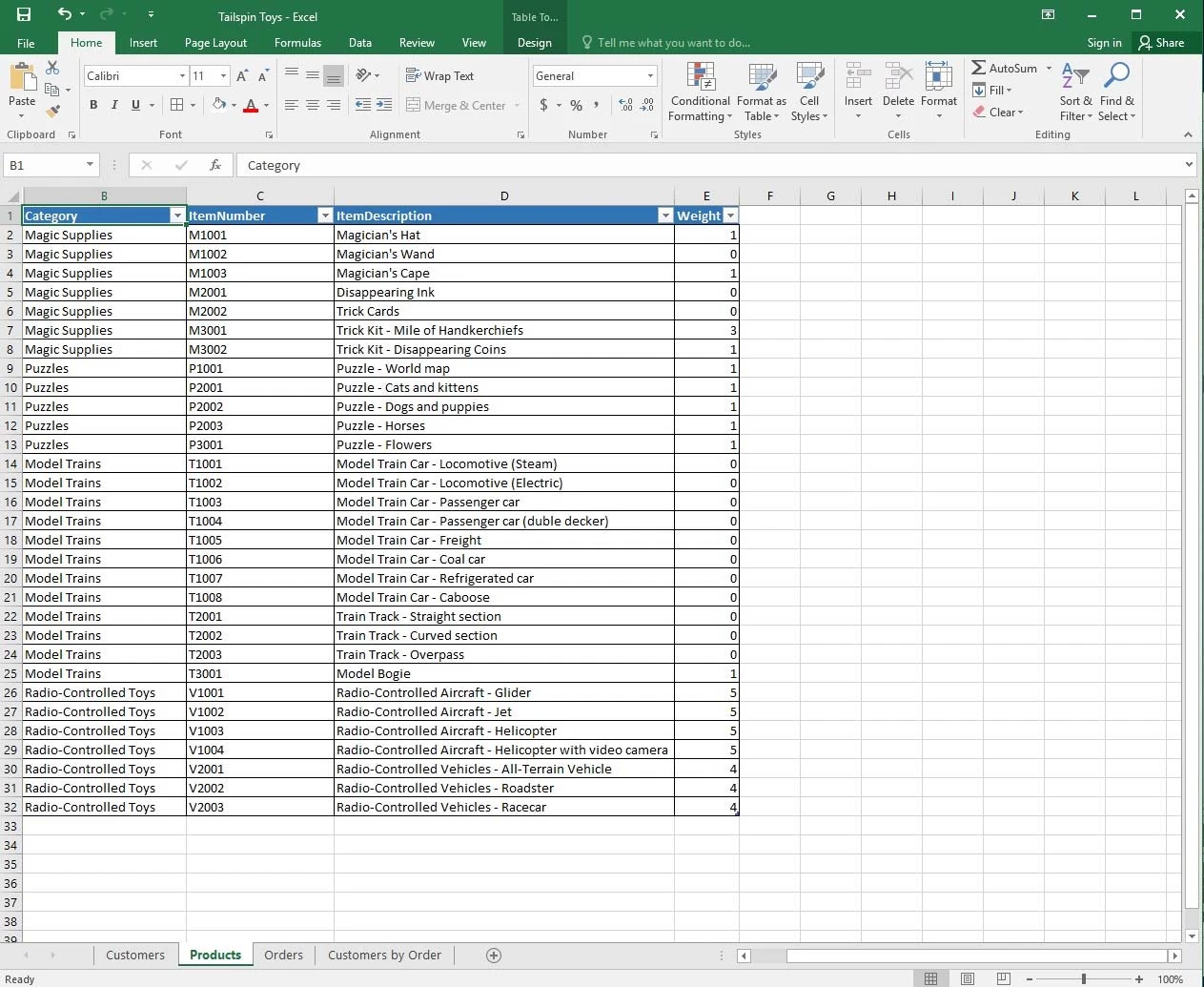
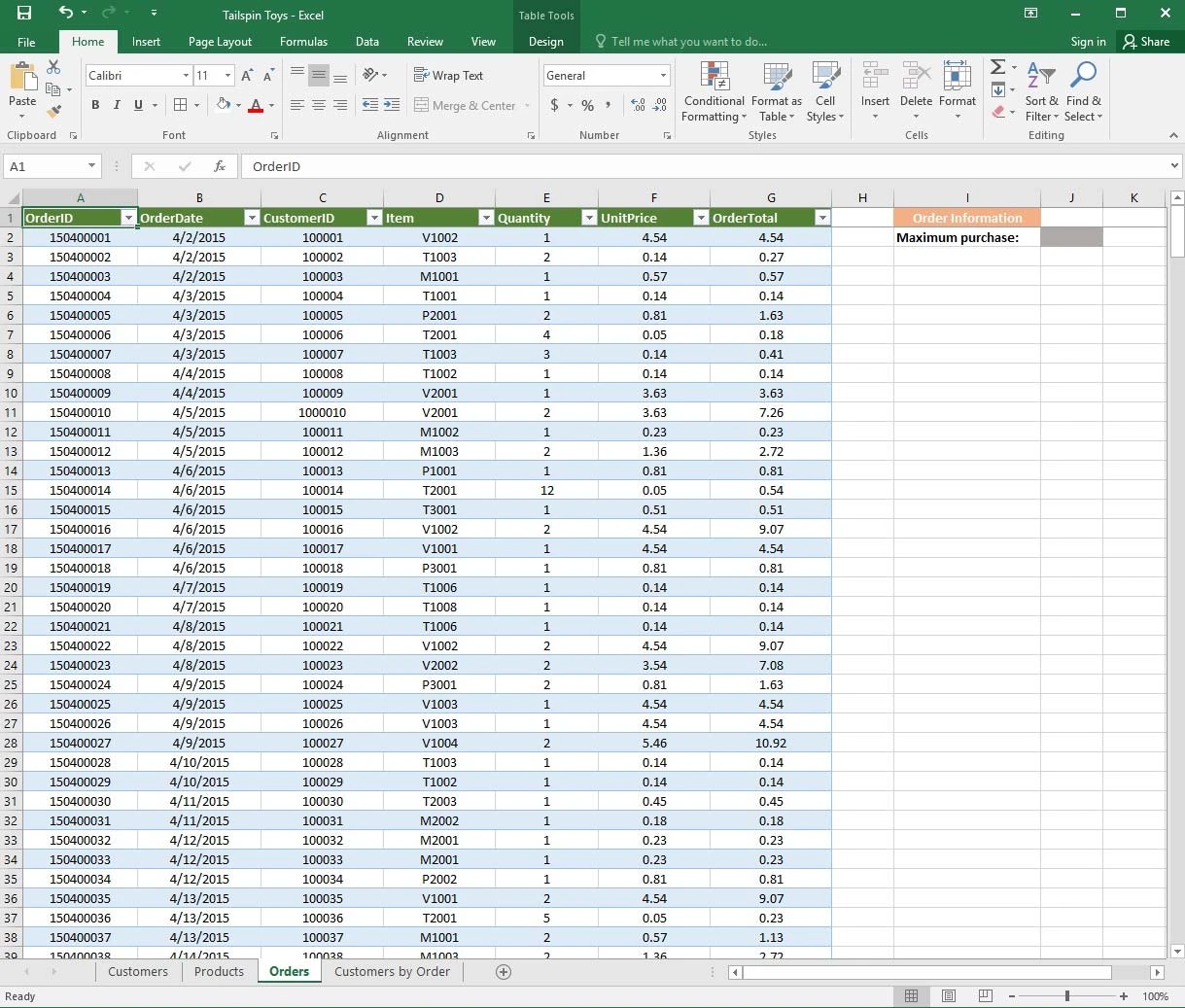
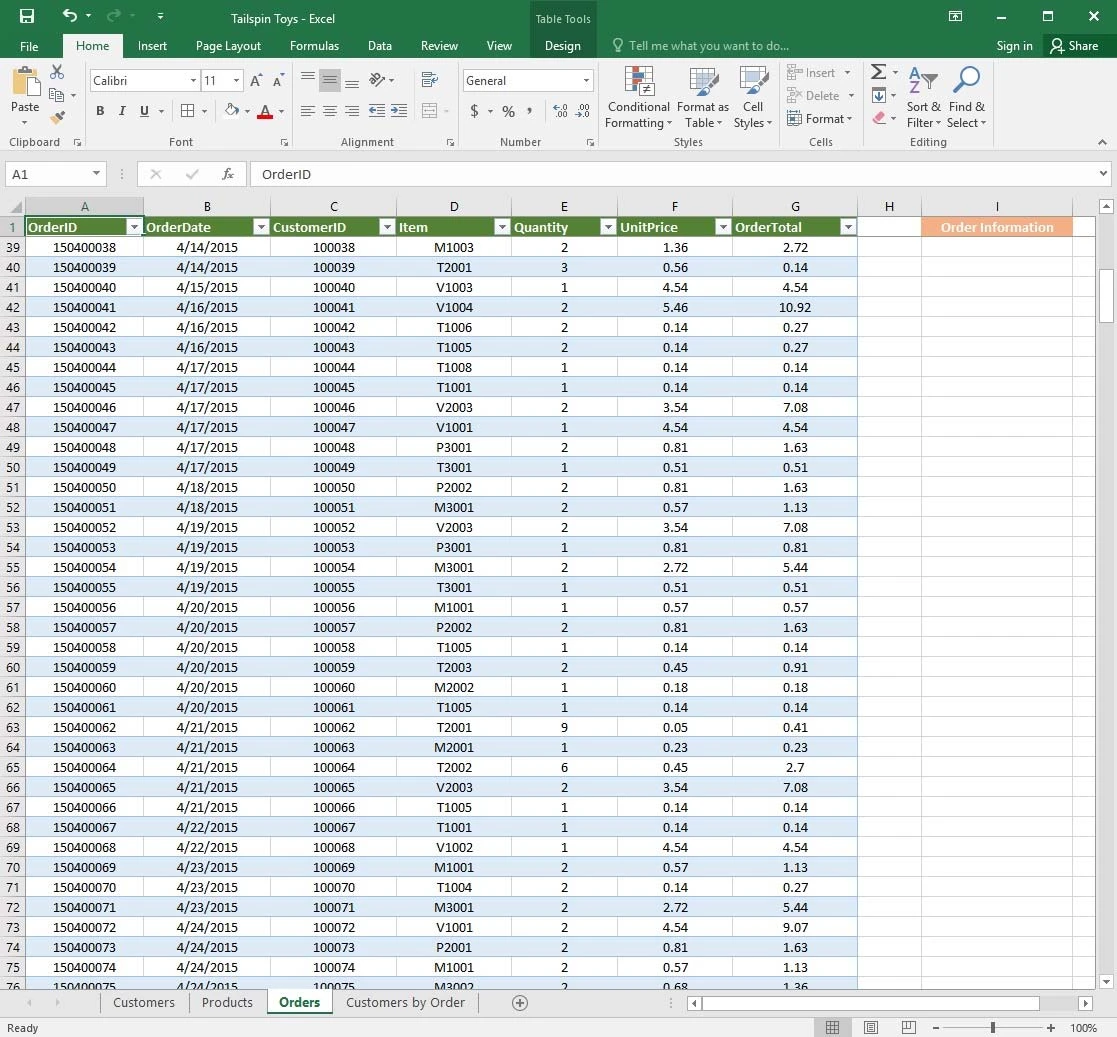
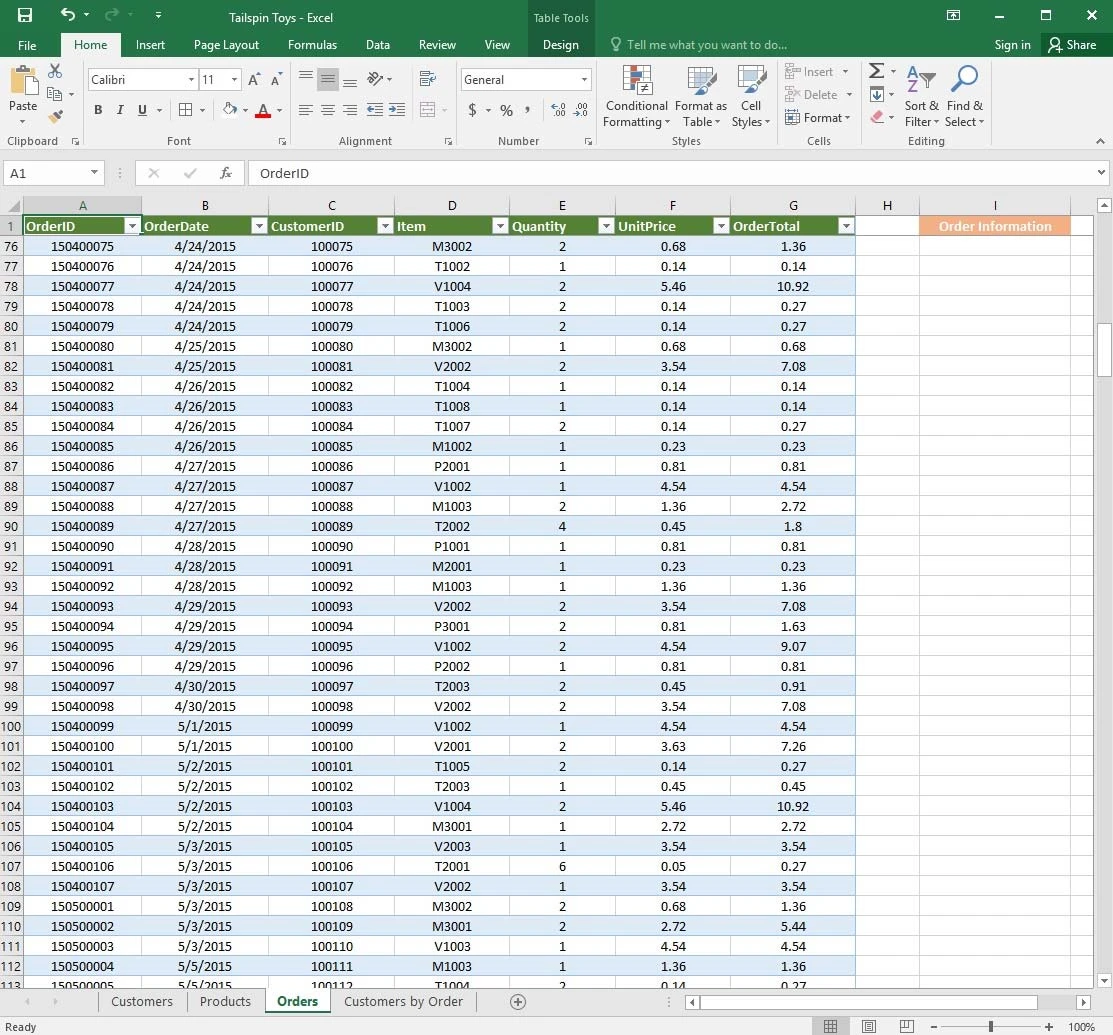
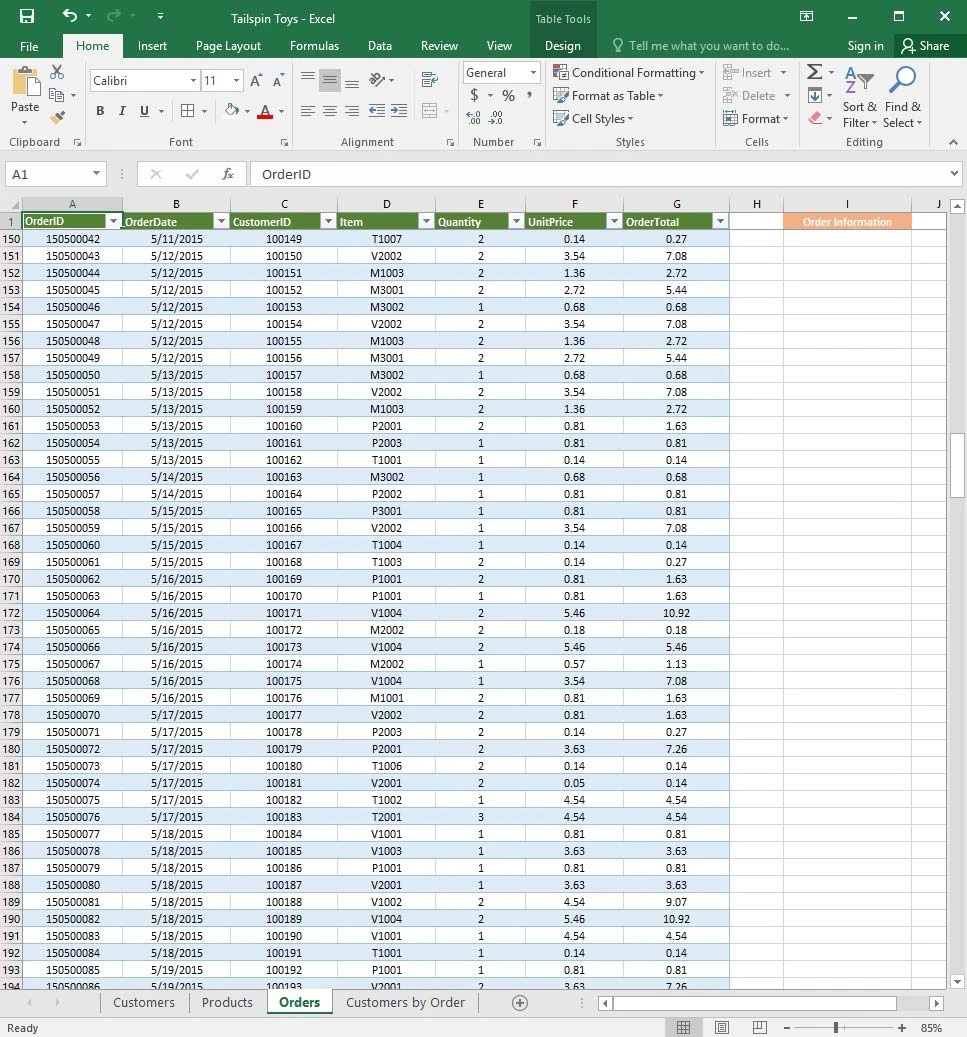
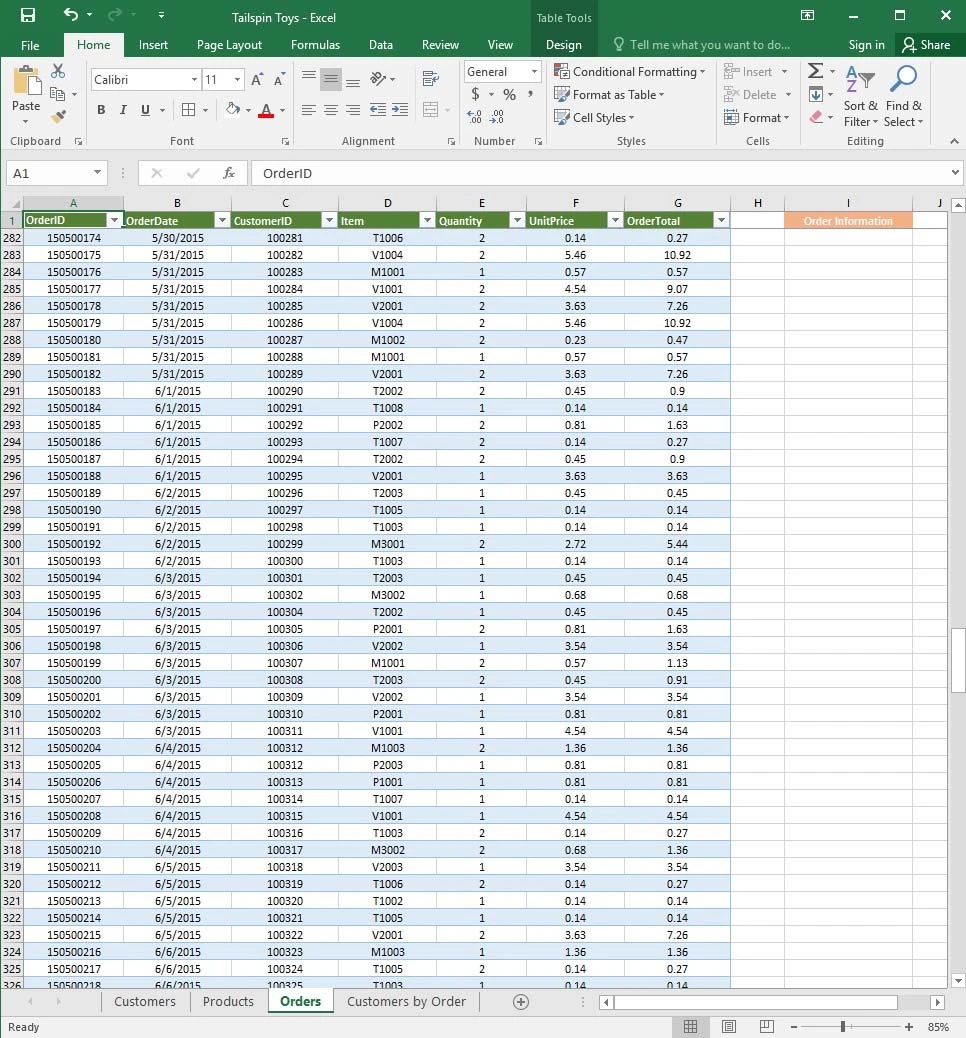
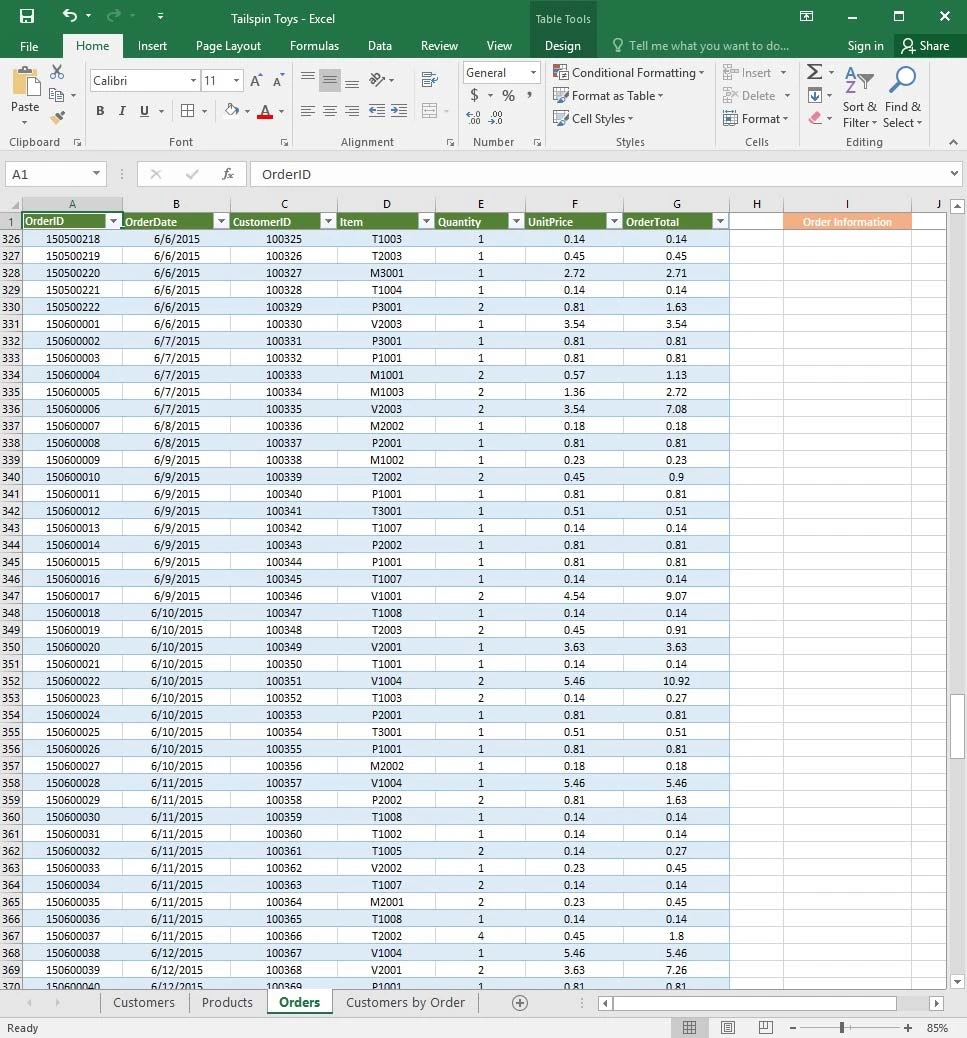
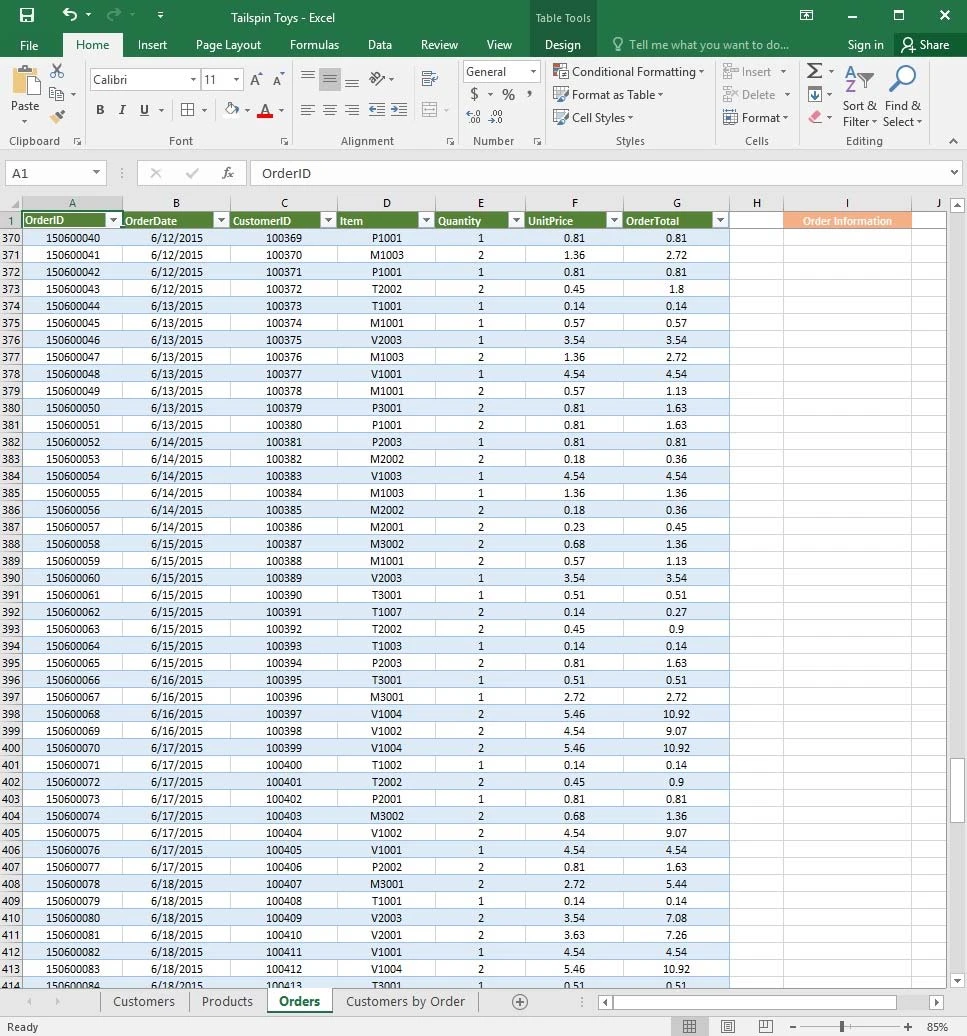
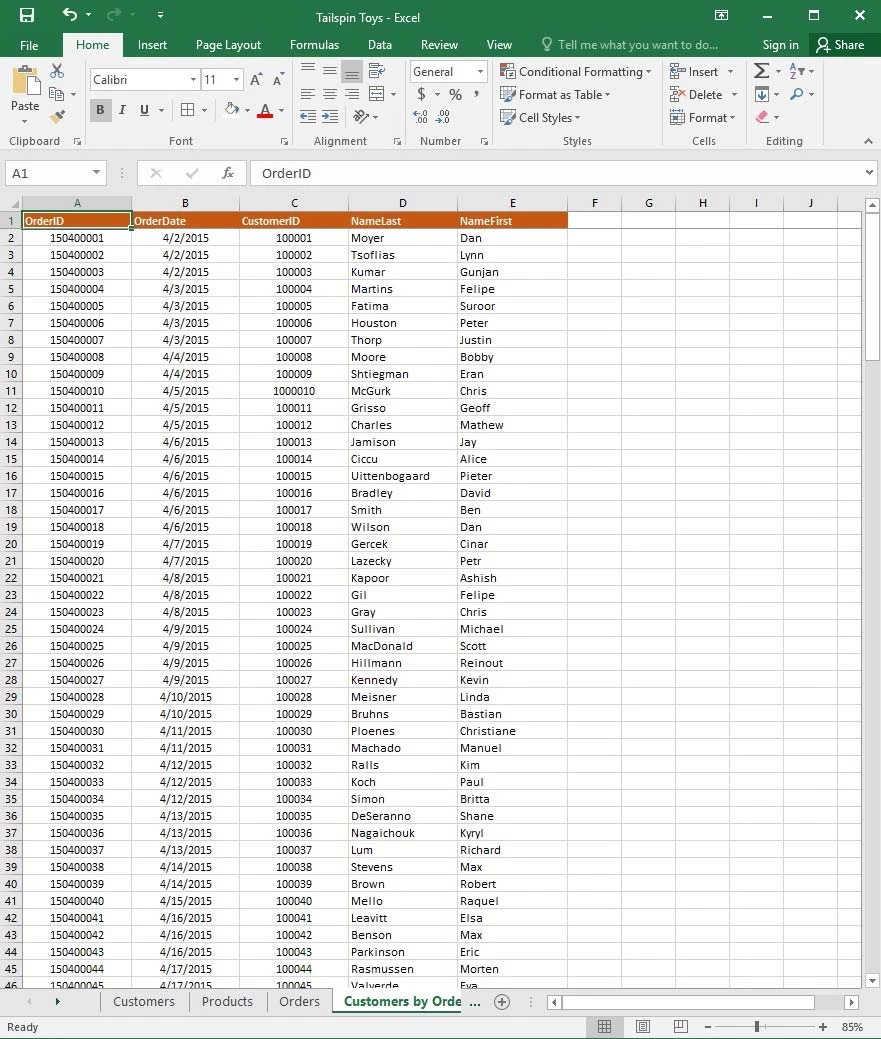
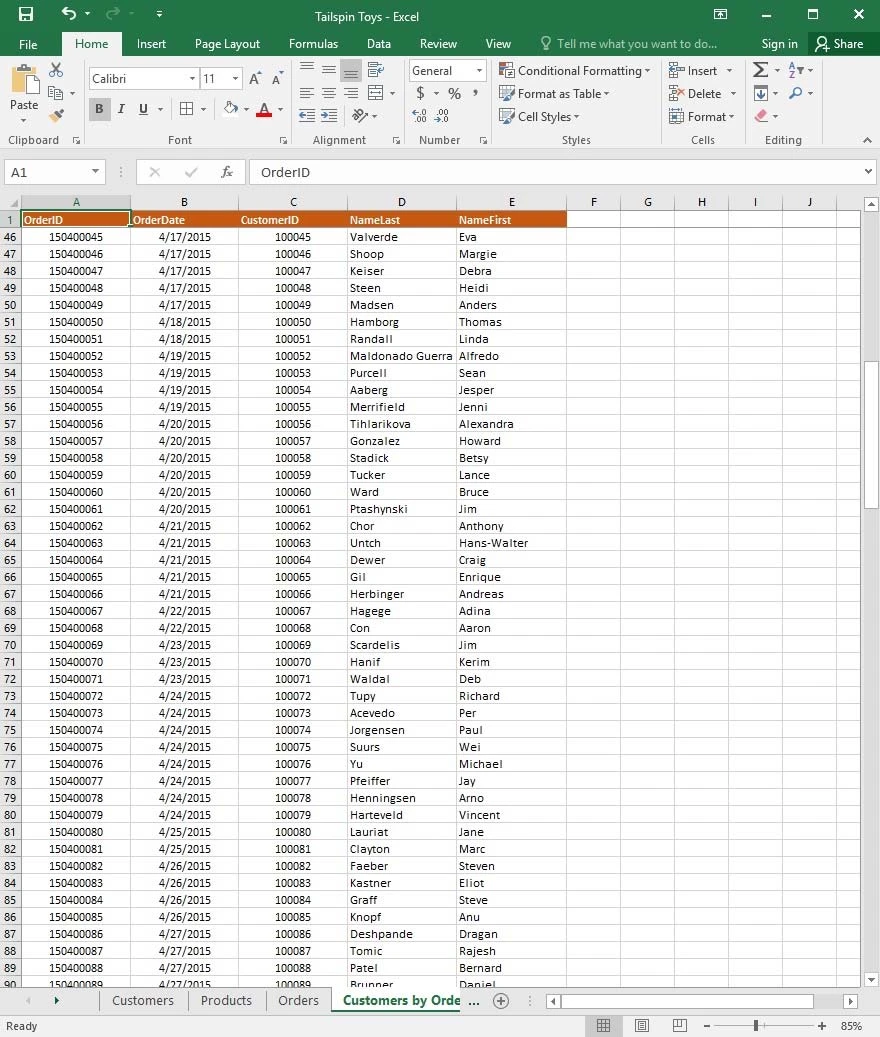
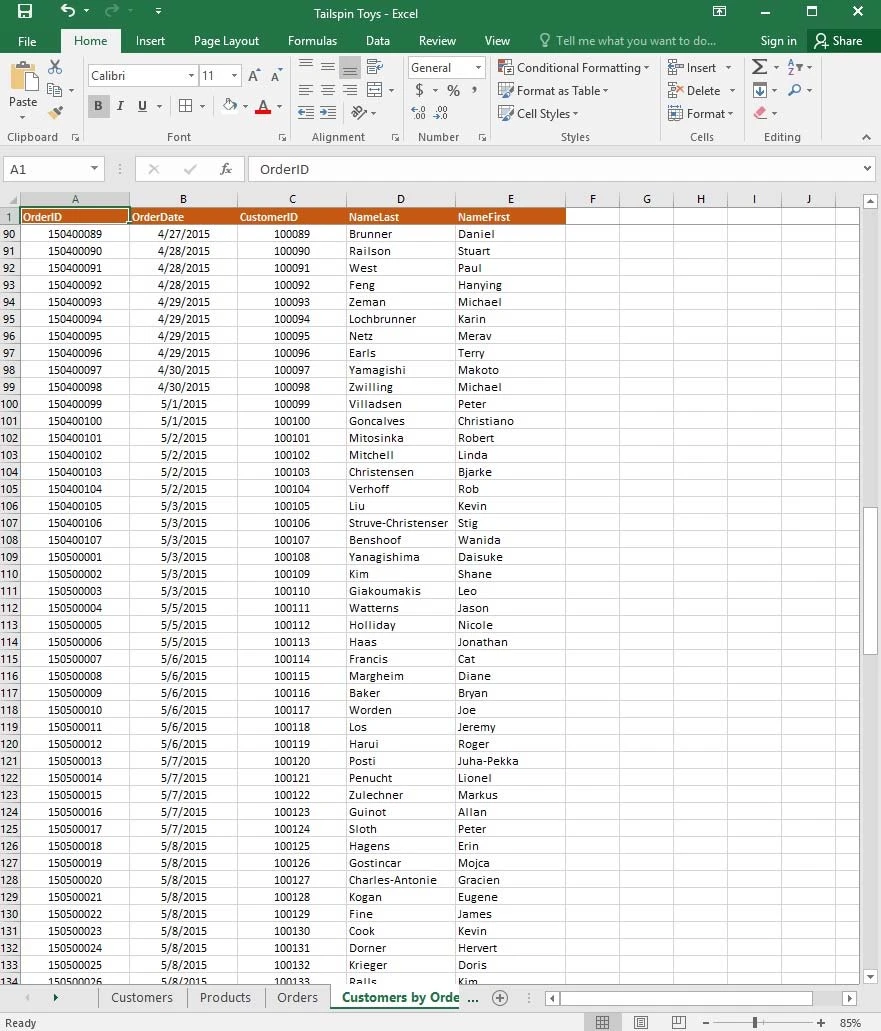
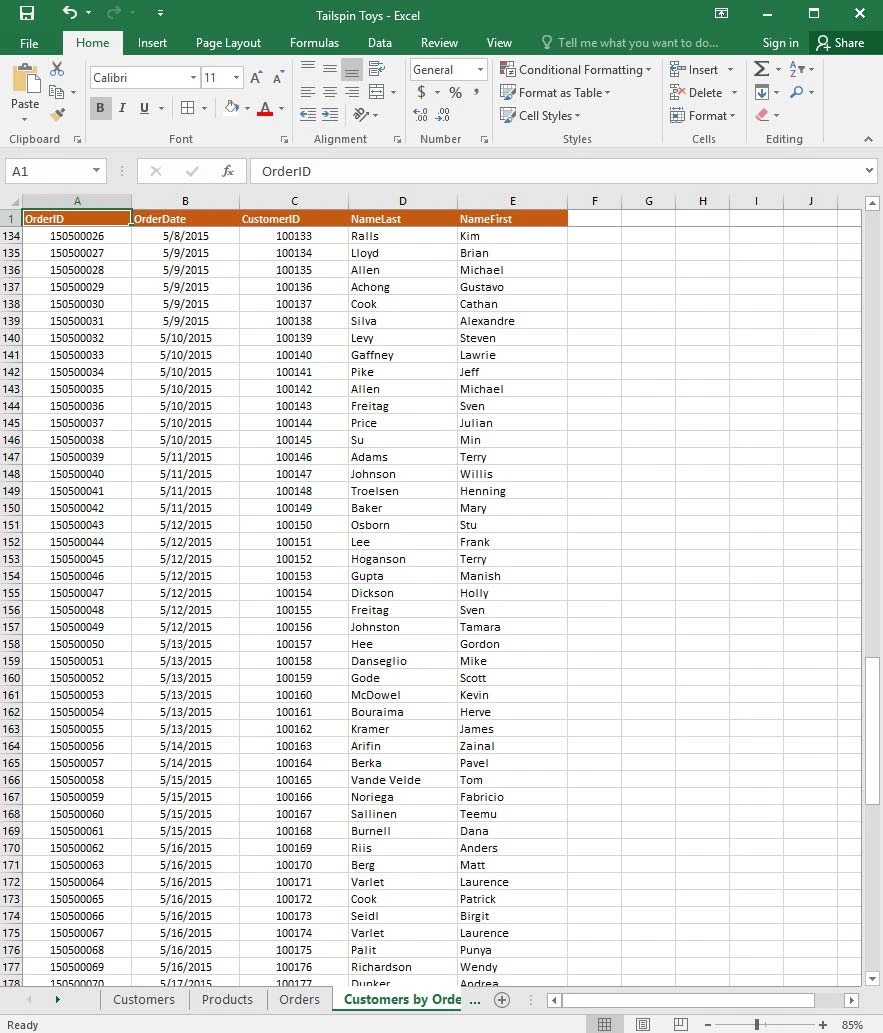
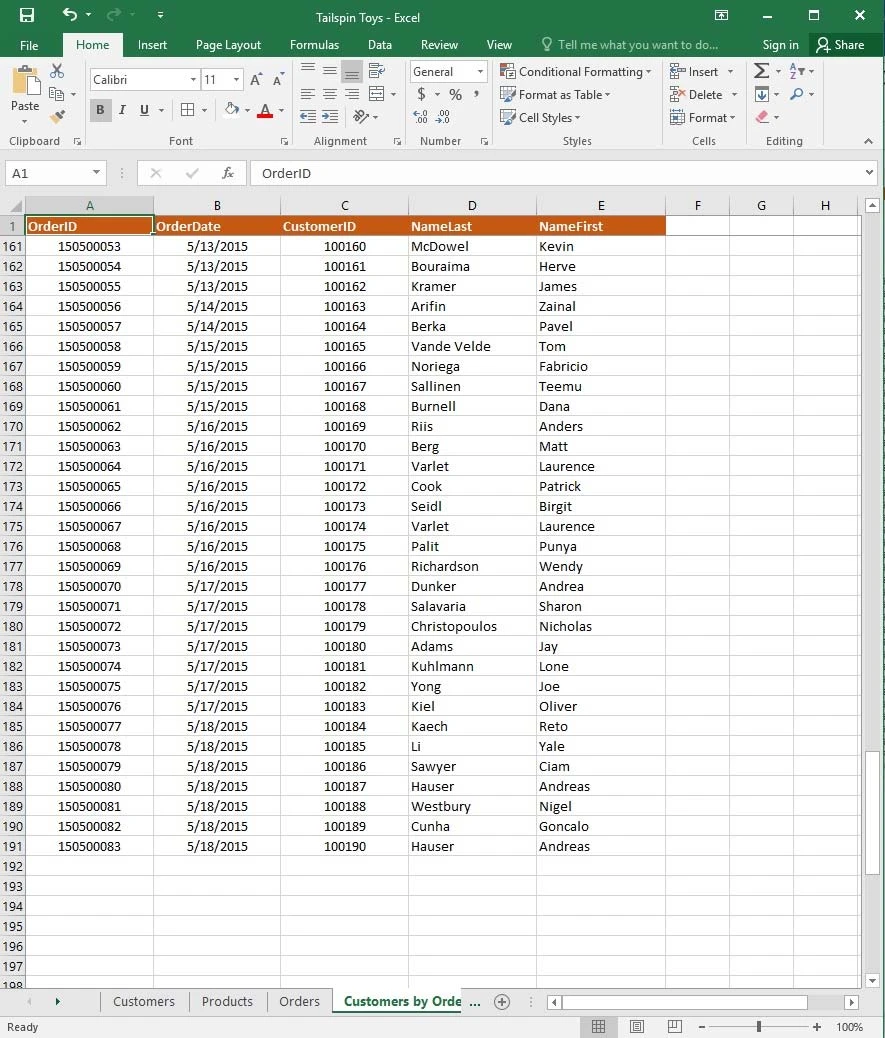
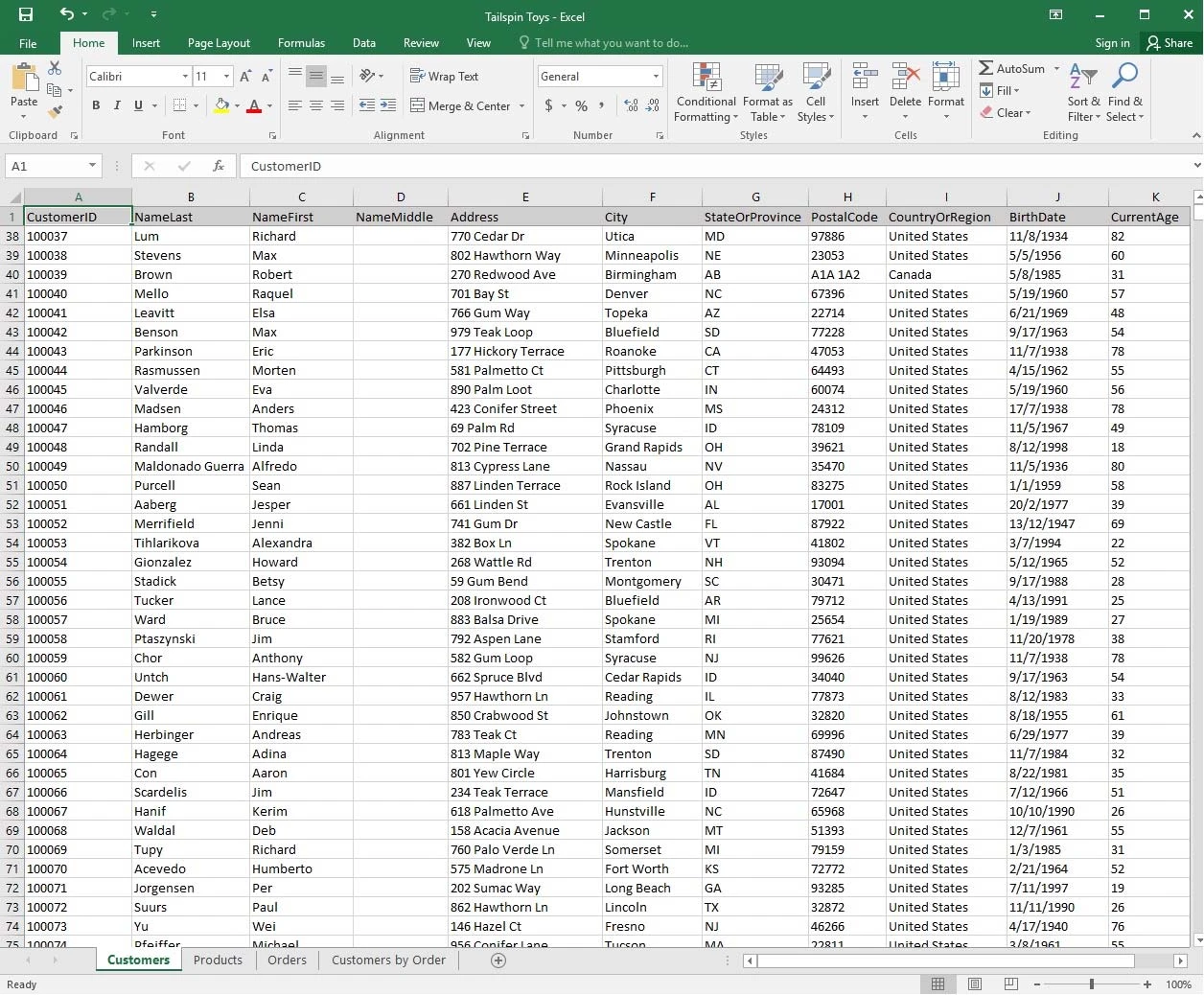
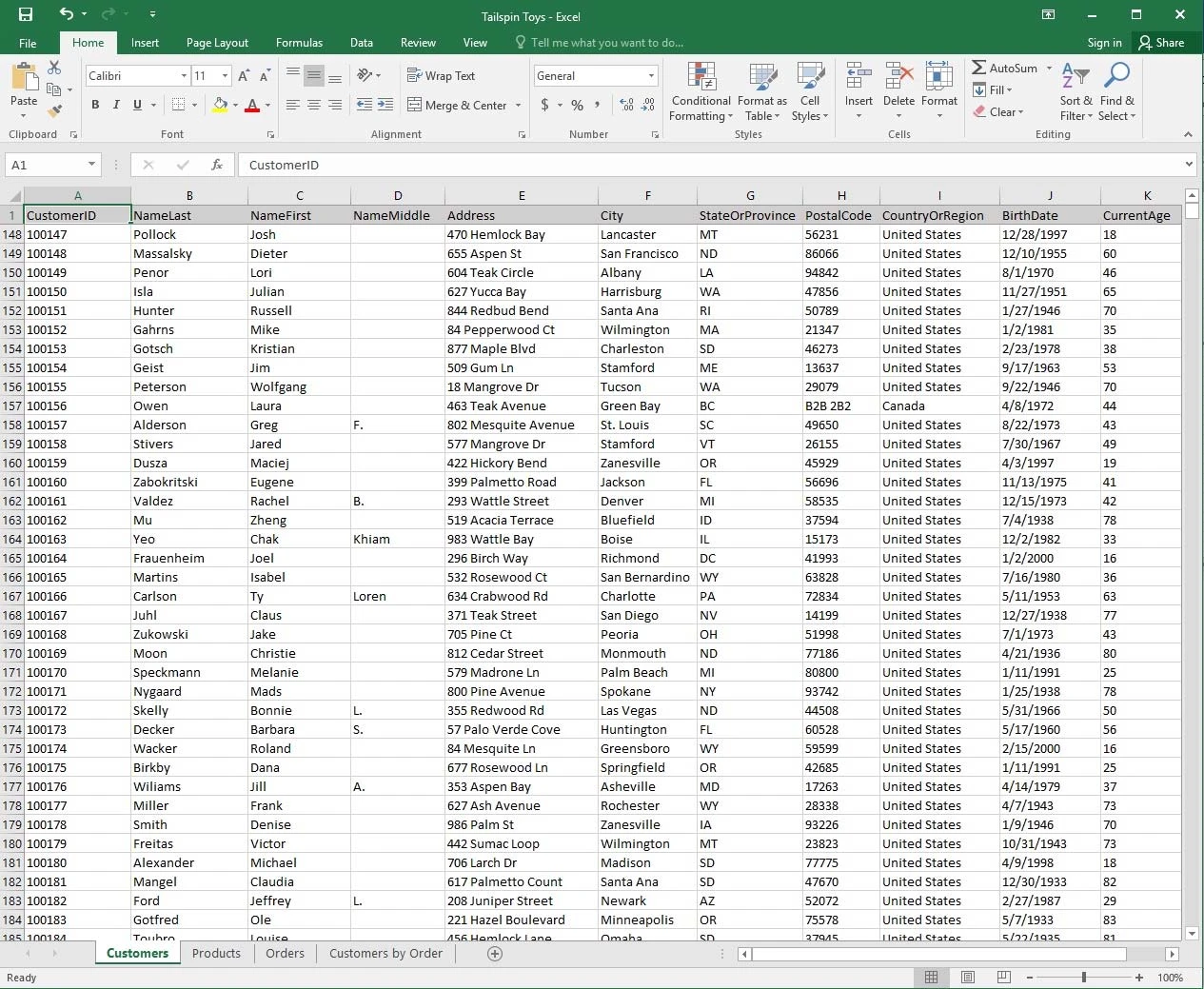
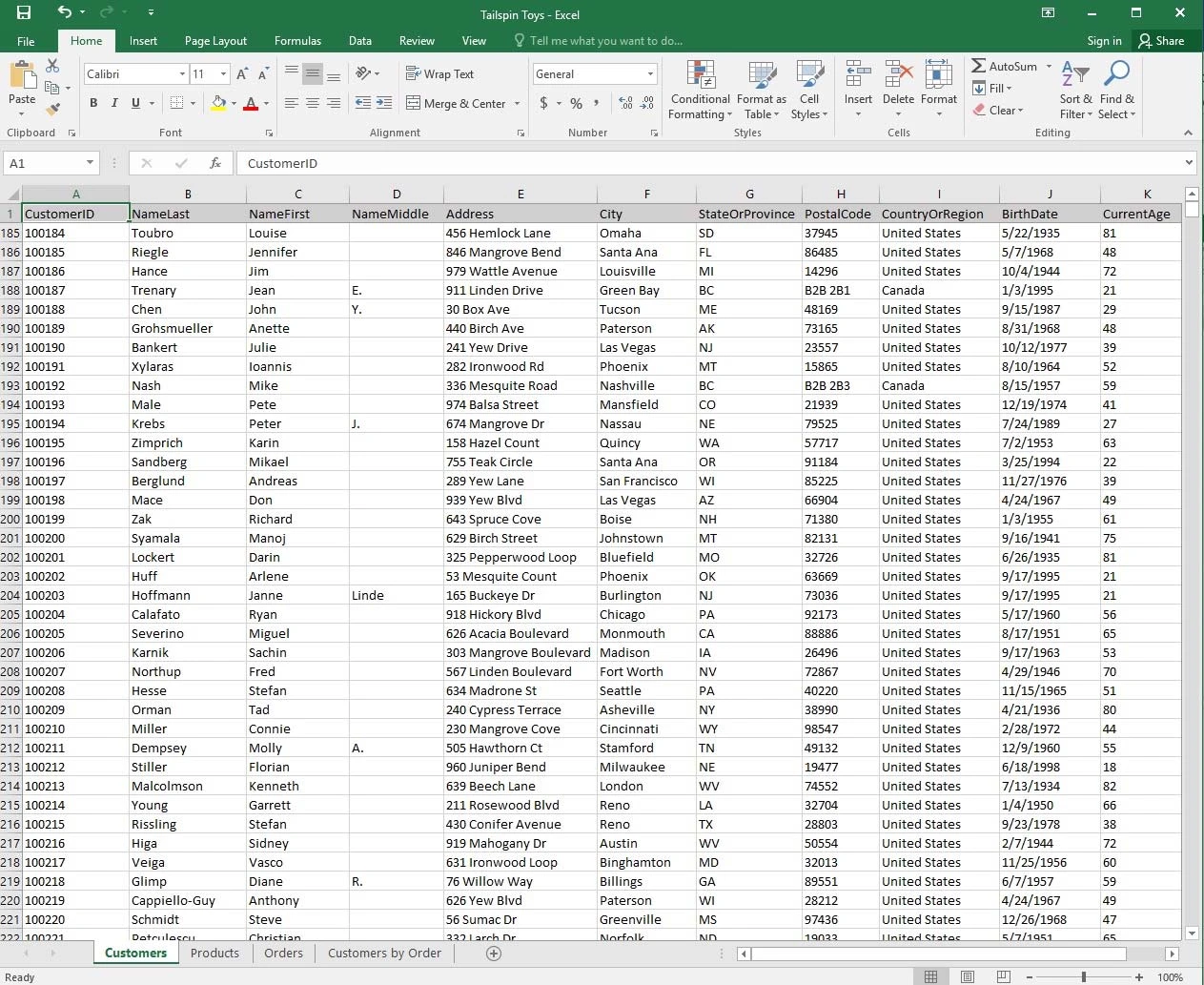
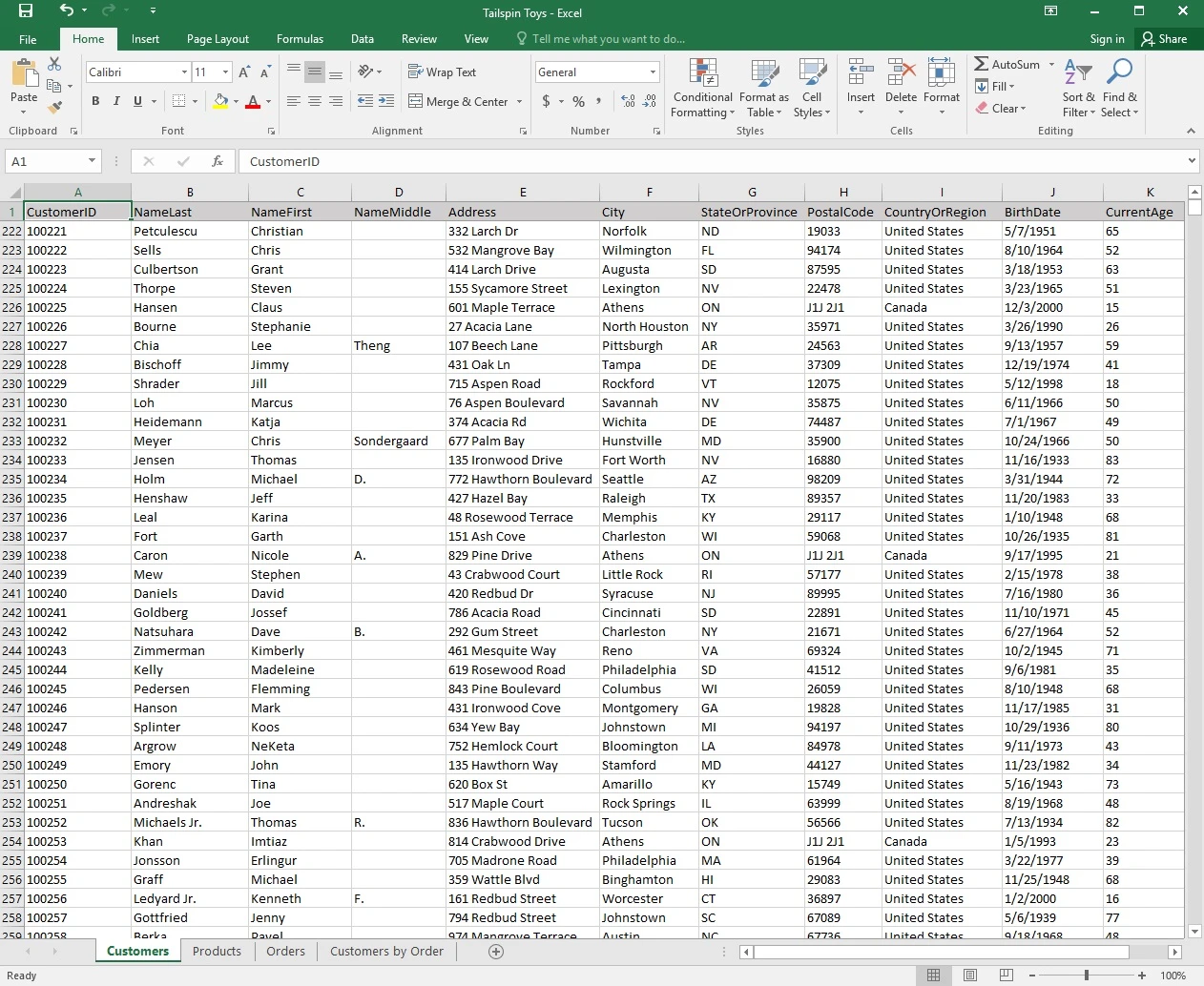
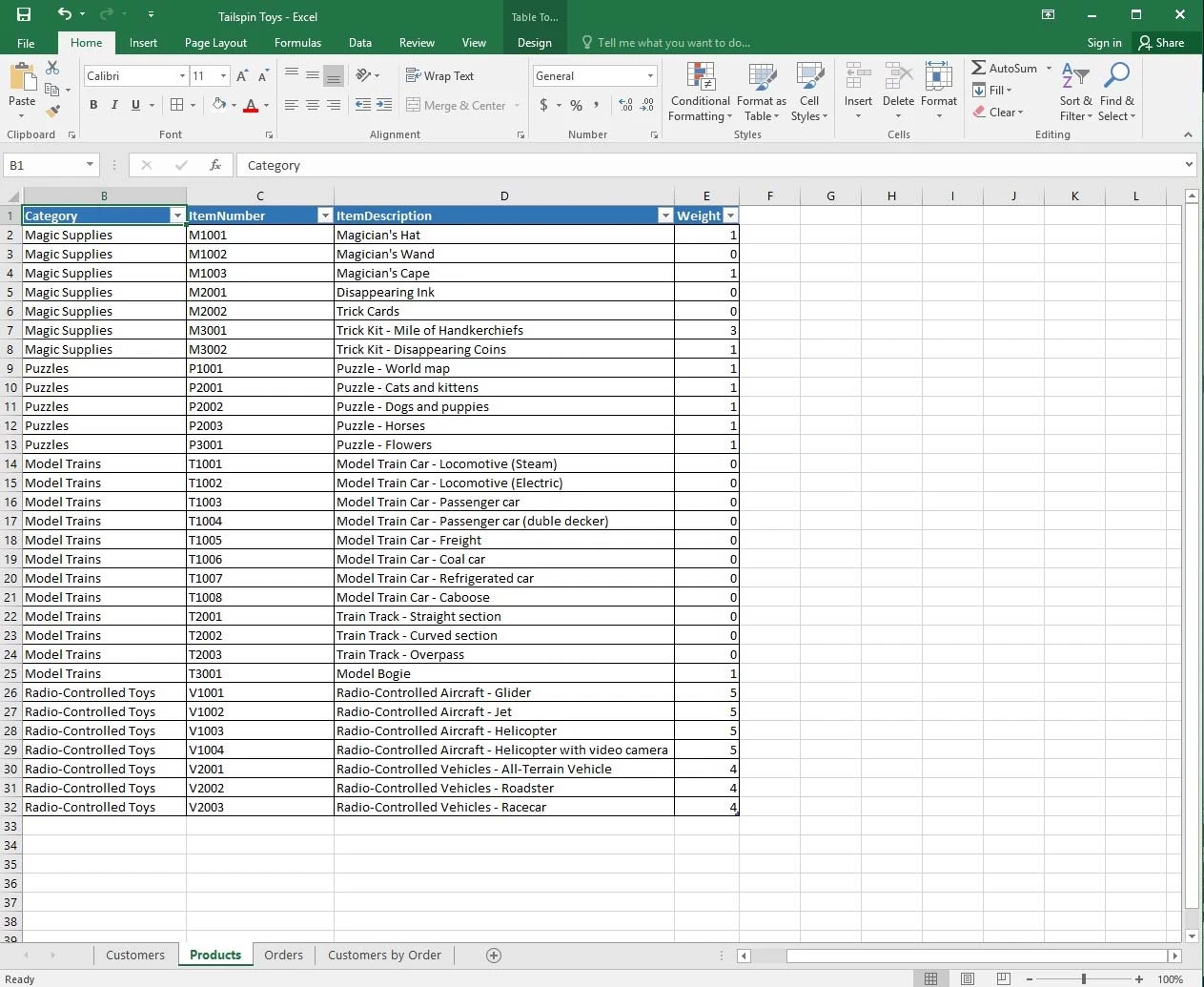
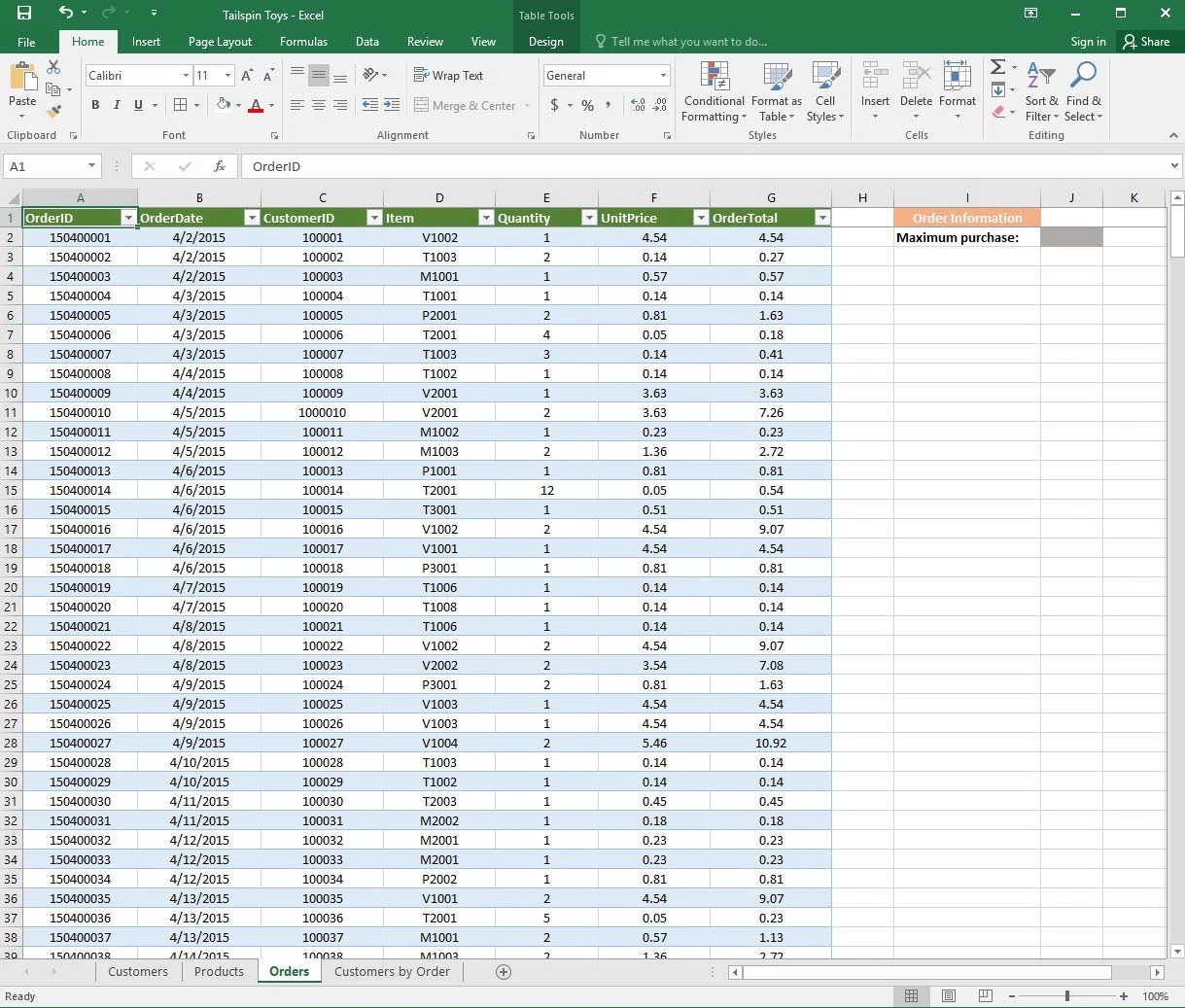
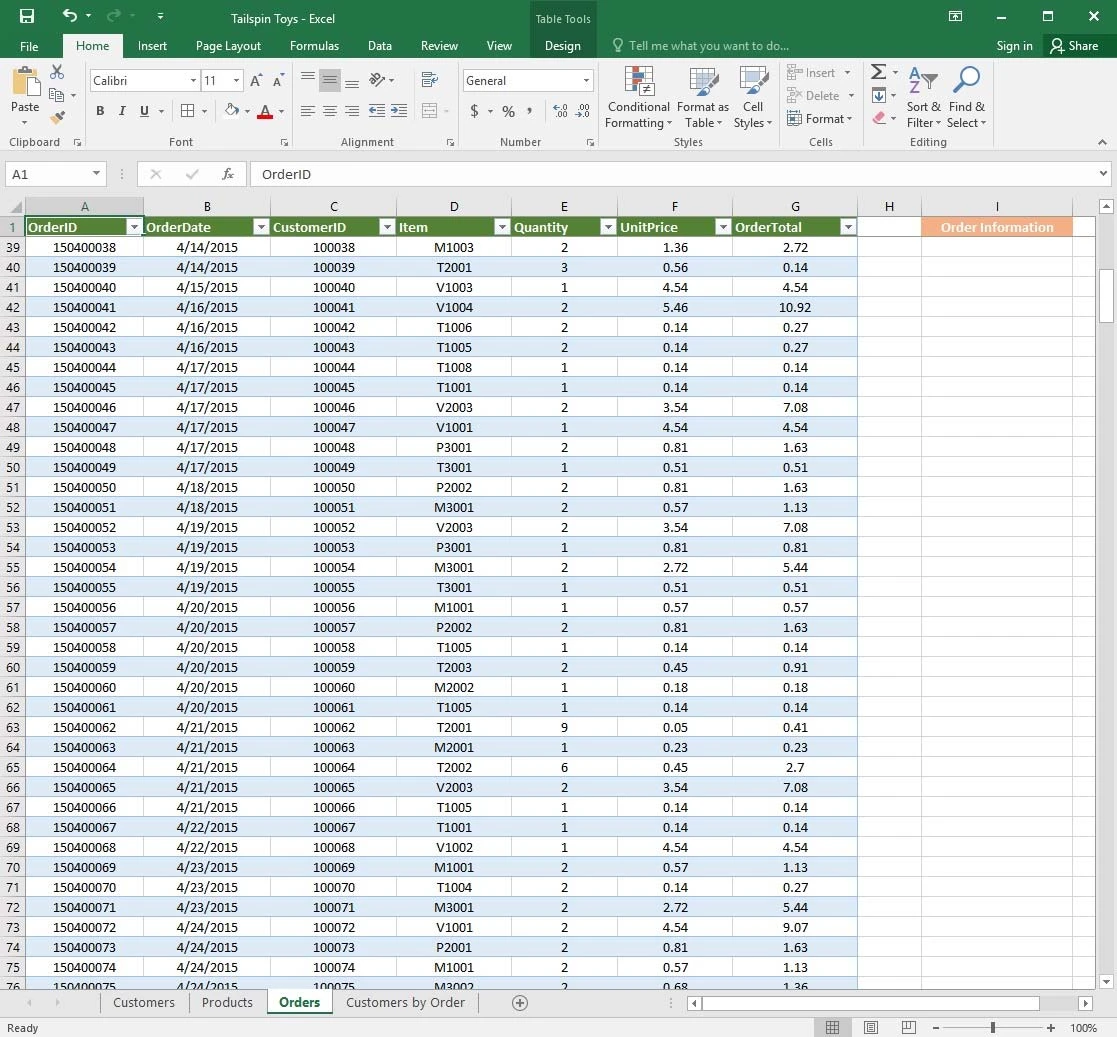
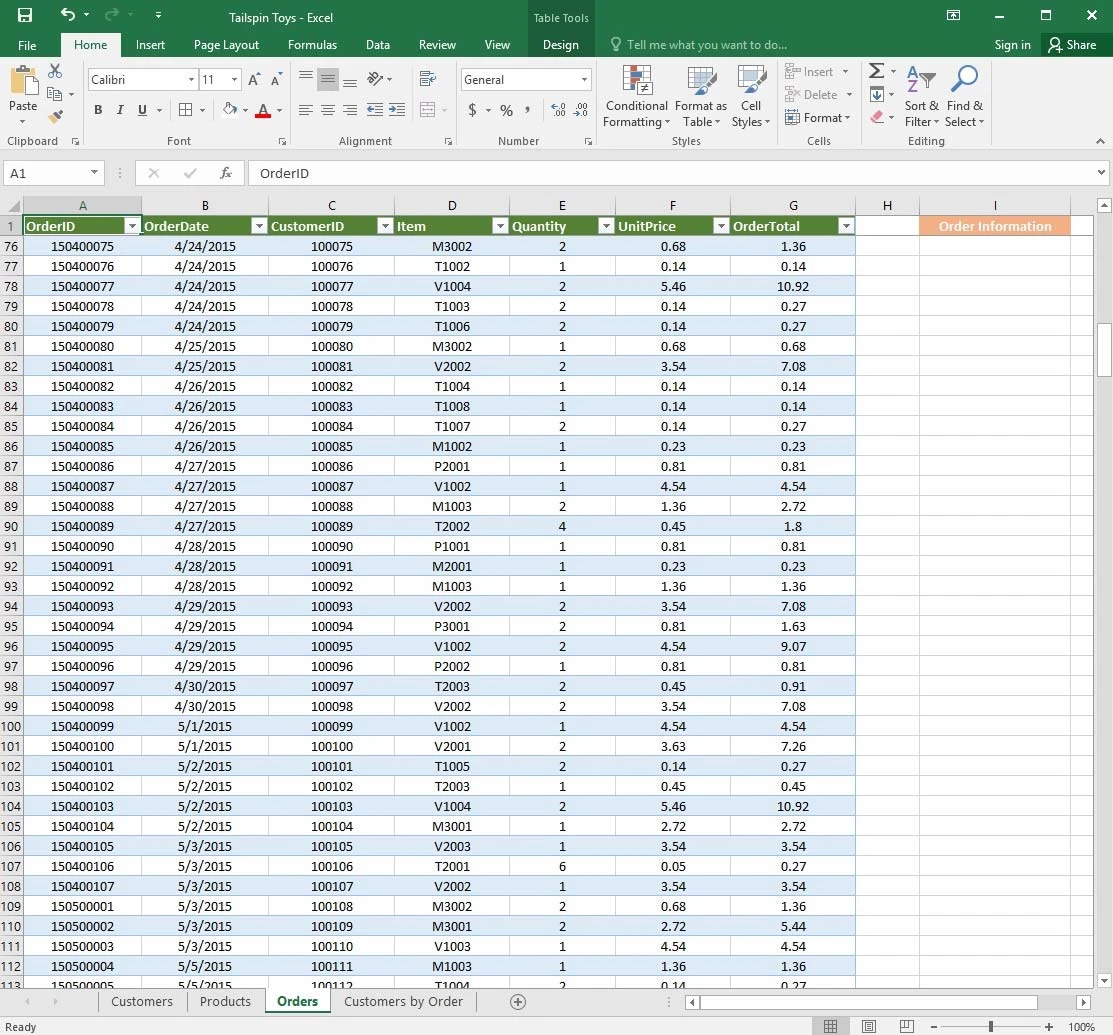
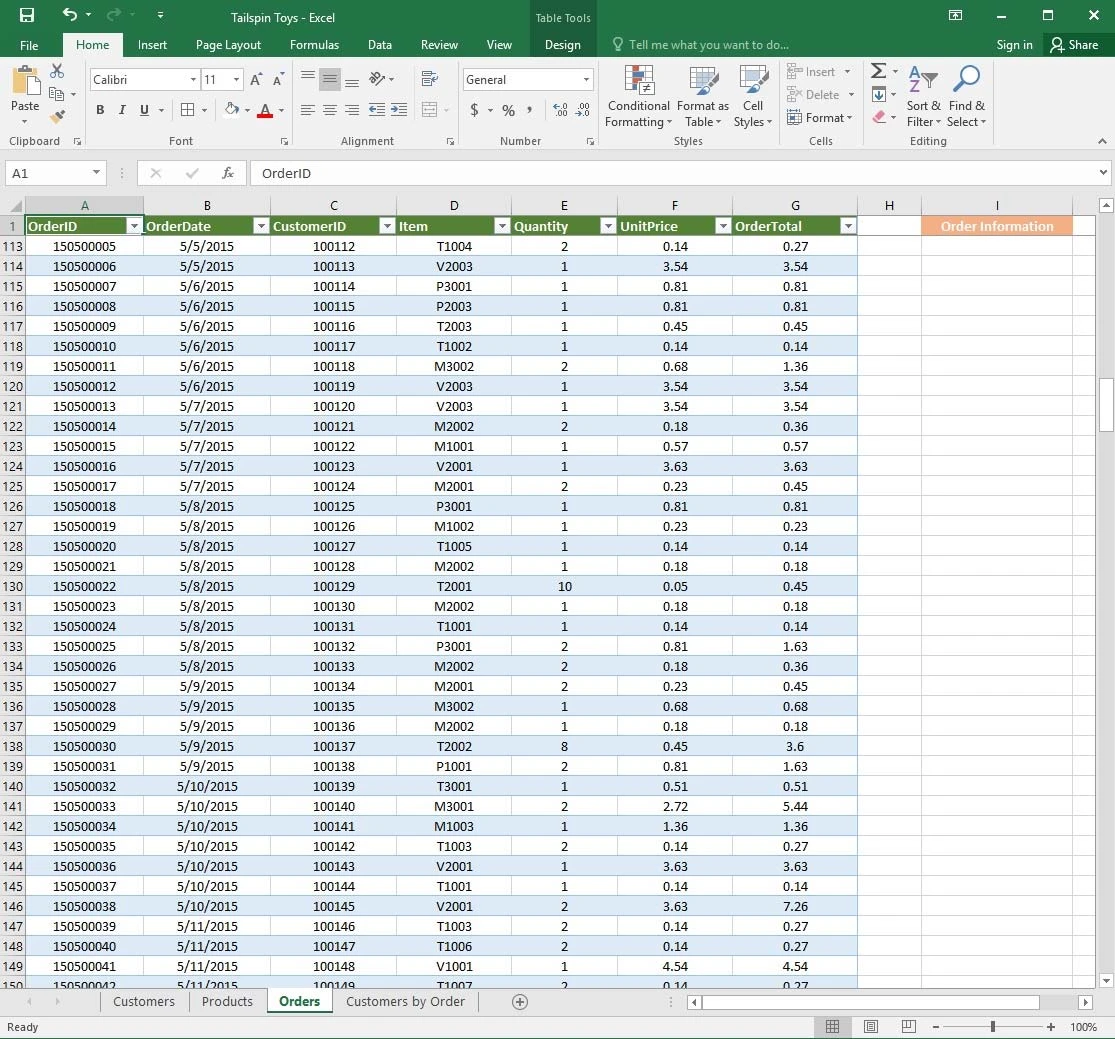
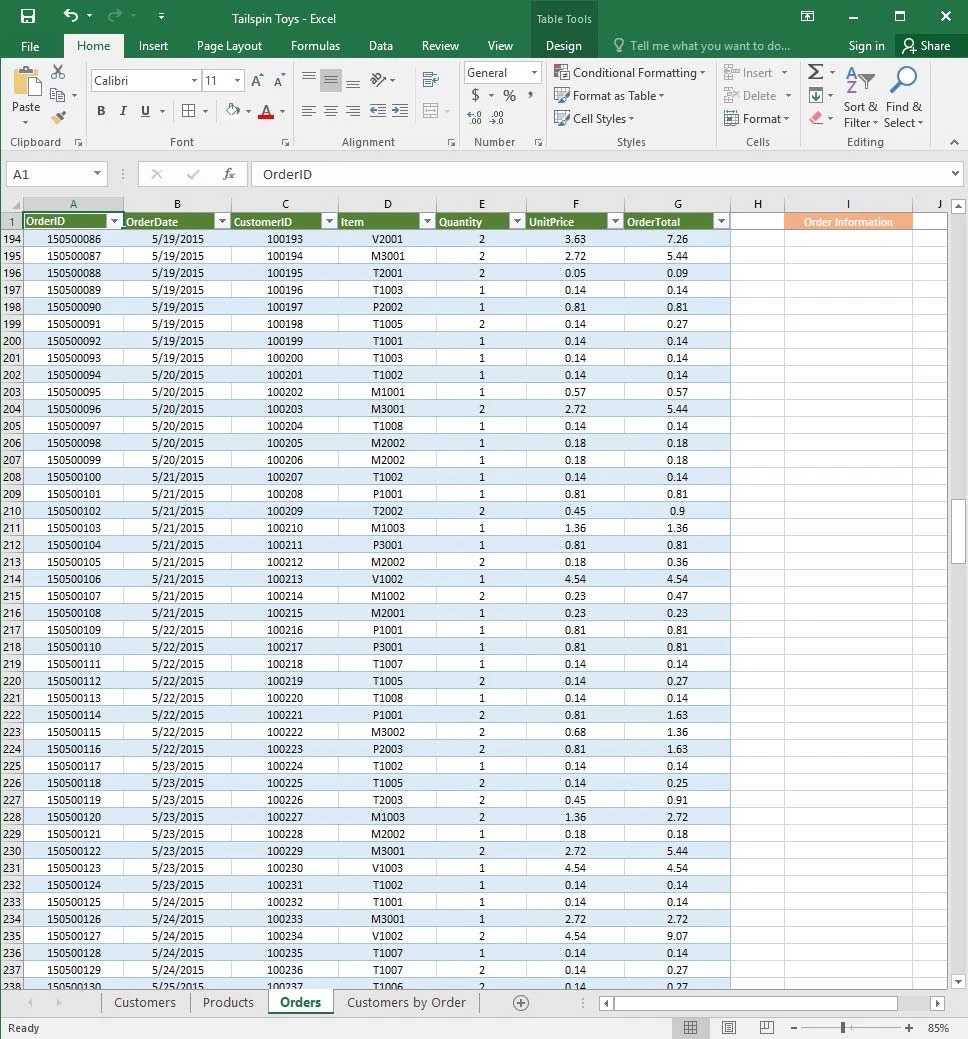
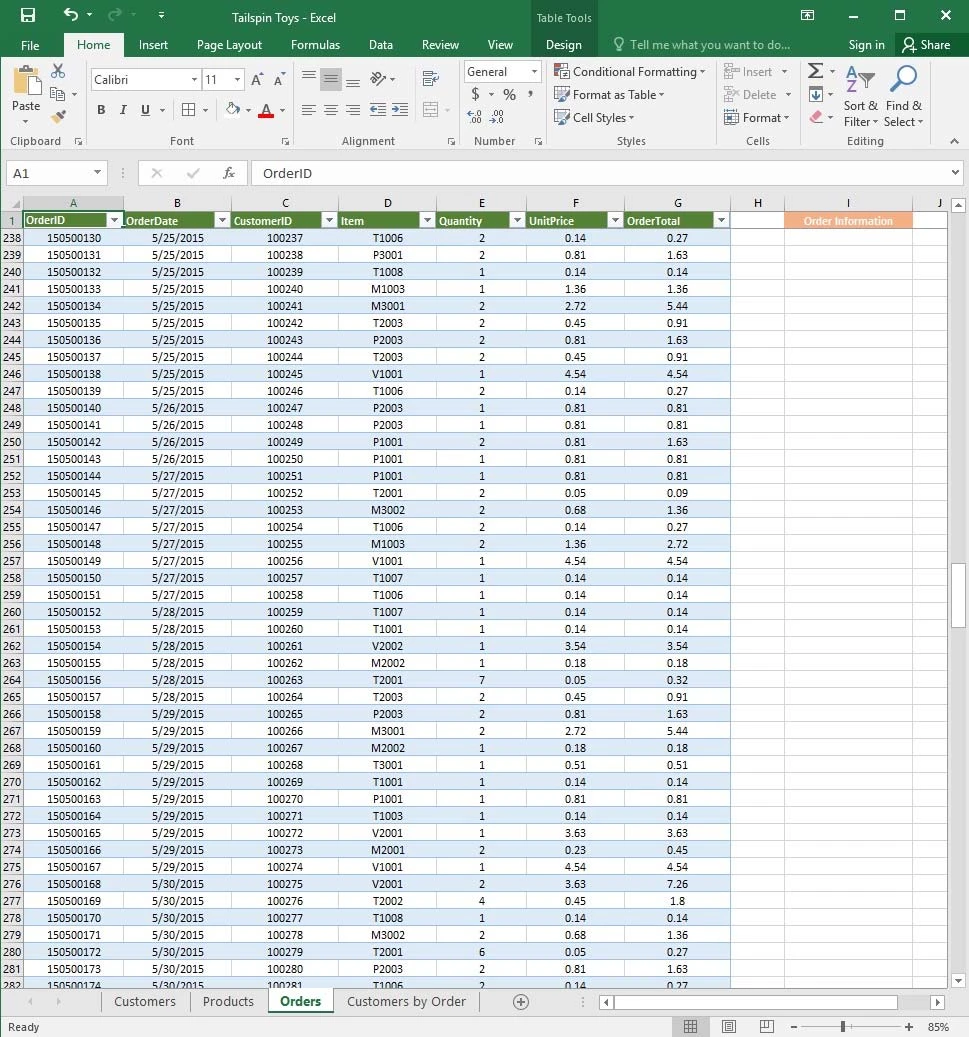
You recently opened an online toy store. You have sold products to 500 individual customers. You are evaluating customer data and order data.
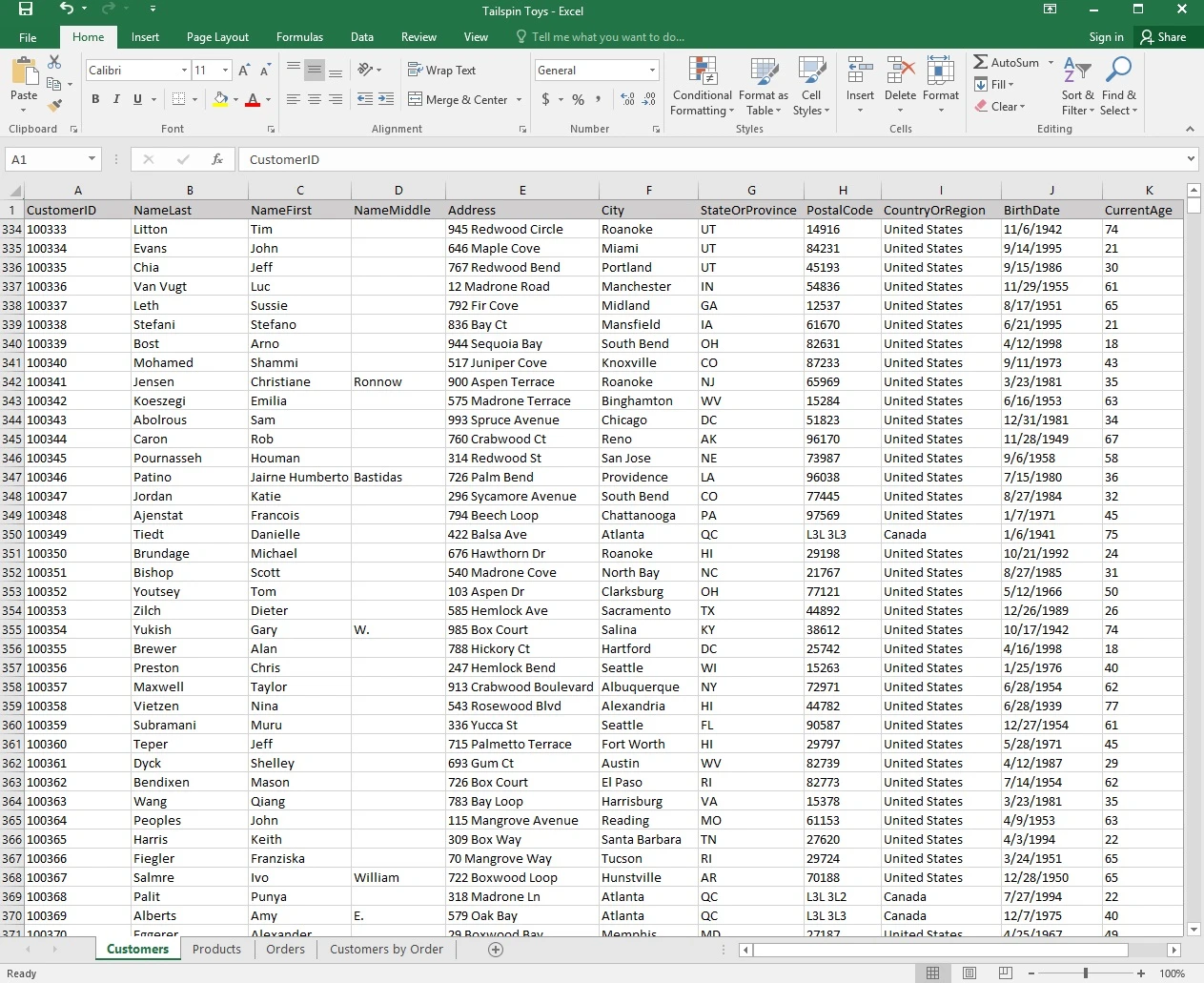
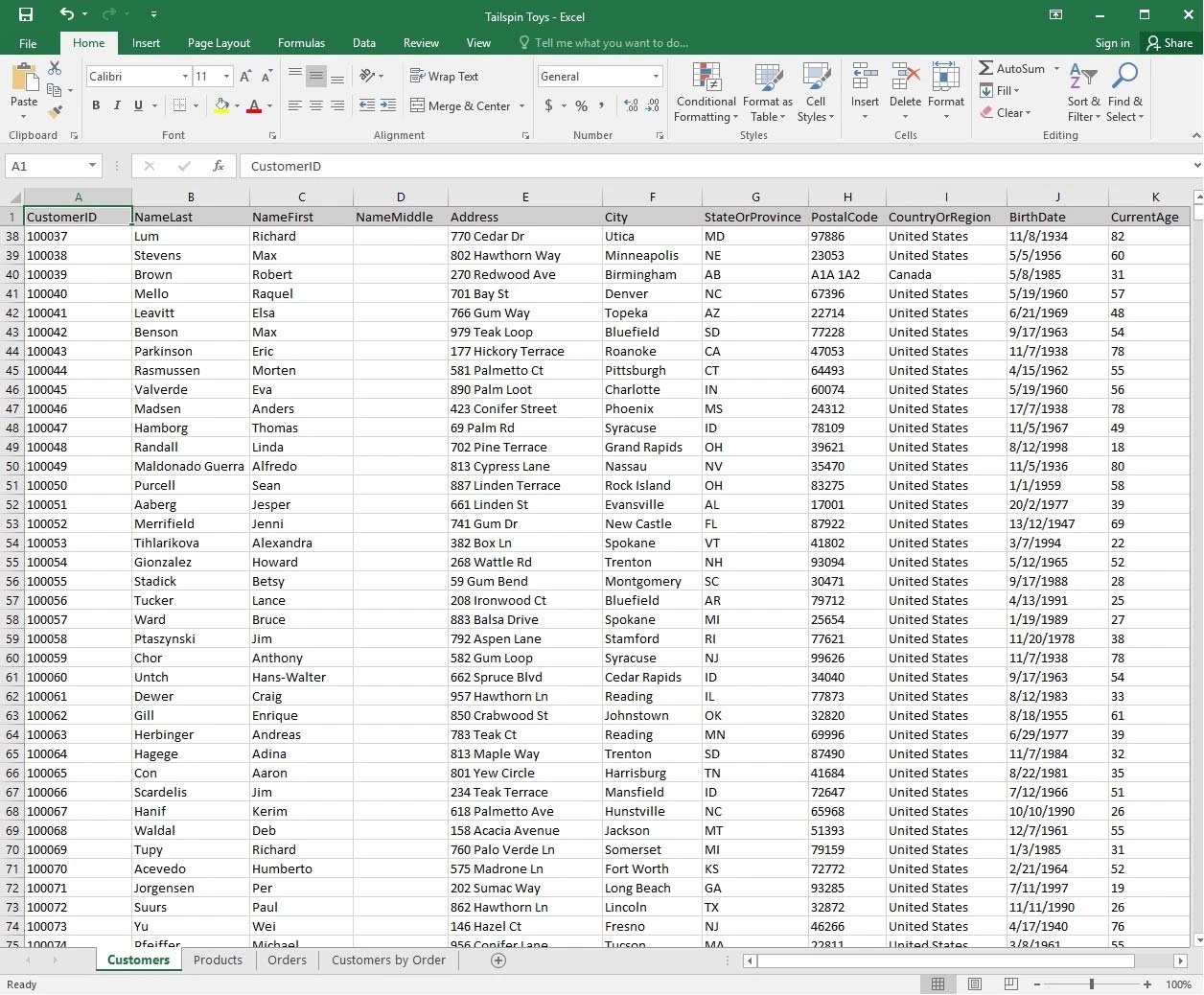
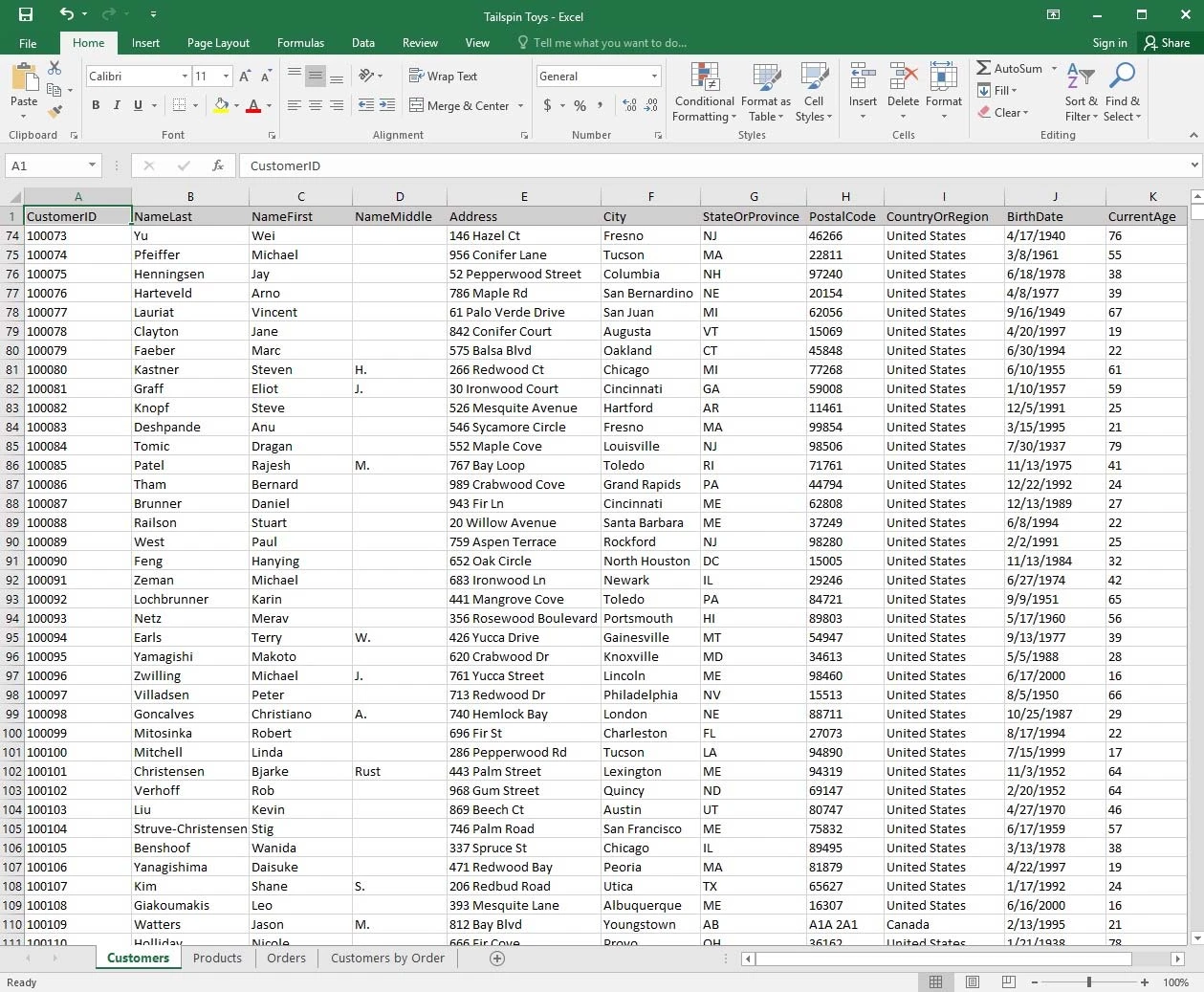
On the "Customers" worksheet, format the table so that every other row is shaded. Use a technique that automatically updates the formatting if you insert a new row.
Question 2 of 4
SIMULATION -
Project 1 of 7: Tailspin Toys -
Overview -
You recently opened an online toy store. You have sold products to 500 individual customers. You are evaluating customer data and order data.
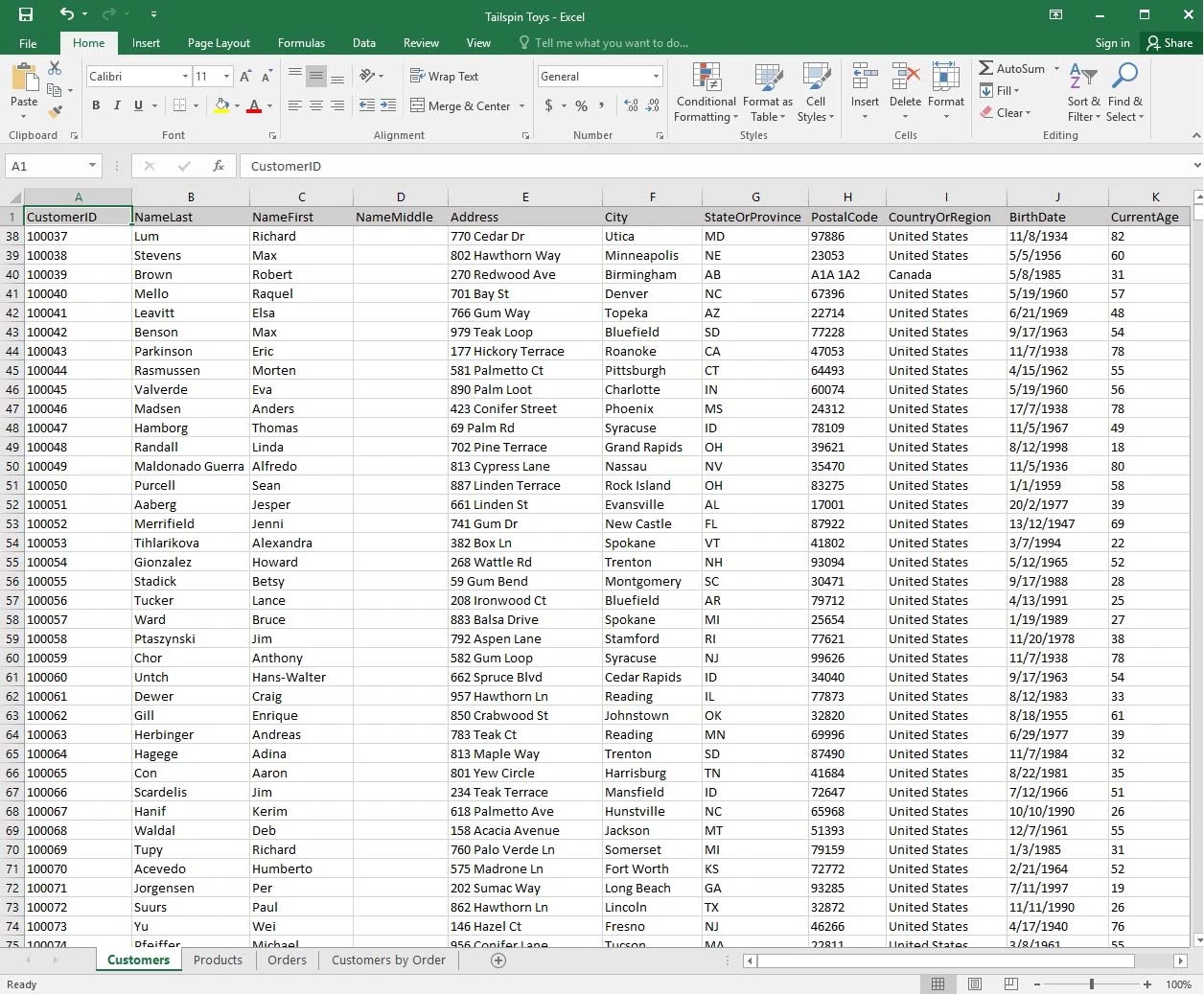
On the "Customers" worksheet, sort the table to order the records by the "CountryOrRegion" field, with customers in the United States first and customers inCanada second.
Then sort the customers in each country alphabetically (from A to Z) by the "StateOrProvince" field.
Finally, sort the customers in each state or province in ascending order by the "˜PostalCode" field.
Question 3 of 4
SIMULATION -
Project 1 of 7: Tailspin Toys -
Overview -
You recently opened an online toy store. You have sold products to 500 individual customers. You are evaluating customer data and order data.
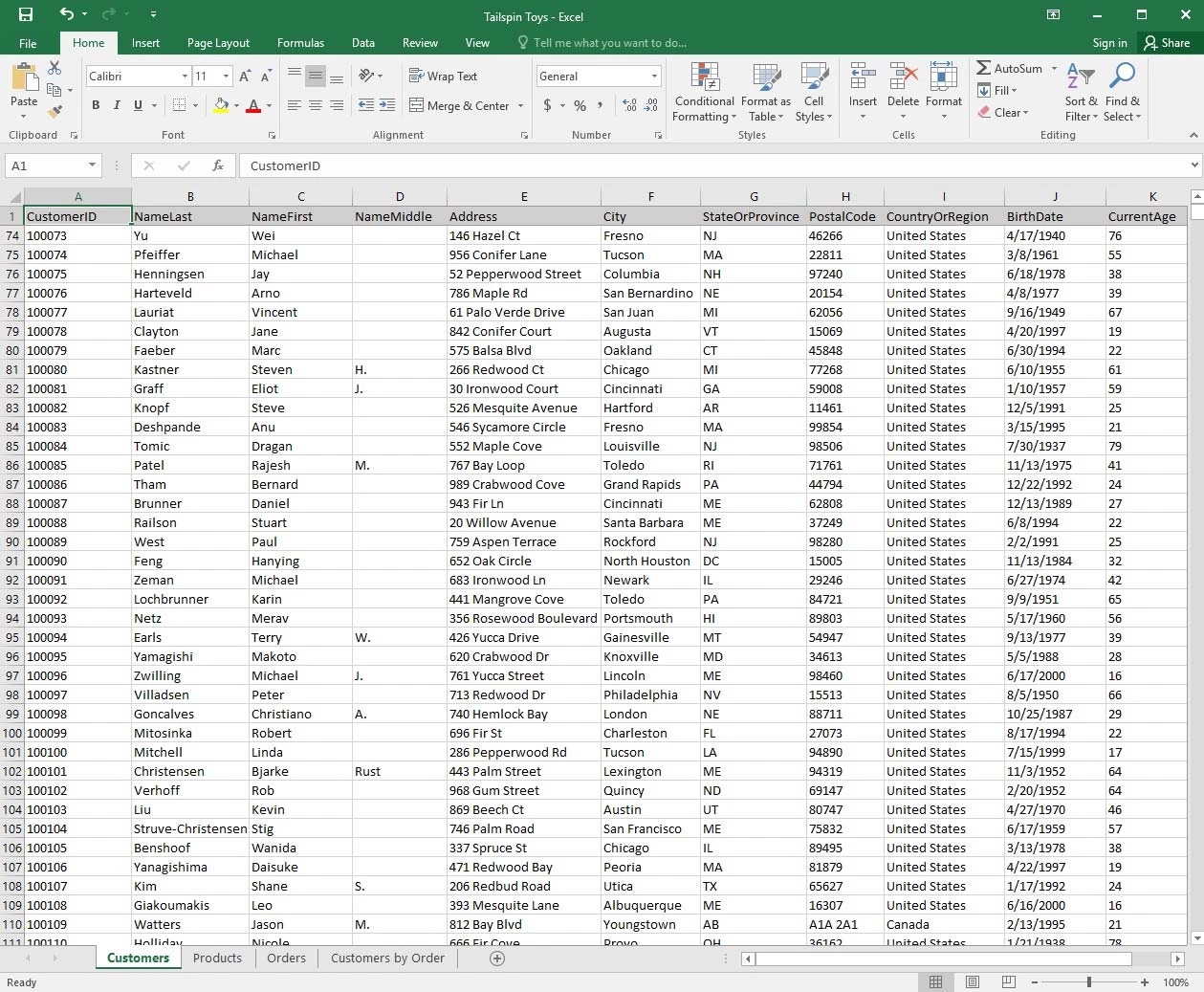
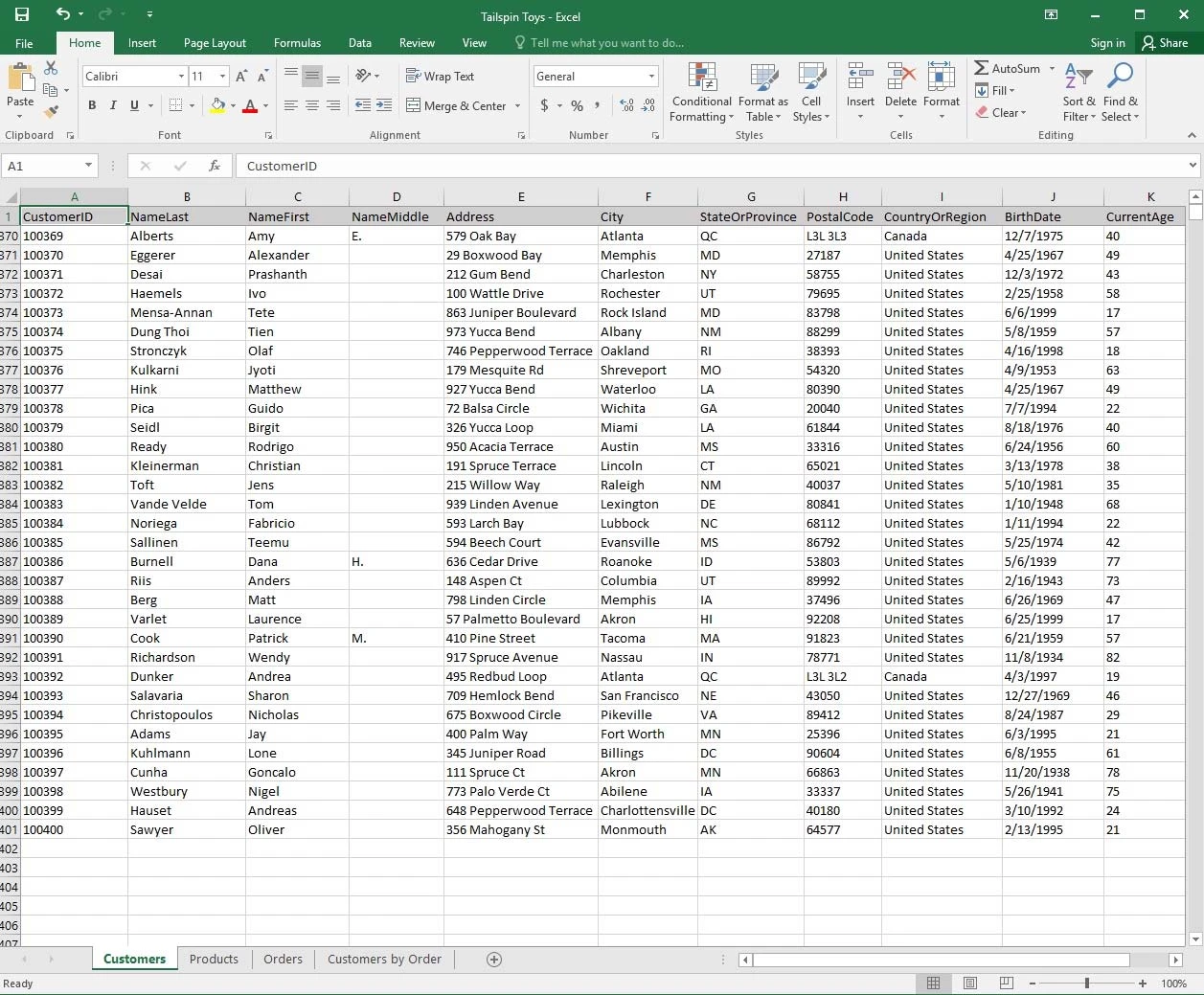
On the "Customers" worksheet, enter a formula in cell N2 that uses an Excel function to return the average age of the customers based on the values in the"CurrentAge" column.
Question 4 of 4
SIMULATION -
Project 1 of 7: Tailspin Toys -
Overview -
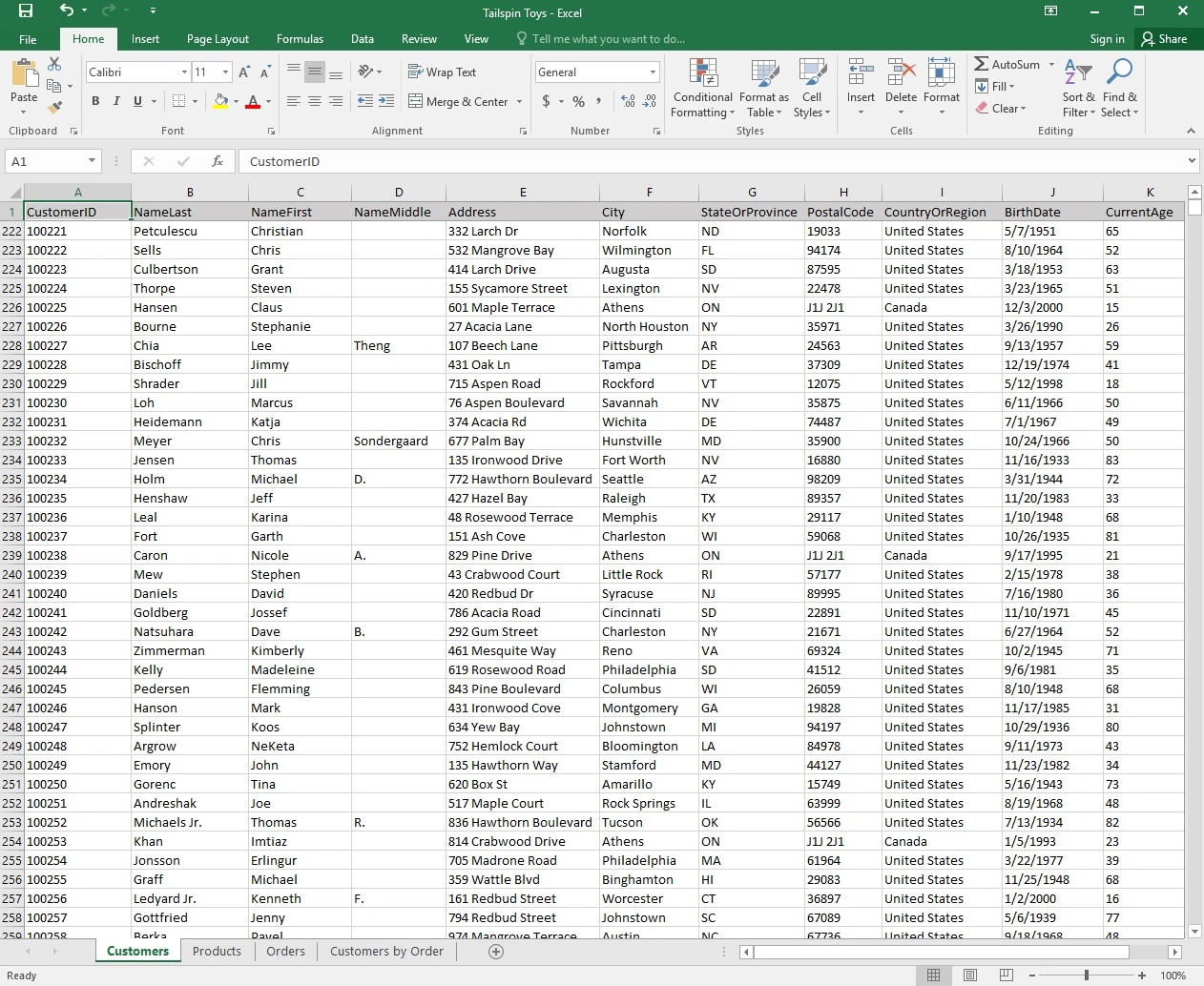
You recently opened an online toy store. You have sold products to 500 individual customers. You are evaluating customer data and order data.
06
07
08
-1 questions still locked
Your preview covered the first 5 questions. Unlock the rest to see every explanation and discussion thread, updated weekly
Save every question as a PDF for offline study or printing.
All 4 questions unlocked
Detailed answer explanations
Community discussions and votes
Weekly question updates
Full refund if you do not pass
Send us your exam result and we refund the purchase.
Stories from the certified
Charles Sirois
Canada
As this was my first certification exam, I was understandably nervous about what to expect. These study materials made the preparation process much easier, and many of the questions closely reflected those on the actual exam.
Lance Chambers
United States
Wasted about a month going through the free dump sites scattered all over reddit, half the answers were wrong and the other half were for a version of the exam that doesn't even exist anymore. Eventually gave in and paid the small fee here, and the difference was night and day.
Alisha Kelly
Italy
Honestly, I had already gone through the official documentation quite thoroughly, but still didn't feel fully confident going in. This helped things finally click for me. I realized I knew the material, but just hadn't connected all the pieces yet.
Casper Claassen
Netherlands
Used this along with Microsoft Learn and the combo worked really well. The practice questions made the stuff I'd read actually stick. Passed first attempt, no complaints from me.
Gabriele Ghesla
Italy
The content is accurate and clearly presented, and it's more affordable than competitors. The team has been incredibly responsive whenever I've had an issue, and they've been open to small changes that improve the platform.
Charles Sirois
Canada
As this was my first certification exam, I was understandably nervous about what to expect. These study materials made the preparation process much easier, and many of the questions closely reflected those on the actual exam.
Lance Chambers
United States
Wasted about a month going through the free dump sites scattered all over reddit, half the answers were wrong and the other half were for a version of the exam that doesn't even exist anymore. Eventually gave in and paid the small fee here, and the difference was night and day.
Alisha Kelly
Italy
Honestly, I had already gone through the official documentation quite thoroughly, but still didn't feel fully confident going in. This helped things finally click for me. I realized I knew the material, but just hadn't connected all the pieces yet.
Casper Claassen
Netherlands
Used this along with Microsoft Learn and the combo worked really well. The practice questions made the stuff I'd read actually stick. Passed first attempt, no complaints from me.
Gabriele Ghesla
Italy
The content is accurate and clearly presented, and it's more affordable than competitors. The team has been incredibly responsive whenever I've had an issue, and they've been open to small changes that improve the platform.
Morgan Farmer
United Kingdom
I don't usually leave reviews, but this one felt worth sharing. The questions were quite close to what actually appeared on the exam, more than I expected. I spent about a week going through the material before my test, and it helped me feel more prepared.
Remi Nuyts
United States
Passed ITIL 4 Foundation with 87%. Material was enough by itself.
Archie Hopkins
United States
I had a smooth experience from start to finish. Access was available right away, no technical issues, which made it easy to get started. The content felt relevant and aligned well with what I was looking for.
Nancy Mcbride
United States
Does what it says it does. Content felt solid, nothing confusing to navigate and I didn't run into any weird issues. I been putting off scheduling the exam for a while and going through this gave me enough confidence to finally book it and pass.
Neil Savage
United States
A very quick response was received via email when a link issue occurred. The study materials provided were high quality and extremely helpful. I was able to complete the test successfully. Many thanks for the excellent support.
Morgan Farmer
United Kingdom
I don't usually leave reviews, but this one felt worth sharing. The questions were quite close to what actually appeared on the exam, more than I expected. I spent about a week going through the material before my test, and it helped me feel more prepared.
Remi Nuyts
United States
Passed ITIL 4 Foundation with 87%. Material was enough by itself.
Archie Hopkins
United States
I had a smooth experience from start to finish. Access was available right away, no technical issues, which made it easy to get started. The content felt relevant and aligned well with what I was looking for.
Nancy Mcbride
United States
Does what it says it does. Content felt solid, nothing confusing to navigate and I didn't run into any weird issues. I been putting off scheduling the exam for a while and going through this gave me enough confidence to finally book it and pass.
Neil Savage
United States
A very quick response was received via email when a link issue occurred. The study materials provided were high quality and extremely helpful. I was able to complete the test successfully. Many thanks for the excellent support.
Before you buy
Answers about access, updates, payments, and the refund policy.
01Are these real exam questions?
Our Microsoft 77-727 questions are based on real exam experiences and are regularly updated to match the current exam format. Most candidates who study with us report passing on their first attempt, based on a self reported post exam survey.
02What happens if I don't pass the exam?
With our Premium package, you get a 100% money back guarantee. If you don't pass your exam after studying with our materials, simply contact us with your exam results and we'll refund your purchase.
03How often are the questions updated?
Our question bank is updated regularly based on feedback from recent exam takers. We typically review and update our content every week with reports about new questions or changes to the exam format.
04What does Premium add on the exam page?
Both plans open the full question bank, the explanations, and the discussions. Premium also includes the printable PDF and advanced study tools, giving you full control over how many questions you see per page, quick navigation to any page, and the ability to resume exactly where you left off.
05Is this a single payment or a subscription?
This is a single payment with no recurring charges. Once you purchase, you get full access to all exam questions for the duration of your package (30 days for Standard, 90 days for Premium). No hidden fees or automatic renewals.
06How many questions are included?
You get access to all 4 questions in our database for the Microsoft 77-727 exam. This includes detailed explanations and answer justifications to help you understand the concepts thoroughly.
07Do you offer technical support?
Yes. Email us at hello@examice.com for help with access, billing, or the platform. We read every message and typically reply within 24 hours on business days.
08Is my payment secure?
Absolutely! We use industry standard SSL encryption and process all payments through Stripe, a trusted payment processor used by millions of businesses worldwide. Your payment and personal information are completely secure.
Ready to unlock the rest
All 4 questions from $25, single payment, instant access.