The suggested answer is A, D.
A: The way to correct this problem is to first create two normal user accounts in AD. These are not service accounts. You could call them domain\superuser and domain\superreader, but of course thats up to you.
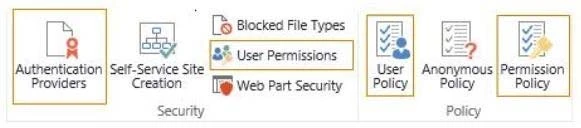
The domain\superuser account needs to have a User Policy set for that gives it Full Control to the entire web application.
D: If you are using any type of claims based authentication you will need to use Windows PowerShell. And Windows PowerShell is the hipper more modern and sustainable option anyway.
If you are using classic mode authentication run the following cmdlets on one of your SharePoint servers:
$w = Get-SPWebApplication "http://<server>/"
$w.Properties["portalsuperuseraccount"] = "domain\superuser"
$w.Properties["portalsuperreaderaccount"] = "domain\superreader"
$w.Update()
If you are using claims based authentication run these cmdlets on one of your SharePoint servers:
$w = Get-SPWebApplication "http://<server>/"
$w.Properties["portalsuperuseraccount"] = "i:0#.w|domain\superuser"
$w.Properties["portalsuperreaderaccount"] = "i:0#.w|domain\superreader"
$w.Update()
Note:
* If you have a SharePoint Publishing site and you check the event viewer every once in a while you might see the following warning in there:
This means that the cache accounts for your web application arent properly set and that there will be a lot of cache misses. If a cache miss occurs the page the user requested will have to be build up from scratch again. Files and information will be retrieved from the database and the file system and the page will be rendered. This means an extra hit on your SharePoint and database servers and a slower page load for your end user.
Reference: Resolving "The super user account utilized by the cache is not configured."