Question 6 of 424
A Visualforce page contains an industry select list and displays a table of Accounts that have a matching value in their Industry field.
<apex:selectList value="{!selectedIndustry}">
<apex:selectOptions values="{!industries}"/>
</apex:selectList>
When a user changes the value in the industry select list, the table of Accounts should be automatically updated to show the Accounts associated with the selected industry.
What is the optimal way to implement this?
<apex:selectList value="{!selectedIndustry}">
<apex:selectOptions values="{!industries}"/>
</apex:selectList>
When a user changes the value in the industry select list, the table of Accounts should be automatically updated to show the Accounts associated with the selected industry.
What is the optimal way to implement this?
Suggested Answer: C
The correct approach involves adding
Community votes
No votes yet
Question 7 of 424
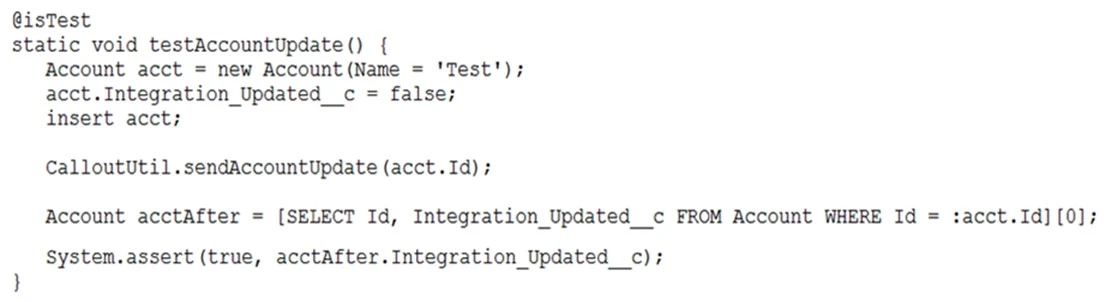
The test method above calls a web service that updates an external system with Account information and sets the Account's Integration_Updated__c checkbox to
True when it completes. The test fails to execute and exits with an error: "Methods defined as TestMethod do not support Web service callouts. "
What is the optimal way to fix this?
The test method above calls a web service that updates an external system with Account information and sets the Account's Integration_Updated__c checkbox to
True when it completes. The test fails to execute and exits with an error: "Methods defined as TestMethod do not support Web service callouts. "
What is the optimal way to fix this?
Suggested Answer: B
To execute a test method that makes a web service callout, you need to mock the callout. This is done using `Test.setMock`. Additionally, `Test.startTest()` and `Test.stopTest()` are used to separate the test method's setup steps from its execution. Therefore, the optimal way to fix the test method is to add `Test.startTest()` and `Test.setMock` before `CalloutUtil.sendAccountUpdate`, and `Test.stopTest()` after.
Community votes
No votes yet
Question 8 of 424
A developer created and tested a Visualforce page in their developer sandbox, but now receives reports that users are encountering ViewState errors when using it in Production.
What should the developer ensure to correct these errors?
What should the developer ensure to correct these errors?
Suggested Answer: B
To correct ViewState errors in a Visualforce page, the developer should ensure that properties used in the page's controller are marked as Transient when they are not essential for maintaining the state across requests. Marking properties as Transient helps to reduce the size of the ViewState, which in turn helps to avoid hitting ViewState size limits. This directly addresses the issue without affecting critical functionalities or access permissions.
Community votes
No votes yet
Question 9 of 424
<lightning:layout multipleRows="true">
<lightning:layoutItem size="12">{!v.account.Name}
</lightning:layoutItem>
<lightning:layoutItem size="12">{!v.account.AccountNumber}
</lightning:layoutItem>
<lightning:layoutItem size="12">{!v.account.Industry}
</lightning:layoutItem>
</lightning:layout>
Refer to the component code above. The information displays as expected (in three rows) on a mobile device. However, the information is not displaying as desired (in a single row) on a desktop or tablet.
Which option has the correct component changes to display correctly on desktops and tablets?
<lightning:layoutItem size="12">{!v.account.Name}
</lightning:layoutItem>
<lightning:layoutItem size="12">{!v.account.AccountNumber}
</lightning:layoutItem>
<lightning:layoutItem size="12">{!v.account.Industry}
</lightning:layoutItem>
</lightning:layout>
Refer to the component code above. The information displays as expected (in three rows) on a mobile device. However, the information is not displaying as desired (in a single row) on a desktop or tablet.
Which option has the correct component changes to display correctly on desktops and tablets?
Suggested Answer: C
To ensure that the information displays correctly in a single row on desktops and tablets, each layout item should take up one-third of the available width. Given that the layout items are originally set to a size of '12' (full width) on mobile devices, changing the mediumDeviceSize to '4' will divide the total width (12) into three equal parts (since 12/3 = 4), thus displaying the items in a single row on medium and larger devices.
Community votes
No votes yet
Question 10 of 424
A company's support process dictates that any time a Case is closed with a Status of 'Could not fix', an Engineering Review custom object record should be created and populated with information from the Case, the Contact, and any of the Products associated with the Case.
What is the correct way to automate this using an Apex trigger?
What is the correct way to automate this using an Apex trigger?
Suggested Answer: A
An after update trigger is the correct approach in this scenario. The trigger should fire after the Case record has been updated to ensure the status is 'Could not fix'. By using an after update trigger, you can access the finalized Case data and create the Engineering Review custom object record with the necessary information from the Case, the Contact, and any associated Products. This ensures that the data being used to populate the Engineering Review record is accurate and reflects the current state of the Case.
Community votes
No votes yet