Question 6 of 24
SIMULATION -

Instructions -

Exam Environment -

Exam Interface and Controls -
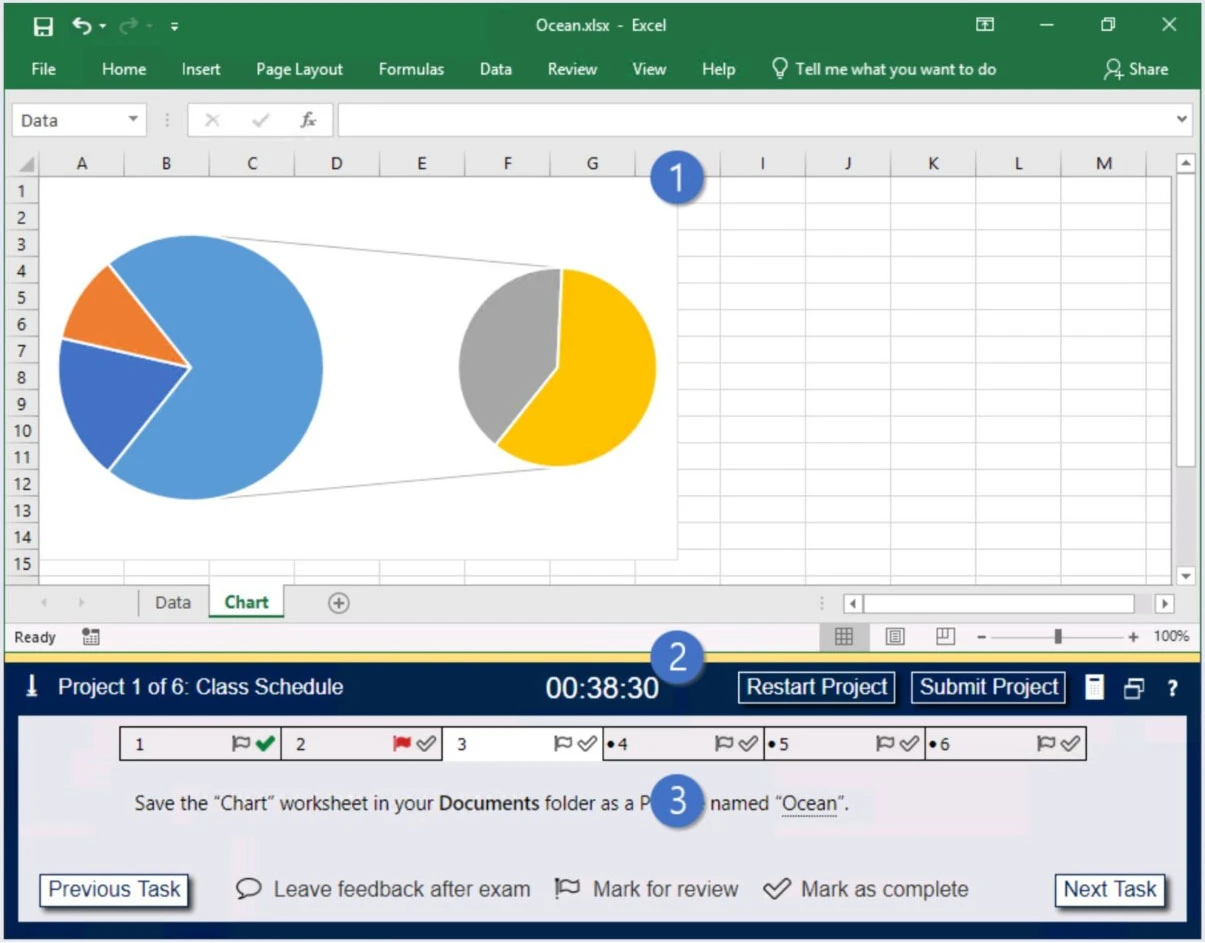
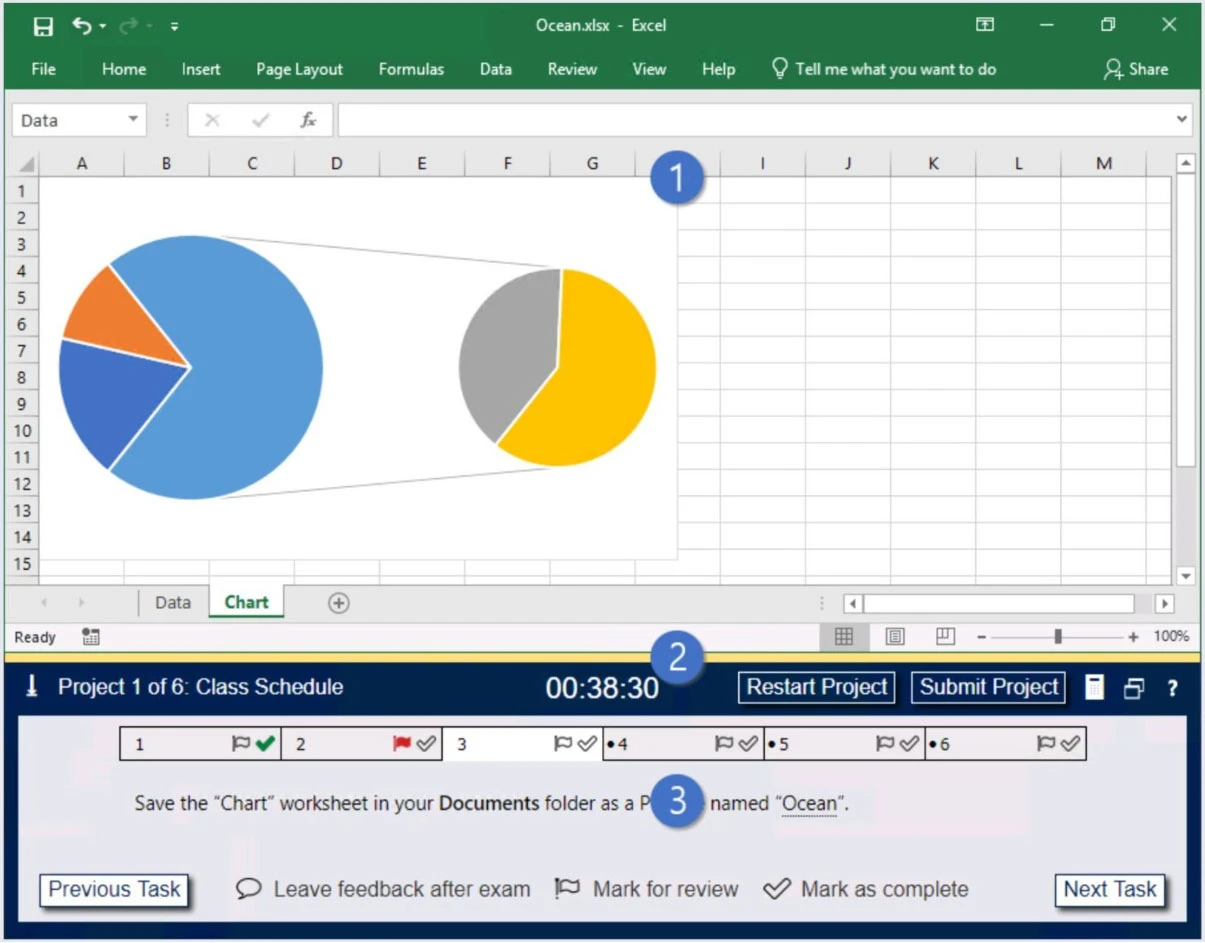
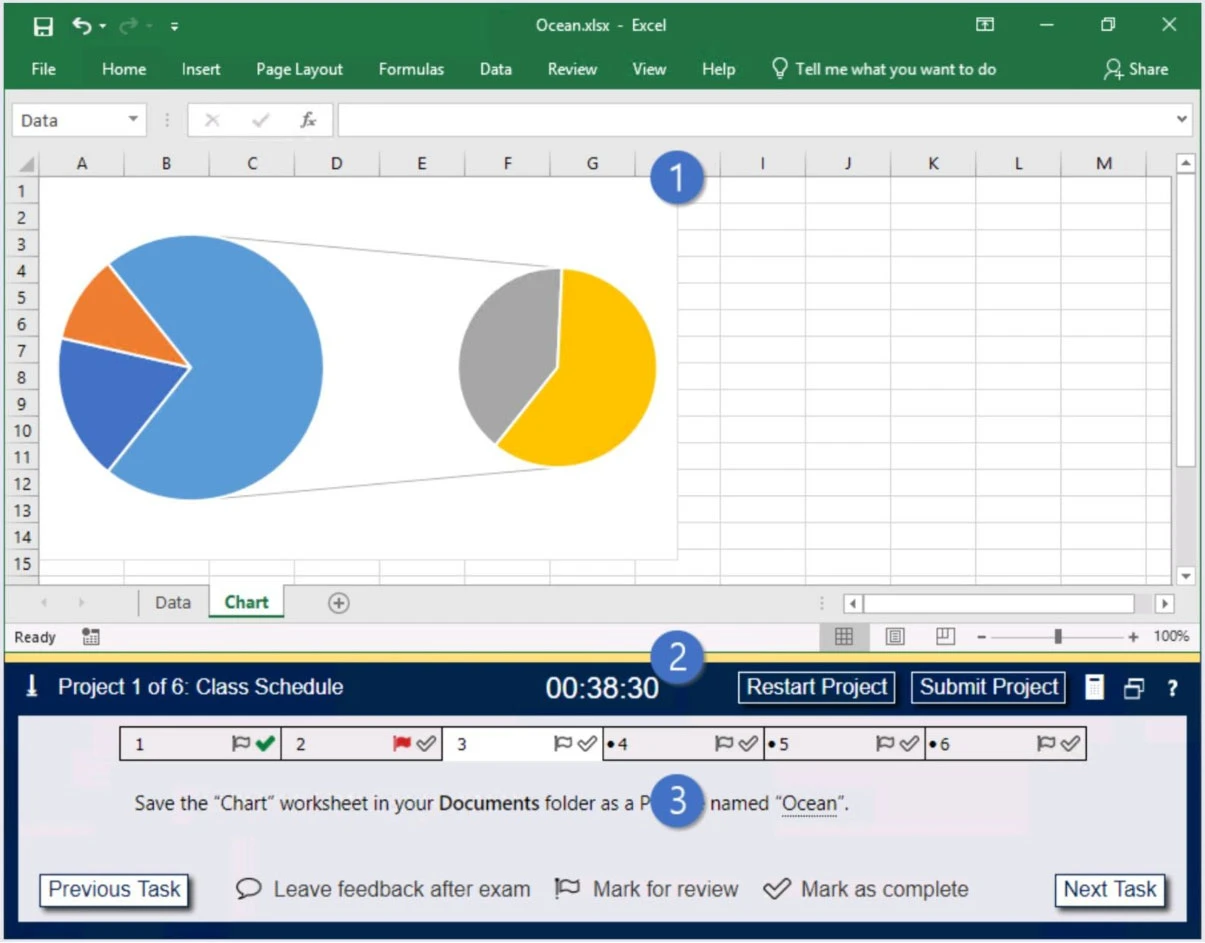
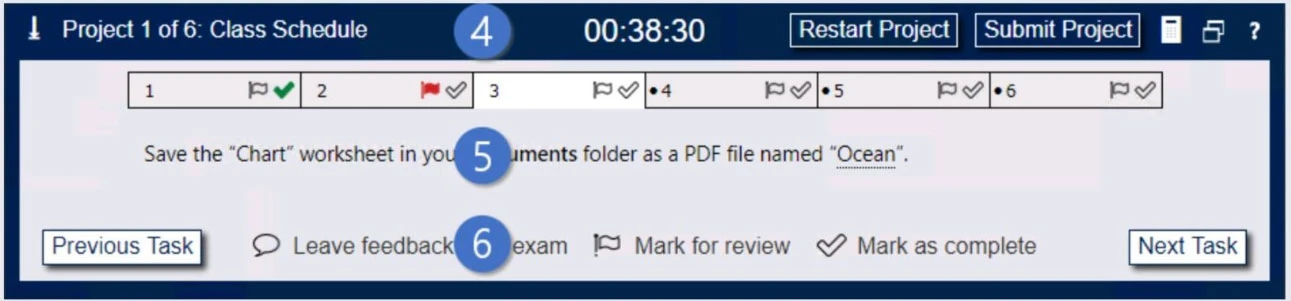
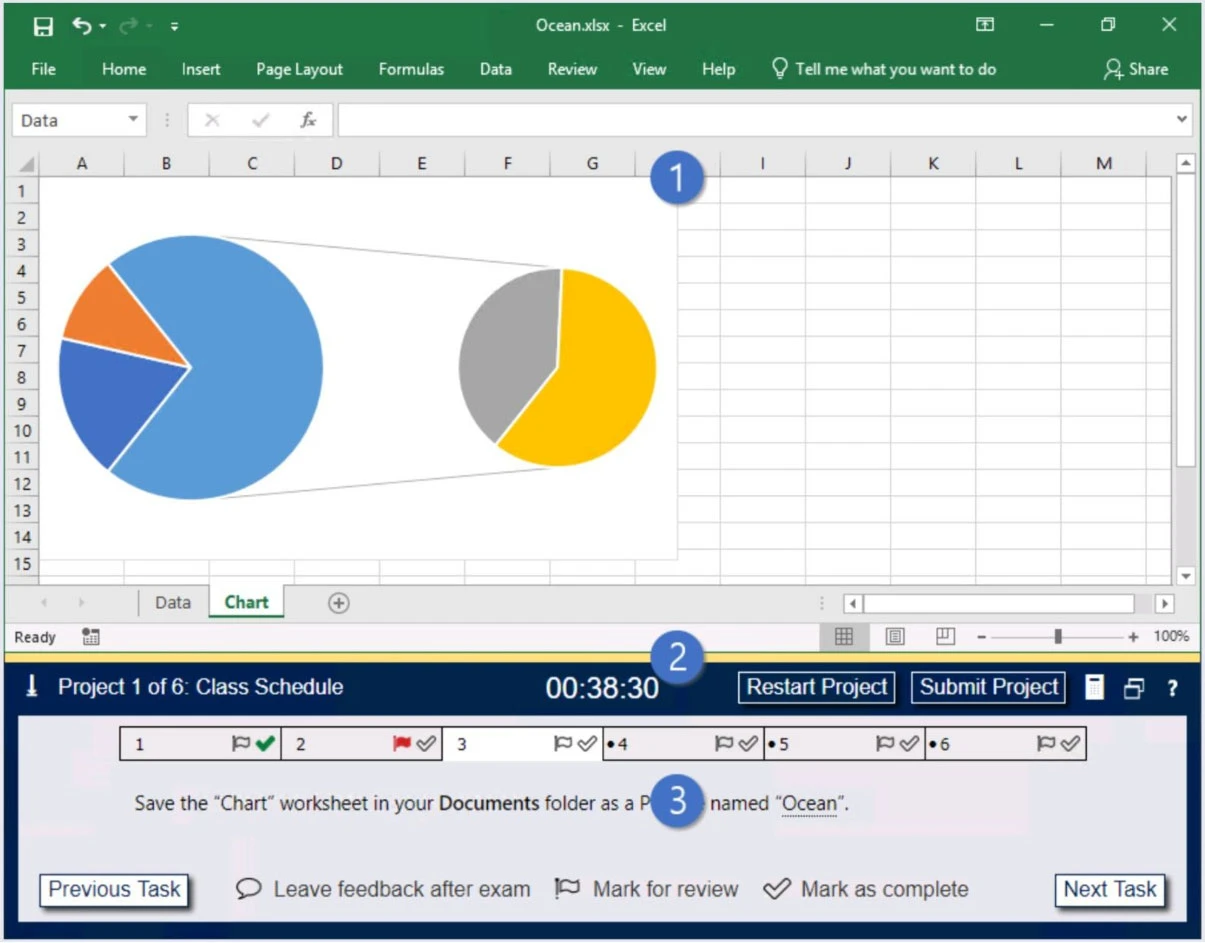
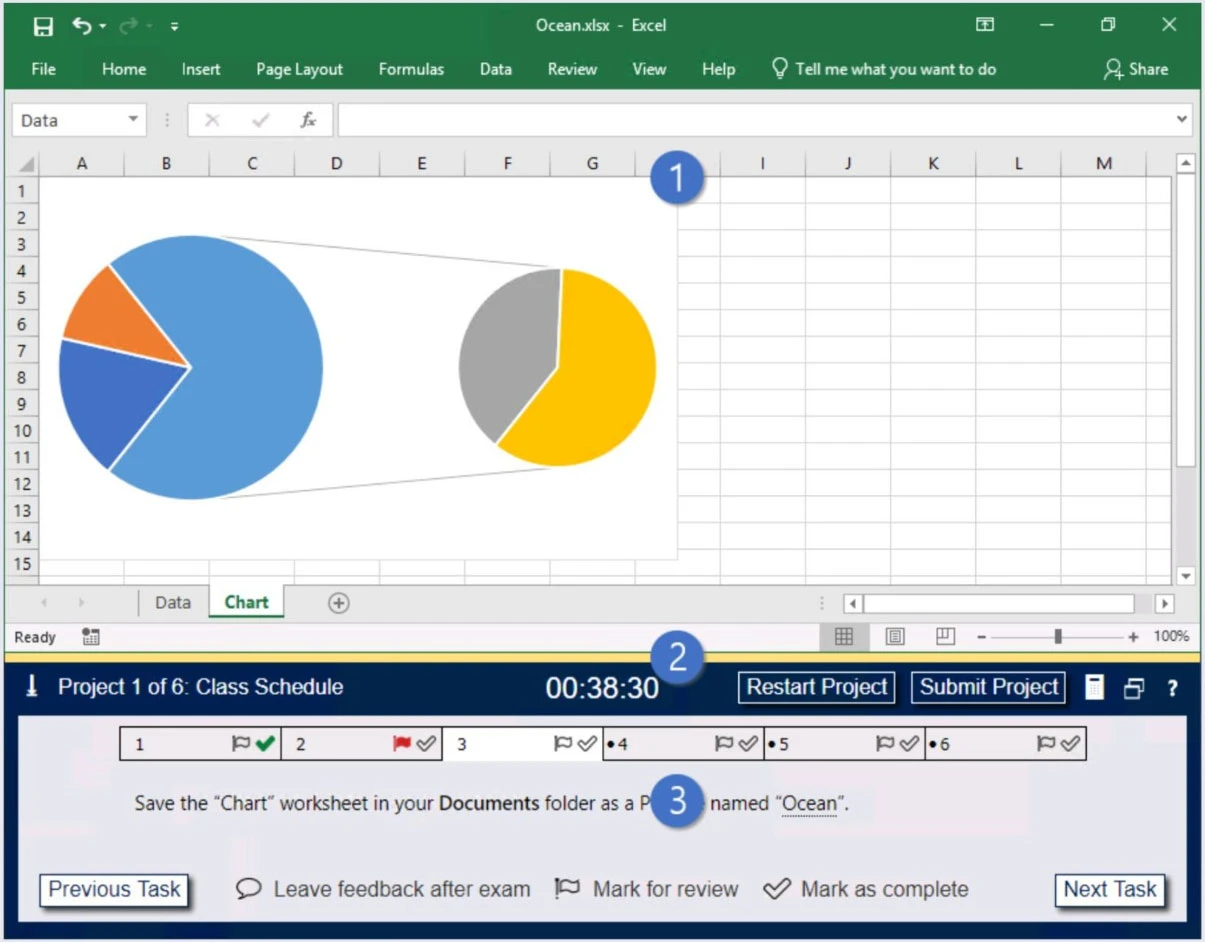
The exam panel provides access to the project task(s). Each project has an associated file in which you will perform the project tasks.
Exam MO-201: Question 6 - Image 1
1. Project file
2. Split bar
3. Exam panel
You can modify the exam interface to fit your needs in the following ways:
✑ To increase or decrease the exam panel font size, press Ctrl+Plus or Ctrl+Minus.
✑ To change the height of the exam panel, drag the split bar between the project file and the exam panel.
Exam MO-201: Question 6 - Image 2
To minimize the exam panel, click the Collapse Panel arrow
in the upper-left corner of the exam panel. The minimized exam panel displays the Expand
Exam MO-201: Question 6 - Image 3
Panel button, the project number and name, the remaining time, and the Restart Project and Submit Project buttons. To move between tasks, you must expand the exam panel.
✑ To restore the interface to the default appearance, click the Restore button near the upper-right corner of the exam panel.
Exam MO-201: Question 6 - Image 4
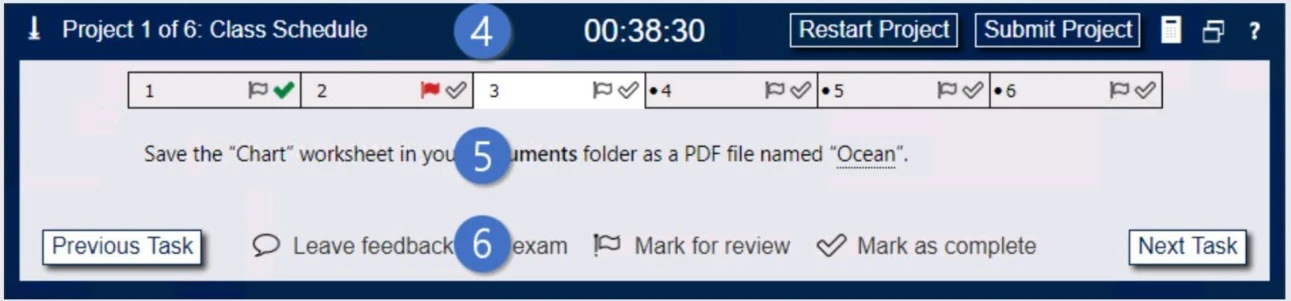
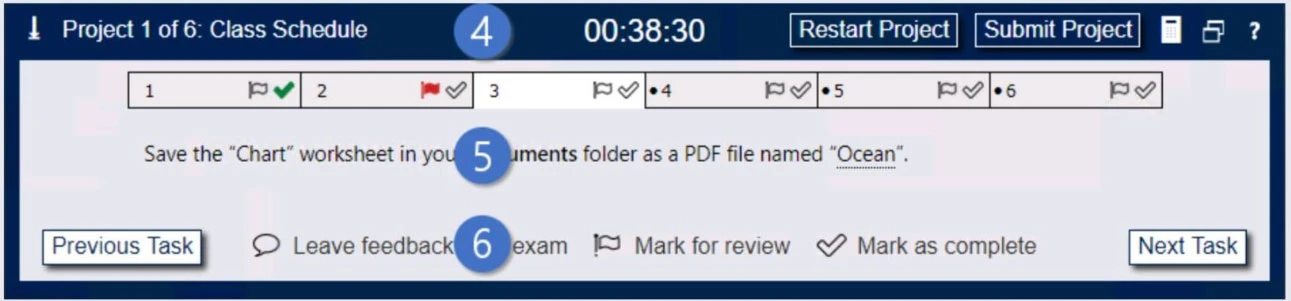
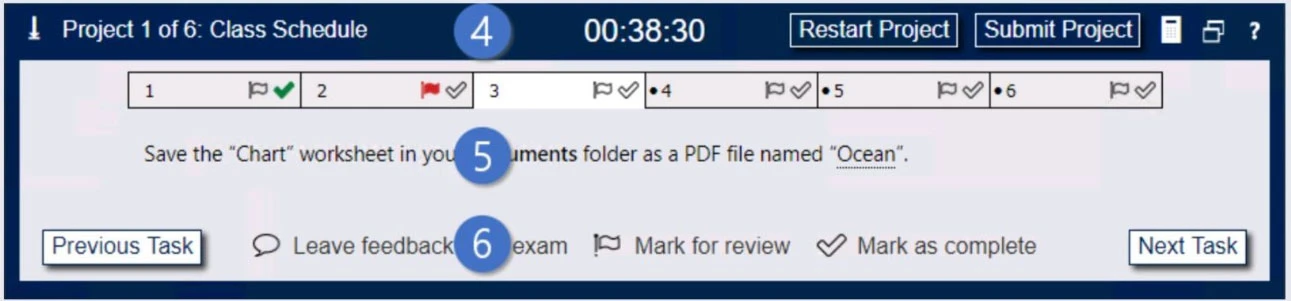
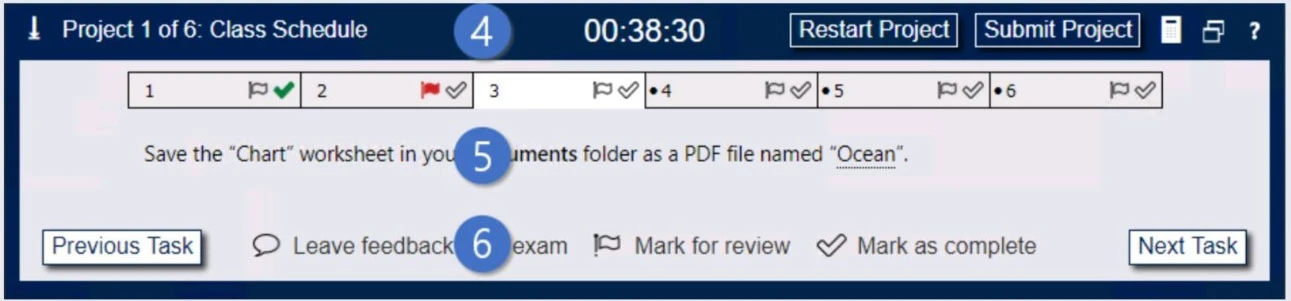
4. The Information bar at the top of the exam panel displays the current project and total number of projects, the remaining exam time, and the following commands:
✑ Collapse Panel. Minimizes the exam panel to provide more space for the project file.
✑ Restart Project. Closes and reopens the current project file without saving your changes.
✑ Submit Project. Saves your changes, submits the project file, and moves to the next project.
✑ Calculator. A calculator is available in some exams. You are not required to use the calculator.
✑ Restore. Restores the size and position of the project file and exam panel to the defaults.
✑ Help. Displays information about the exam interface.
5. The Content area displays the task tabs and the current task description.
6. The Navigation area at the bottom of the exam panel contains the following commands.
✑ Previous Task/Next Task. Saves your response and moves to the previous or next task in the current project.
✑ Leave feedback after exam. Flags the task to indicate that you want to leave feedback about it after the exam.
✑ Mark for review. Flags the task to indicate that you want to return to it before you finish the exam.
✑ Mark as complete. Flags the task to indicate that you feel you have completed the task.
In projects that contain multiple tasks, you can switch between tasks by clicking the task tab, Next Task button, or Previous Task button.
End of the instructions.
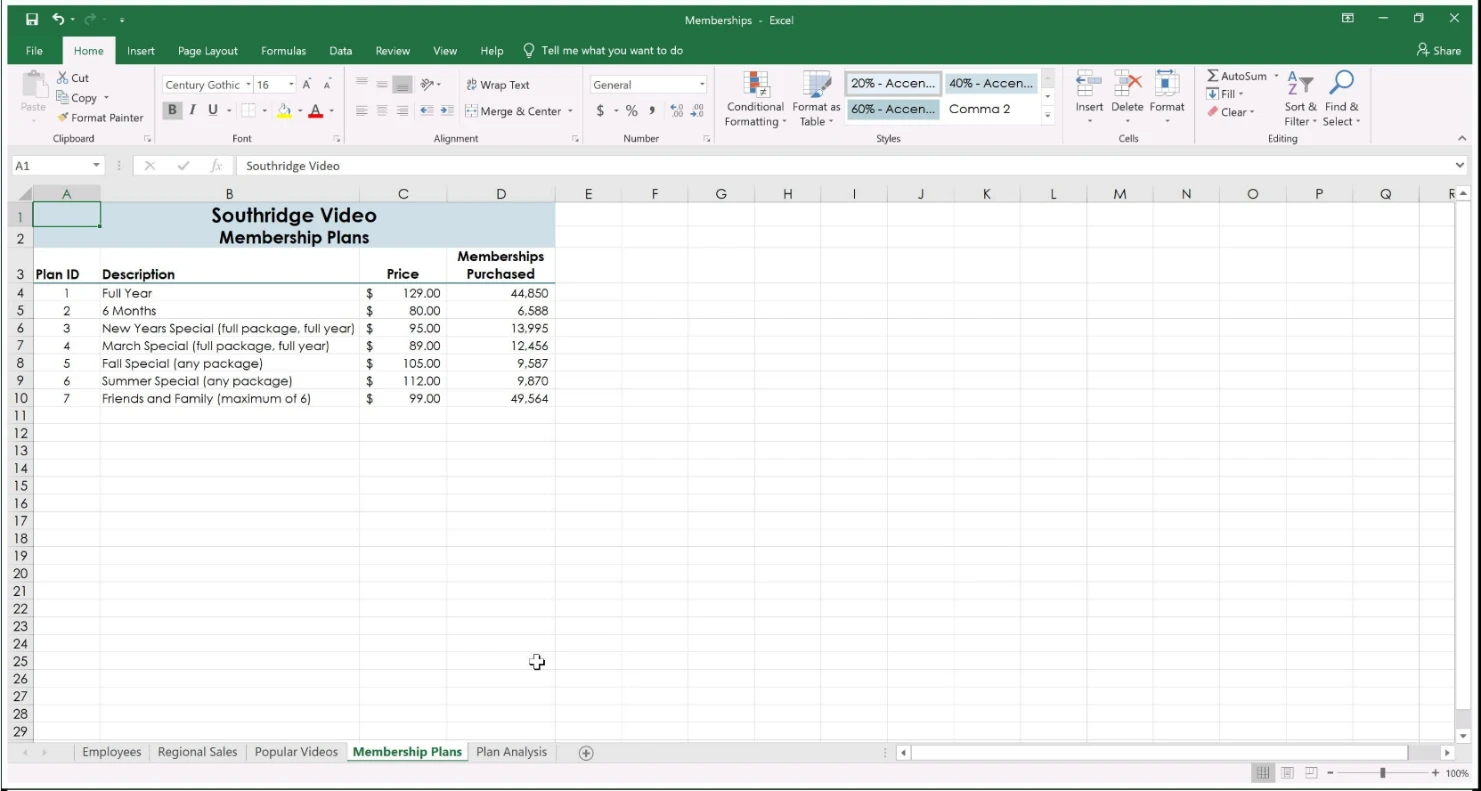
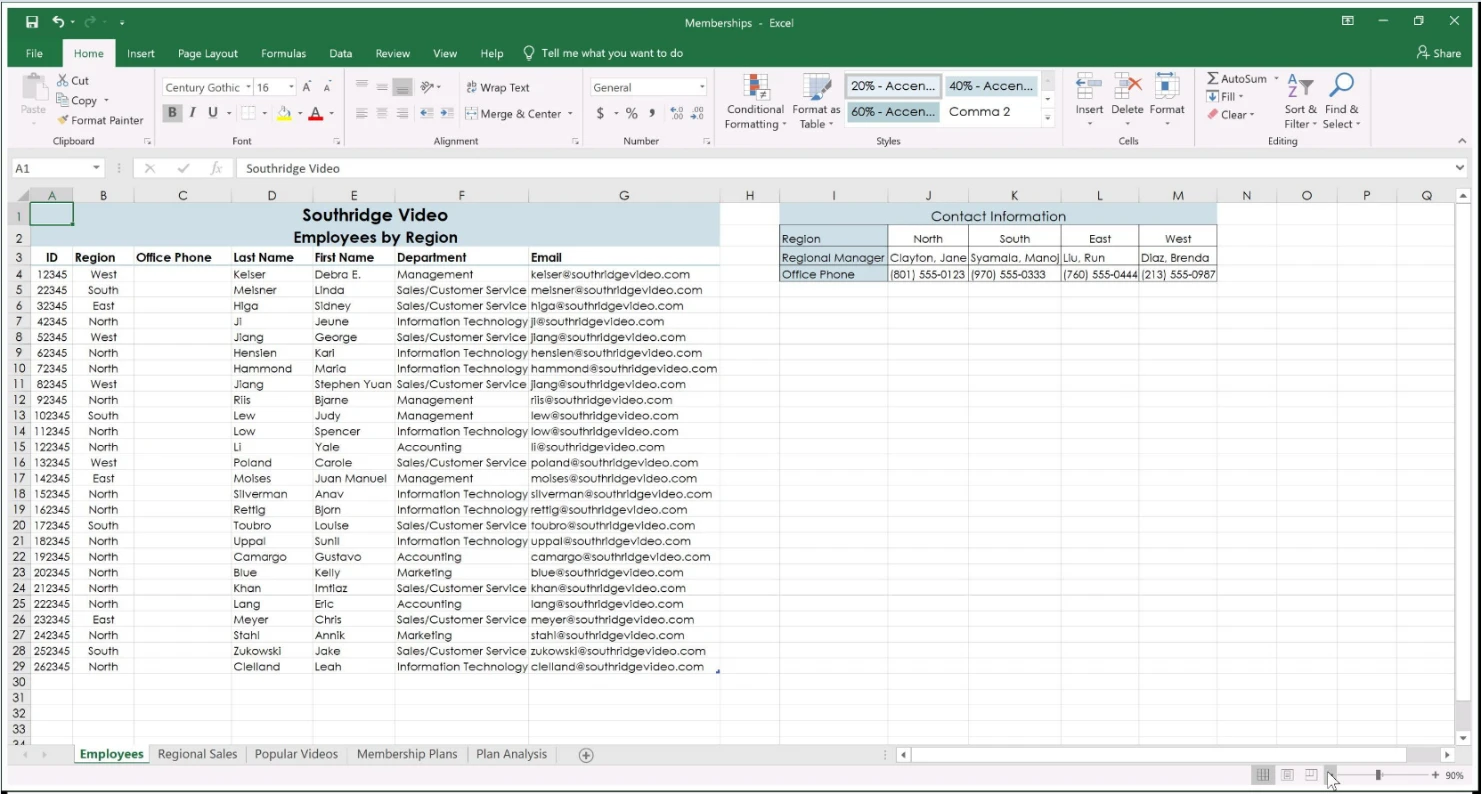
On the "Employees" worksheet, in cell C4, enter a formula that returns the office phone number from the "Contact_Information" cell range using an exact match for the "Region" in column B.
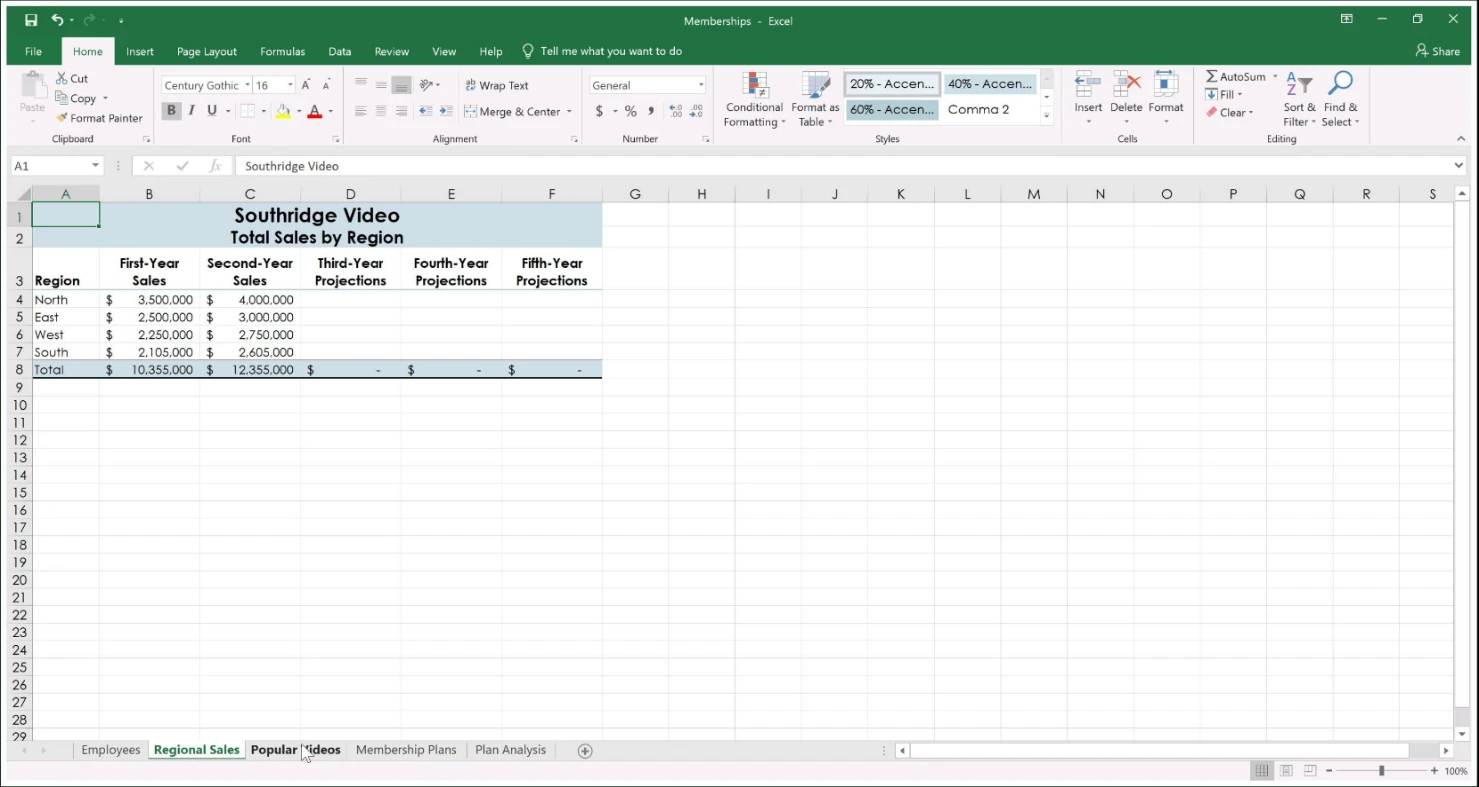
Exam MO-201: Question 6 - Image 5


Exam MO-201: Question 6 - Image 6


Exam MO-201: Question 6 - Image 7


Exam MO-201: Question 6 - Image 8


Exam MO-201: Question 6 - Image 9
Correct Answer:
Exam MO-201: Question 6 - Image 10
Question 7 of 24
SIMULATION -

Instructions -

Exam Environment -

Exam Interface and Controls -
The exam panel provides access to the project task(s). Each project has an associated file in which you will perform the project tasks.
Exam MO-201: Question 7 - Image 1
1. Project file
2. Split bar
3. Exam panel
You can modify the exam interface to fit your needs in the following ways:
✑ To increase or decrease the exam panel font size, press Ctrl+Plus or Ctrl+Minus.
✑ To change the height of the exam panel, drag the split bar between the project file and the exam panel.
Exam MO-201: Question 7 - Image 2
To minimize the exam panel, click the Collapse Panel arrow
in the upper-left corner of the exam panel. The minimized exam panel displays the Expand
Exam MO-201: Question 7 - Image 3
Panel button, the project number and name, the remaining time, and the Restart Project and Submit Project buttons. To move between tasks, you must expand the exam panel.
✑ To restore the interface to the default appearance, click the Restore button near the upper-right corner of the exam panel.
Exam MO-201: Question 7 - Image 4
4. The Information bar at the top of the exam panel displays the current project and total number of projects, the remaining exam time, and the following commands:
✑ Collapse Panel. Minimizes the exam panel to provide more space for the project file.
✑ Restart Project. Closes and reopens the current project file without saving your changes.
✑ Submit Project. Saves your changes, submits the project file, and moves to the next project.
✑ Calculator. A calculator is available in some exams. You are not required to use the calculator.
✑ Restore. Restores the size and position of the project file and exam panel to the defaults.
✑ Help. Displays information about the exam interface.
5. The Content area displays the task tabs and the current task description.
6. The Navigation area at the bottom of the exam panel contains the following commands.
✑ Previous Task/Next Task. Saves your response and moves to the previous or next task in the current project.
✑ Leave feedback after exam. Flags the task to indicate that you want to leave feedback about it after the exam.
✑ Mark for review. Flags the task to indicate that you want to return to it before you finish the exam.
✑ Mark as complete. Flags the task to indicate that you feel you have completed the task.
In projects that contain multiple tasks, you can switch between tasks by clicking the task tab, Next Task button, or Previous Task button.
End of the instructions.
From the "Employees" worksheet, create a macro named "Header". Store the macro in the current workbook. Configure the macro to insert the "Sheet Name" in the left header cell of the active page and the "Page Number" in the right header cell.

Exam MO-201: Question 7 - Image 5


Exam MO-201: Question 7 - Image 6


Exam MO-201: Question 7 - Image 7


Exam MO-201: Question 7 - Image 8


Exam MO-201: Question 7 - Image 9

Correct Answer:
Reference:
https://support.microsoft.com/en-us/office/show-the-developer-tab-e1192344-5e56-4d45-931b-e5fd9bea2d45 https://support.microsoft.com/en-us/office/quick-start-create-a-macro-741130ca-080d-49f5-9471-1e5fb3d581a8 Exam MO-201: Question 7 - Image 10
Question 8 of 24
SIMULATION -

Instructions -

Exam Environment -

Exam Interface and Controls -
The exam panel provides access to the project task(s). Each project has an associated file in which you will perform the project tasks.
Exam MO-201: Question 8 - Image 1
1. Project file
2. Split bar
3. Exam panel
You can modify the exam interface to fit your needs in the following ways:
✑ To increase or decrease the exam panel font size, press Ctrl+Plus or Ctrl+Minus.
✑ To change the height of the exam panel, drag the split bar between the project file and the exam panel.
Exam MO-201: Question 8 - Image 2
To minimize the exam panel, click the Collapse Panel arrow
in the upper-left corner of the exam panel. The minimized exam panel displays the Expand
Exam MO-201: Question 8 - Image 3
Panel button, the project number and name, the remaining time, and the Restart Project and Submit Project buttons. To move between tasks, you must expand the exam panel.
✑ To restore the interface to the default appearance, click the Restore button near the upper-right corner of the exam panel.
Exam MO-201: Question 8 - Image 4
4. The Information bar at the top of the exam panel displays the current project and total number of projects, the remaining exam time, and the following commands:
✑ Collapse Panel. Minimizes the exam panel to provide more space for the project file.
✑ Restart Project. Closes and reopens the current project file without saving your changes.
✑ Submit Project. Saves your changes, submits the project file, and moves to the next project.
✑ Calculator. A calculator is available in some exams. You are not required to use the calculator.
✑ Restore. Restores the size and position of the project file and exam panel to the defaults.
✑ Help. Displays information about the exam interface.
5. The Content area displays the task tabs and the current task description.
6. The Navigation area at the bottom of the exam panel contains the following commands.
✑ Previous Task/Next Task. Saves your response and moves to the previous or next task in the current project.
✑ Leave feedback after exam. Flags the task to indicate that you want to leave feedback about it after the exam.
✑ Mark for review. Flags the task to indicate that you want to return to it before you finish the exam.
✑ Mark as complete. Flags the task to indicate that you feel you have completed the task.
In projects that contain multiple tasks, you can switch between tasks by clicking the task tab, Next Task button, or Previous Task button.
End of the instructions.
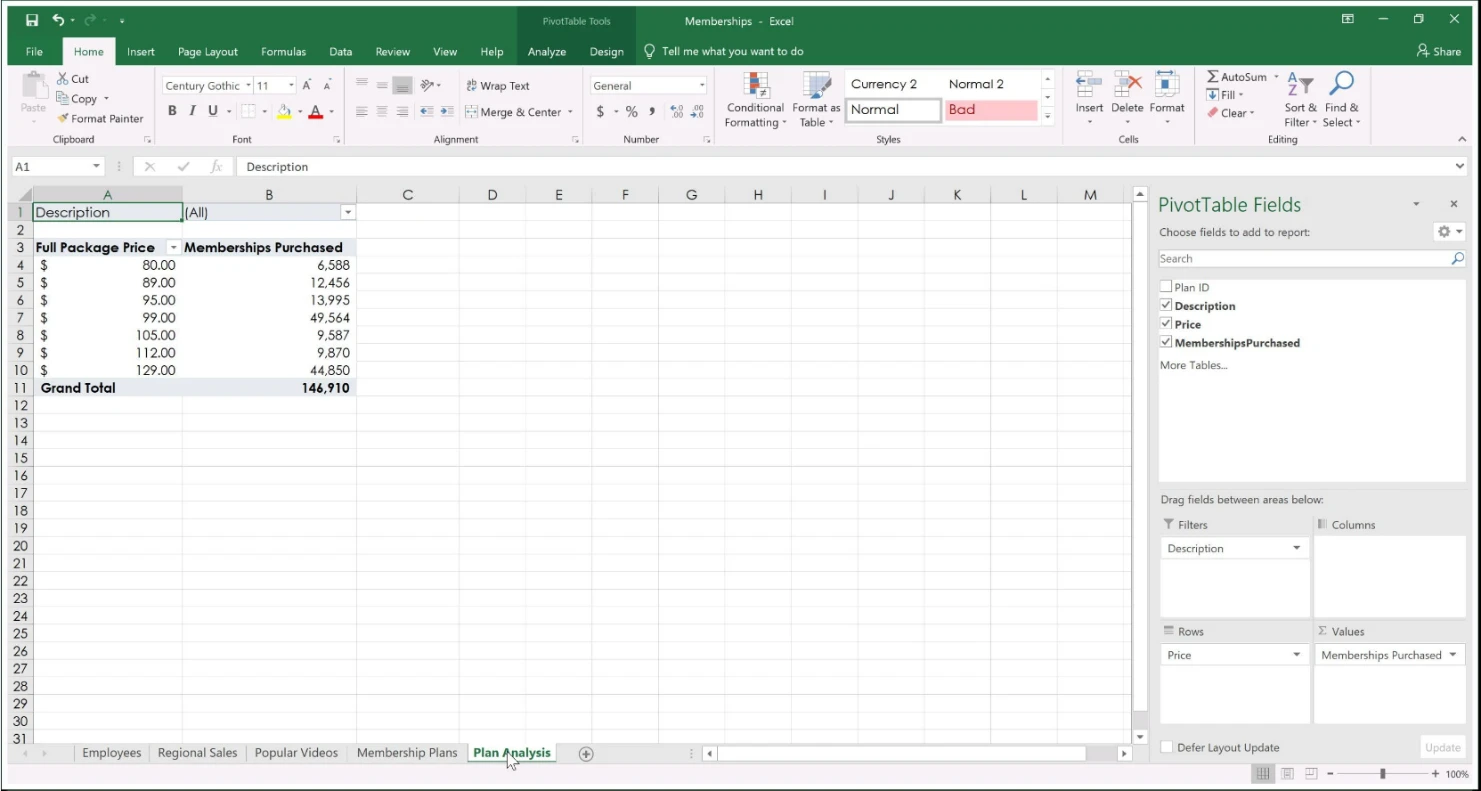
On the "Plan Analysis" worksheet, modify the PivotTable to group the data by the values in the "Full Package Price" column. Group the values in steps of 100 beginning at 0 and ending at 200.

Exam MO-201: Question 8 - Image 5


Exam MO-201: Question 8 - Image 6


Exam MO-201: Question 8 - Image 7


Exam MO-201: Question 8 - Image 8


Exam MO-201: Question 8 - Image 9

Correct Answer:
Reference:
https://support.microsoft.com/en-us/office/group-or-ungroup-data-in-a-pivottable-c9d1ddd0-6580-47d1-82bc-c84a5a340725#:~:text=In%20the%20PivotTable%2C
%20right%2Dclick,edit%20the%20values%20if%20needed. Exam MO-201: Question 8 - Image 10
Question 9 of 24
SIMULATION -

Instructions -

Exam Environment -

Exam Interface and Controls -
The exam panel provides access to the project task(s). Each project has an associated file in which you will perform the project tasks.
Exam MO-201: Question 9 - Image 1
1. Project file
2. Split bar
3. Exam panel
You can modify the exam interface to fit your needs in the following ways:
To increase or decrease the exam panel font size, press Ctrl+Plus or Ctrl+Minus.
To change the height of the exam panel, drag the split bar between the project file and the exam panel.
Exam MO-201: Question 9 - Image 2
To minimize the exam panel, click the Collapse Panel arrow
in the upper-left corner of the exam panel. The minimized exam panel displays the Expand
Panel button, the project number and name, the remaining time, and the Restart Project and Submit Project buttons. To move between tasks, you must expand the exam panel.
To restore the interface to the default appearance, click the Restore button near the upper-right corner of the exam panel.
Exam MO-201: Question 9 - Image 3
4. The Information bar at the top of the exam panel displays the current project and total number of projects, the remaining exam time, and the following commands:
Collapse Panel. Minimizes the exam panel to provide more space for the project file.
Restart Project. Closes and reopens the current project file without saving your changes.
Submit Project. Saves your changes, submits the project file, and moves to the next project.
Calculator. A calculator is available in some exams. You are not required to use the calculator.
Restore. Restores the size and position of the project file and exam panel to the defaults.
Help. Displays information about the exam interface.
5. The Content area displays the task tabs and the current task description.
6. The Navigation area at the bottom of the exam panel contains the following commands.
Previous Task/Next Task. Saves your response and moves to the previous or next task in the current project.
Leave feedback after exam. Flags the task to indicate that you want to leave feedback about it after the exam.
Mark for review. Flags the task to indicate that you want to return to it before you finish the exam.
Mark as complete. Flags the task to indicate that you feel you have completed the task.
In projects that contain multiple tasks, you can switch between tasks by clicking the task tab, Next Task button, or Previous Task button.
End of the instructions.
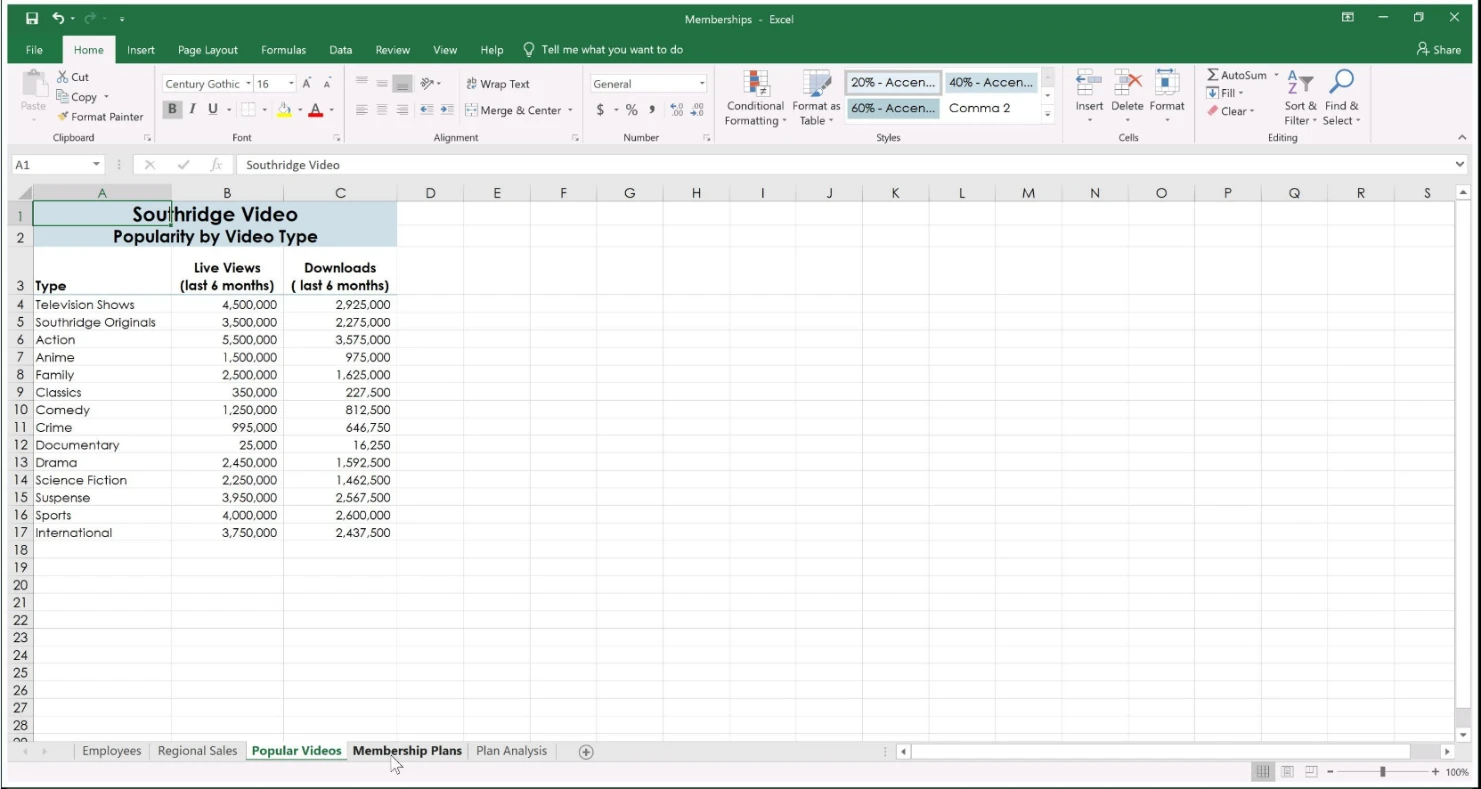
On the "Popular Videos" worksheet, for cells B4:C17, create a conditional formatting rule that displays the five lowest values in bold Dark Red font.


Exam MO-201: Question 9 - Image 4


Exam MO-201: Question 9 - Image 5


Exam MO-201: Question 9 - Image 6


Exam MO-201: Question 9 - Image 7


Exam MO-201: Question 9 - Image 8
Correct Answer:
Reference:
https://trumpexcel.com/excel-conditional-formatting/ Exam MO-201: Question 9 - Image 9
Question 10 of 24
SIMULATION -

Instructions -

Exam Environment -

Exam Interface and Controls -
The exam panel provides access to the project task(s). Each project has an associated file in which you will perform the project tasks.
Exam MO-201: Question 10 - Image 1
1. Project file
2. Split bar
3. Exam panel
You can modify the exam interface to fit your needs in the following ways:
To increase or decrease the exam panel font size, press Ctrl+Plus or Ctrl+Minus.
To change the height of the exam panel, drag the split bar between the project file and the exam panel.
Exam MO-201: Question 10 - Image 2
To minimize the exam panel, click the Collapse Panel arrow
in the upper-left corner of the exam panel. The minimized exam panel displays the Expand
Panel button, the project number and name, the remaining time, and the Restart Project and Submit Project buttons. To move between tasks, you must expand the exam panel.
To restore the interface to the default appearance, click the Restore button near the upper-right corner of the exam panel.
Exam MO-201: Question 10 - Image 3
4. The Information bar at the top of the exam panel displays the current project and total number of projects, the remaining exam time, and the following commands:
Collapse Panel. Minimizes the exam panel to provide more space for the project file.
Restart Project. Closes and reopens the current project file without saving your changes.
Submit Project. Saves your changes, submits the project file, and moves to the next project.
Calculator. A calculator is available in some exams. You are not required to use the calculator.
Restore. Restores the size and position of the project file and exam panel to the defaults.
Help. Displays information about the exam interface.
5. The Content area displays the task tabs and the current task description.
6. The Navigation area at the bottom of the exam panel contains the following commands.
Previous Task/Next Task. Saves your response and moves to the previous or next task in the current project.
Leave feedback after exam. Flags the task to indicate that you want to leave feedback about it after the exam.
Mark for review. Flags the task to indicate that you want to return to it before you finish the exam.
Mark as complete. Flags the task to indicate that you feel you have completed the task.
In projects that contain multiple tasks, you can switch between tasks by clicking the task tab, Next Task button, or Previous Task button.
End of the instructions.
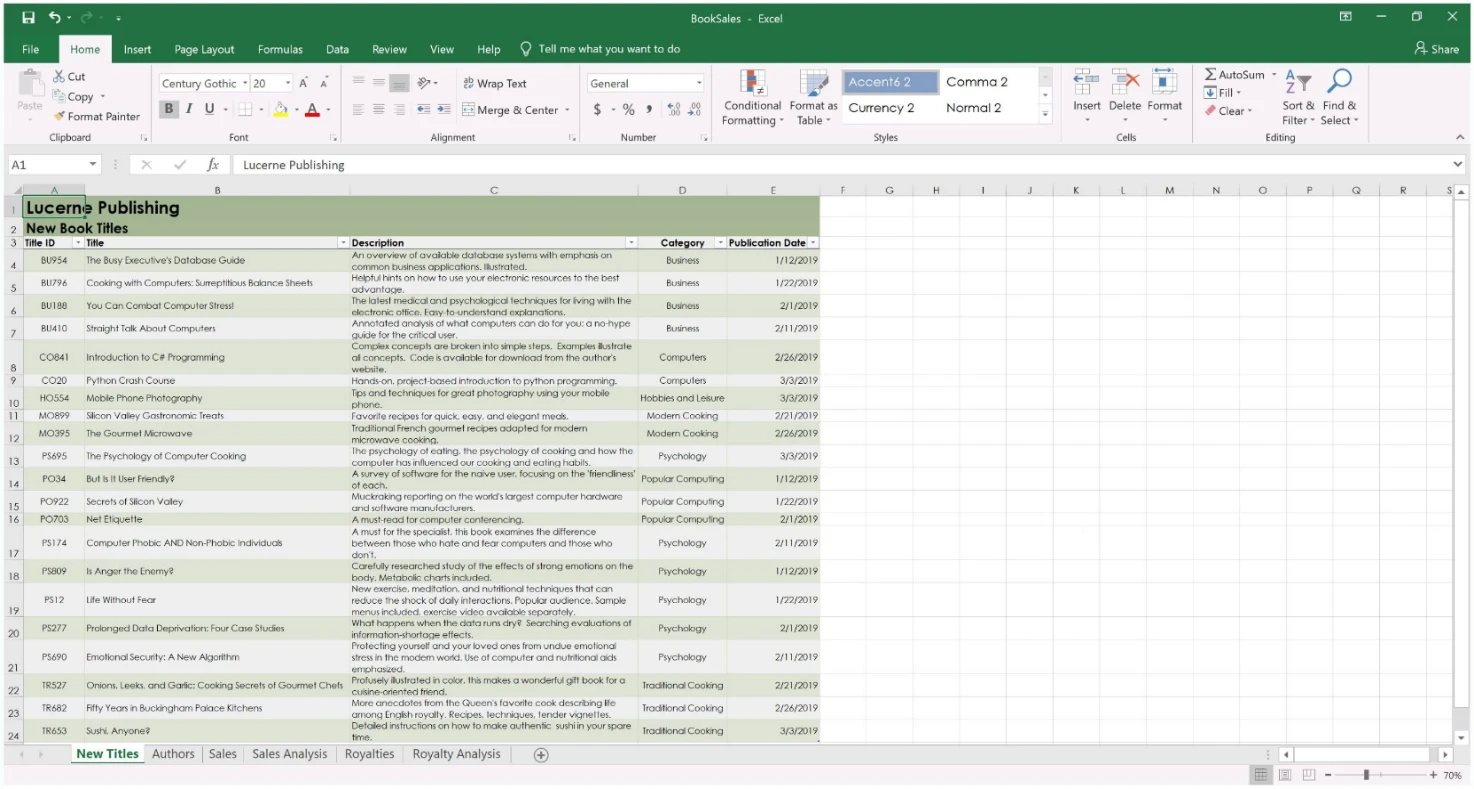
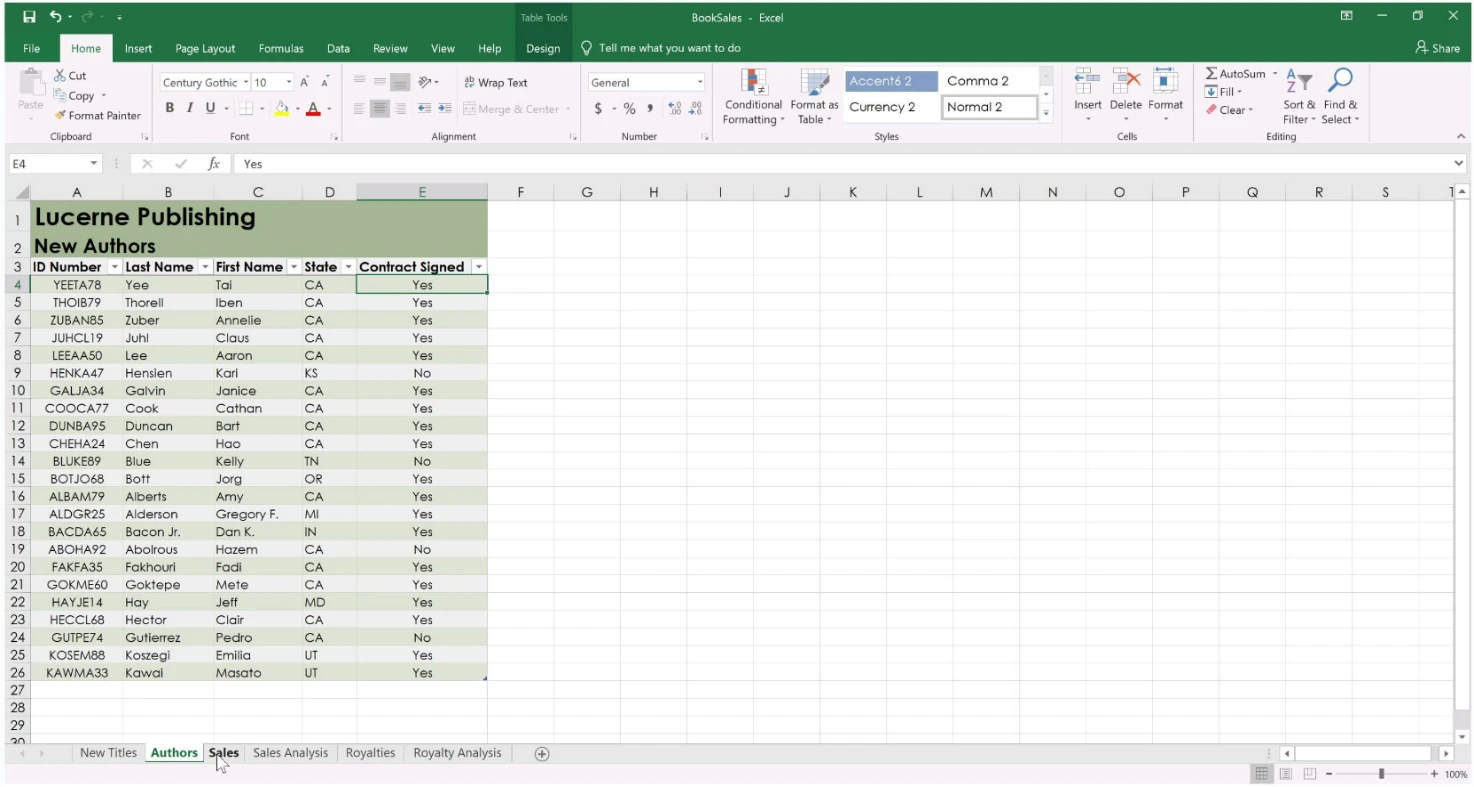
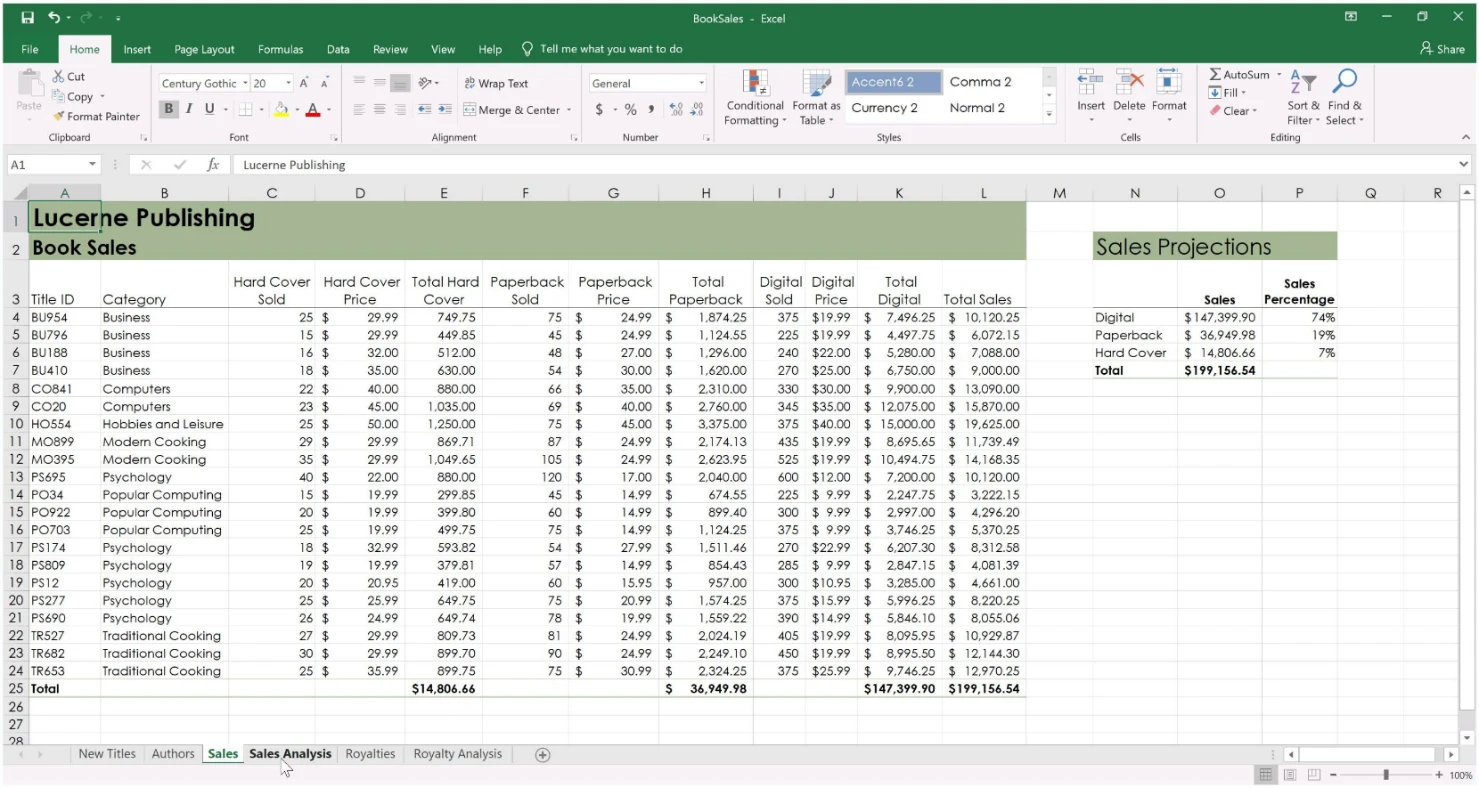
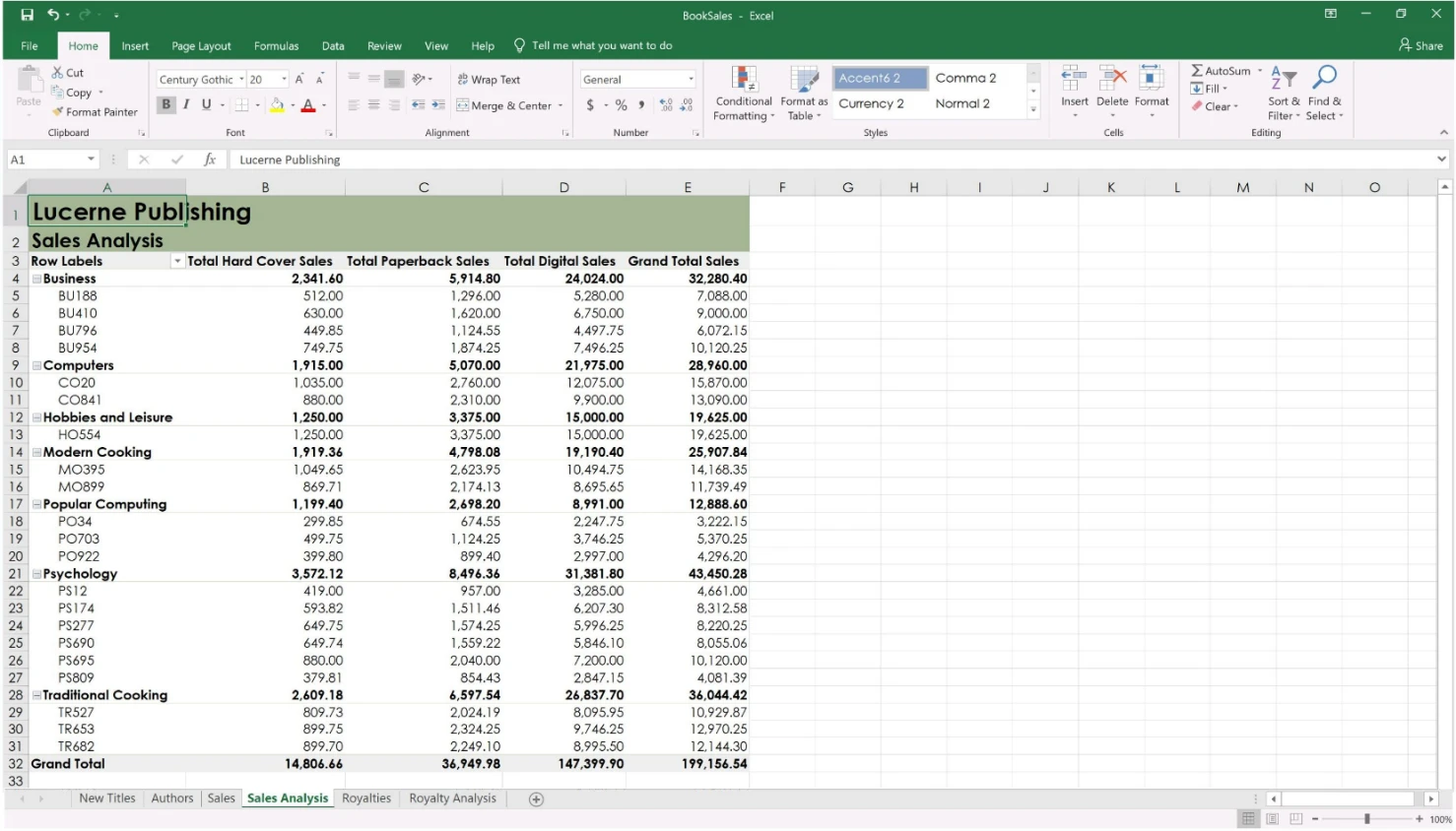
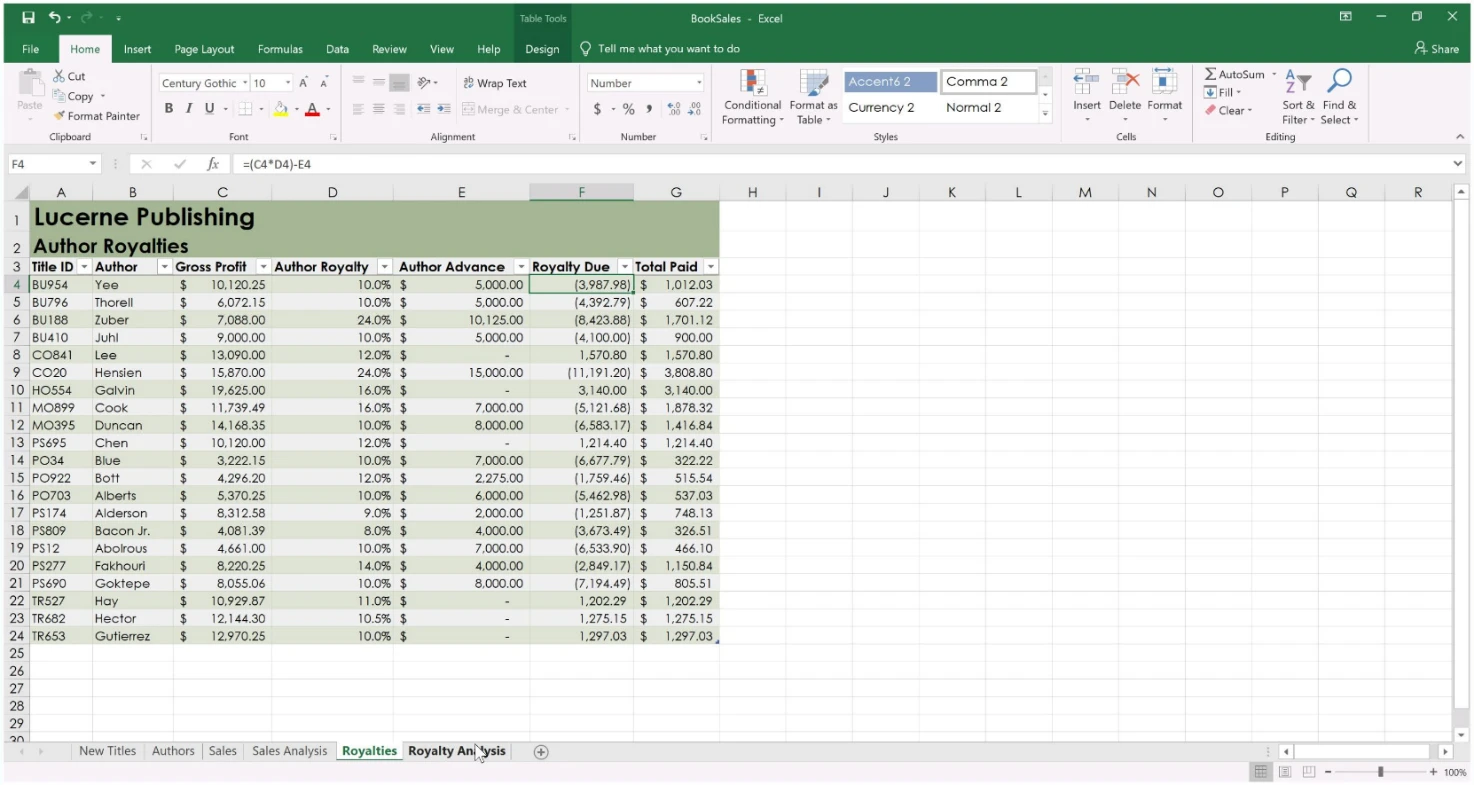
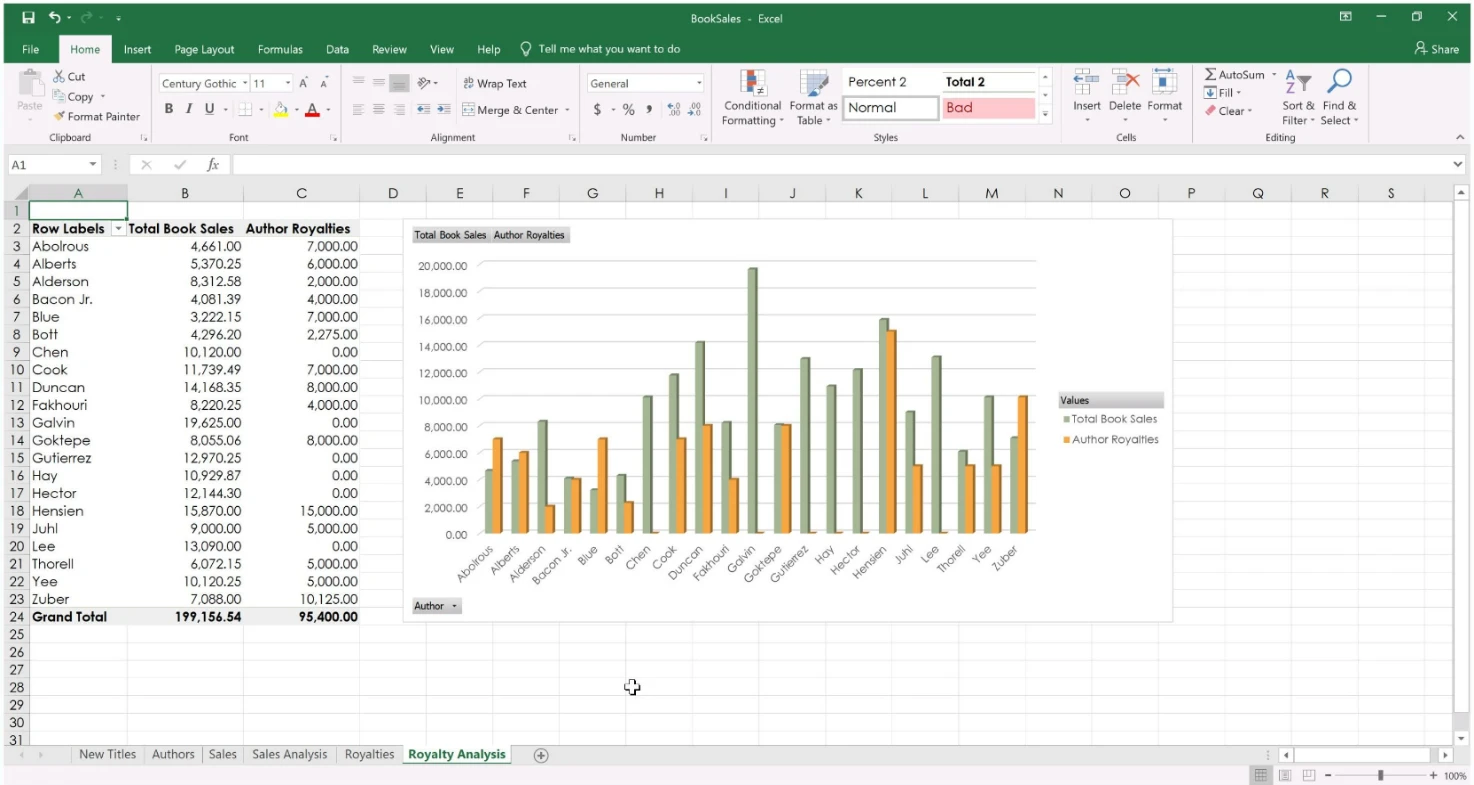
You work for Lucerne Publishing. You are compiling sales and royalty data for authors the company represents.
Configure Excel to disable all macros in the workbook without notification.

Exam MO-201: Question 10 - Image 4


Exam MO-201: Question 10 - Image 5


Exam MO-201: Question 10 - Image 6


Exam MO-201: Question 10 - Image 7


Exam MO-201: Question 10 - Image 8


Exam MO-201: Question 10 - Image 9

Correct Answer:
Reference:
https://support.microsoft.com/en-us/office/enable-or-disable-macros-in-office-files-12b036fd-d140-4e74-b45e-16fed1a7e5c6 Exam MO-201: Question 10 - Image 10